
Practical AI · 6 min read
Make your AI designs and writing match your brand
By Hank BarkerPublished
Give an AI your real logo, a few designs you like and examples of your writing. Have it identify the choices already present, ask about the choices that are missing, and turn your answers into a brand sheet plus instructions you can reuse. The example here is a fictional workshop business. The screenshots show the actual source review, interview and resulting files.
Give an AI your real logo, a few designs you like and examples of your writing. Have it identify the choices already present, ask about the choices that are missing, and turn your answers into a brand sheet plus instructions you can reuse. The example here is a fictional workshop business. The screenshots show the actual source review, interview and resulting files.
1. Start with assets that represent you
Use the original logo file when you have it. An SVG keeps its shapes sharp when resized; a transparent PNG can be useful in tools that do not accept SVG. Add two or three approved designs and writing samples. Tell the AI which examples represent your current brand and which are only inspiration.
For this demonstration, Claude Code could read a small practice folder containing maple-logo.svg, writing-preferences.md and an approved announcement. You can upload the same kinds of files in a chat. A desktop agent with folder access can also save the final sheet and organize the assets for you.
Do not present ten unrelated designs as equally authoritative. If your newest logo is green but an old flyer is navy, explain which one should govern new work. In our example, Claude noticed exactly that conflict and asked for a decision.
2. Ask it to inspect before designing
Inspect the supplied logo and approved writing examples. List the colors, fonts and other choices you can verify directly. Separate observations from suggestions. Ask me four questions about the audience and brand voice before creating a portable brand sheet and writing instructions.
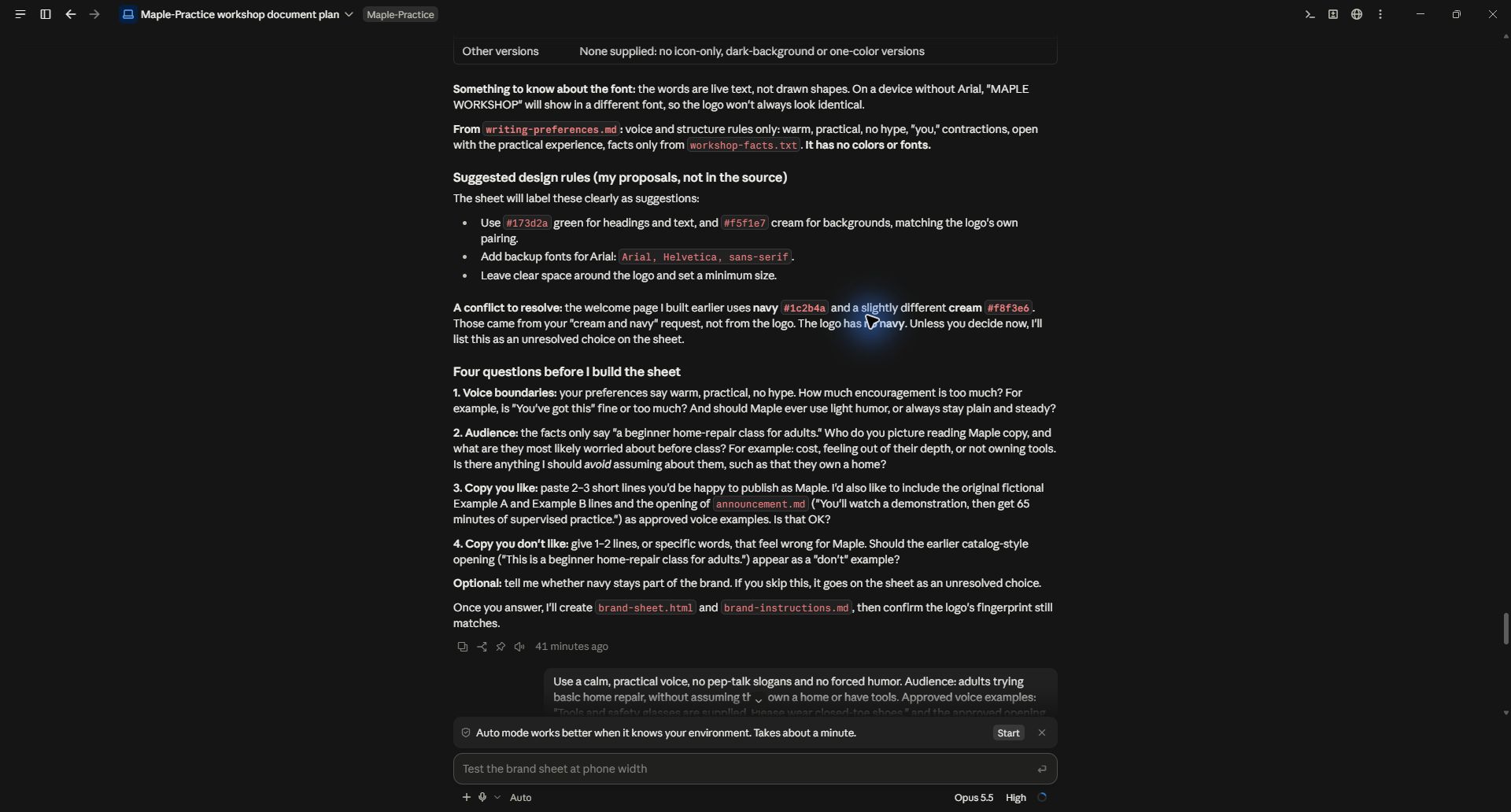
The actual review identified green and cream from the SVG, its Arial text, and a conflicting navy color in an older practice page. It did not treat the older page as an automatic brand rule.
With a vector file, exact color values can often be read from the source. With a photograph or screenshot, colors may be affected by lighting, compression or the display. Ask whether a value was read directly or estimated. Likewise, identifying a font from a picture is less certain than reading an explicit font setting.
3. Answer the voice questions with examples
“Professional but friendly” leaves a lot open. Describe who you are talking to, how you want the reader to feel, and language that would sound wrong coming from you. Include a couple of sentences you would happily use.
Our answers were specific: calm and practical, no pep-talk slogans or forced humor, and no assumption that attendees own a home or have tools. We approved these examples:
You'll watch a demonstration, then get 65 minutes of supervised practice.
Tools and safety glasses are supplied. Please wear closed-toe shoes.
We also confirmed that green and cream should govern future designs, while the older navy files should remain unchanged. The prompt explicitly said that earlier experimental writing samples were not approved promises. This matters because a sample can sound appealing while promising something the business does not provide.
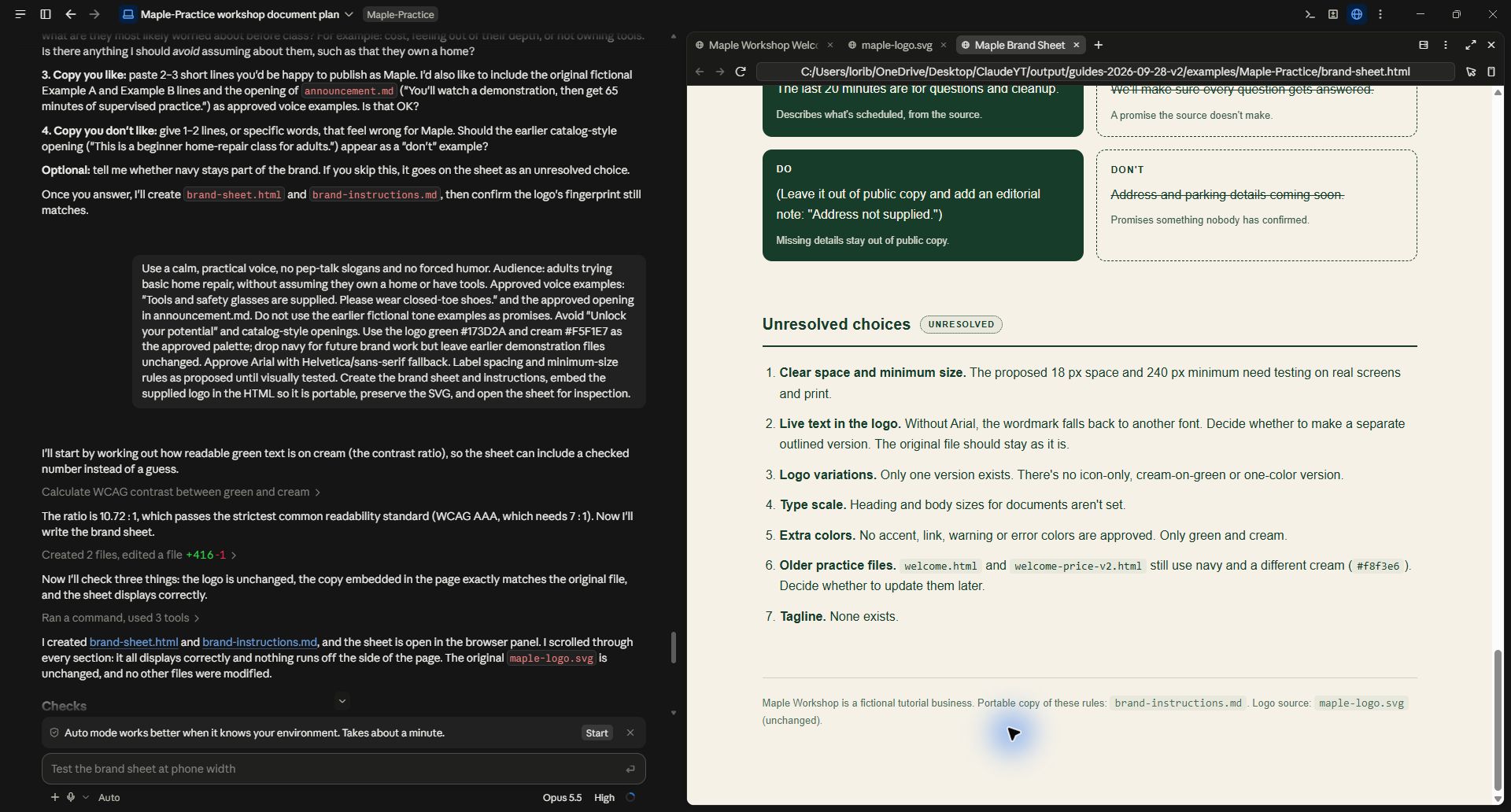
The follow-up gives clear decisions, approved wording and the instruction to preserve older files.
If you are unsure about your voice, ask for three short versions of the same paragraph. Choose the closest one and explain what to keep or change. Save the resulting decisions, rather than keeping all three versions as equally valid references.
4. Create two portable outputs
Ask for a visual brand sheet and a plain-language instruction file. The sheet makes it easy for a person to see the logo, palette and type choices. The instruction file makes the rules easy to reuse in another AI conversation.
Our generated sheet includes the original logo, exact colors, a font stack, voice examples, do/don't examples and unresolved decisions. The instructions include the SVG source as well as its filename. That makes the text file more portable, although you should still supply the original logo asset to a tool that needs to place it in a design.
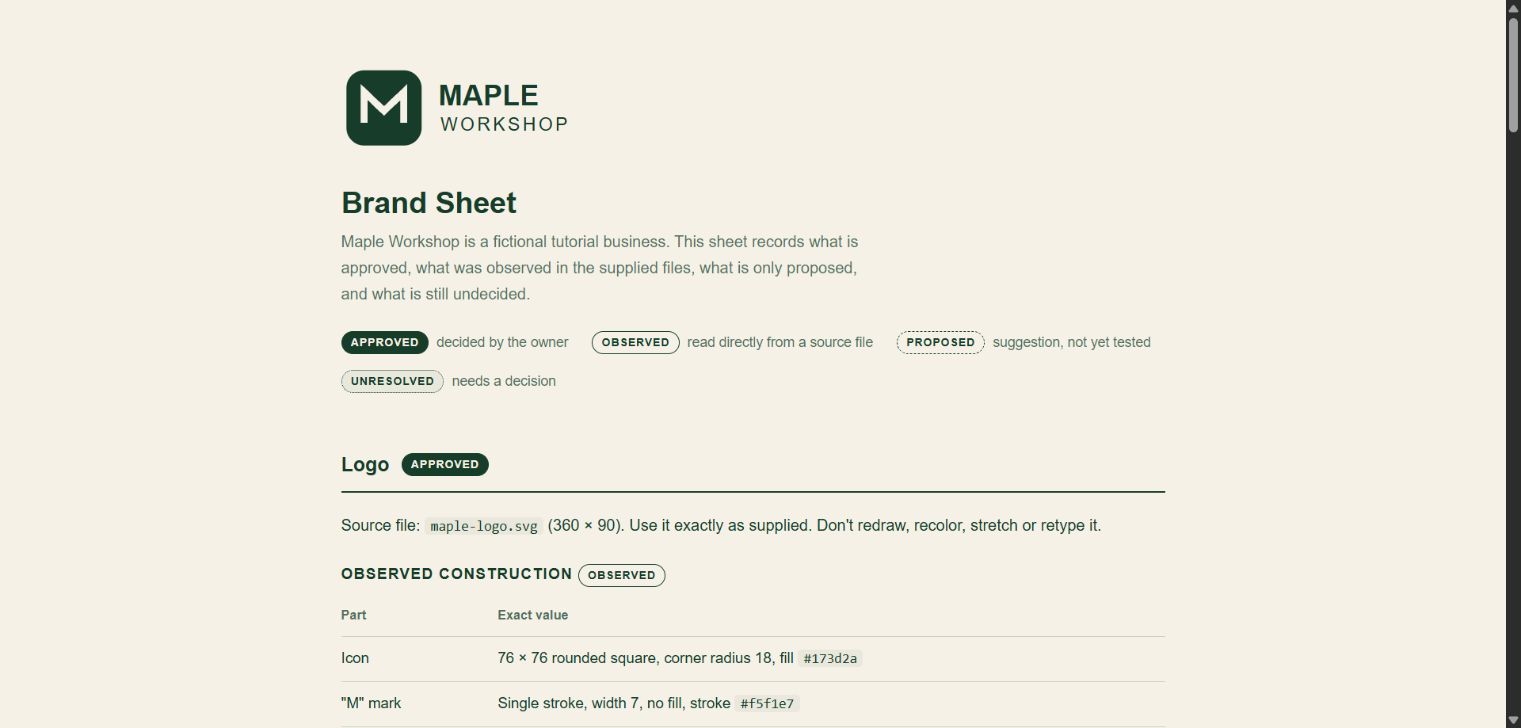
This is the output created after the interview. Approved choices, observed properties and untested suggestions have different labels.
Ask the AI to distinguish three things: what you approved, what it observed in your materials, and what it recommends. Our sheet proposes minimum logo size and clear space, but labels them as untested. Those suggestions should not quietly become established brand standards.
5. Review the sheet in a real use case
Open the file and check that the logo is intact, the colors match your source, and the voice examples sound like you. Check that the sheet does not introduce a tagline, extra palette or invented business promise.
Then use it on a small task:
Use this brand sheet, instruction file and original logo to create a one-page event announcement. Use only the supplied event facts. Before producing the final version, tell me which brand rules you applied and flag any rule the output format cannot support.
This is a suggested next test, not an additional demonstrated design in this walkthrough. A useful test would expose practical gaps: whether the logo stays legible at the chosen size, whether the font exists in the destination tool, and whether headings remain clear on a phone or printed page.
In our sample, the logo uses live Arial text. If Arial is unavailable, its appearance may change. Keep the original untouched and have a designer or appropriate tool create a separate outlined version if you need consistent logo lettering across environments. Do not ask an image model to redraw a precise logo and assume it will remain identical.
6. Keep the reusable folder small
A practical folder can contain the original logo, the brand sheet, the instruction file and two approved examples. Give it a revision date. Put outdated examples somewhere clearly marked so the AI does not mix competing versions.
When you start a new chat or project, attach the current instructions and assets or place them in that project's accessible folder. A file saved on your computer is not automatically available to every AI tool. Tell the tool what to read and ask it to summarize the important rules before starting a large batch.
Revise the instructions when you make a real decision. If you repeatedly reject slogan-like openings, add the preferred alternative and an example. That gives future work a concrete reference.
Files and tested scope
Open the generated brand sheet, read the portable instructions, and download the original example logo.

Claude Code inspected the supplied files, asked questions and generated both outputs in the real demonstration. The sheet was opened in a browser. The proposed minimum sizes and print behavior still need destination-specific testing; the guide does not present them as verified standards for your brand.
Keep a copy of the guide
Download the PDF to keep the steps and prompts handy while you work.
Put this to work with your team
I’m Hank Barker, founder of PriorAIty. I help Michigan teams build useful AI habits through hands-on training and adoption consulting, with in-person and virtual options.
Keep going
- Use ChatGPT, Claude or Copilot inside Excel
Open a copy of a workbook, ask the AI to explain its structure, then give it one specific change. Once you can check that change, move on to a summary, PivotTable or chart. This guide covers the three setup routes and gives you a small workbook with answers you can verify yourself.
- Get started with ChatGPT Work
Give Work a concrete assignment, inspect the file it produces, and refine it in the same conversation. This walkthrough starts with a small set of fictional workshop facts and ends with an editable Word checklist. It also shows a real first-draft mistake and the correction that fixed it.
- Claude Code for complete beginners
Start with a folder of notes and finish with a useful document you can open. You will choose the folder, ask Claude to inspect it, review a plan, correct a mistake, and create two files. No terminal commands are required for this desktop walkthrough.
Weekly AI guide
The Weekly AI Guide
One genuinely useful AI use case a week, whatever news matters, and what I've got coming up: free sessions, new guides, upcoming trainings.