
Practical AI · 8 min read
Get started with ChatGPT Work
By Hank BarkerPublished
Give Work a concrete assignment, inspect the file it produces, and refine it in the same conversation. This walkthrough starts with a small set of fictional workshop facts and ends with an editable Word checklist. It also shows a real first-draft mistake and the correction that fixed it.
Give Work a concrete assignment, inspect the file it produces, and refine it in the same conversation. This walkthrough starts with a small set of fictional workshop facts and ends with an editable Word checklist. It also shows a real first-draft mistake and the correction that fixed it.
Choose a task with a clear finish line
“Help me prepare for a workshop” leaves too many decisions open. “Create an attendee checklist from these confirmed facts and return a Word document” gives Work an output you can inspect.
For your first task, use information you know well. A short document, a comparison of a few files, or a small spreadsheet is easier to check than an entire business system. Decide who will read the result, what they need to do, and which facts must stay exact.
Our example is Maple Workshop, a fictional beginner home-repair class. The date, price, equipment, and schedule are supplied. The street address, parking information, and booking link are missing. Work should mark those gaps rather than fill them with plausible details.
1. Find Work in your account
Open ChatGPT and select Work in the composer. The demonstration uses the web experience. If your account's controls differ, use the current Work and Codex setup page to check the available route and plan requirements.
Work on the web and local work in the desktop app do not have identical access. A web task can use the material you supply and supported connected sources. It does not automatically see every folder on your computer. Start with a self-contained example before connecting more information.
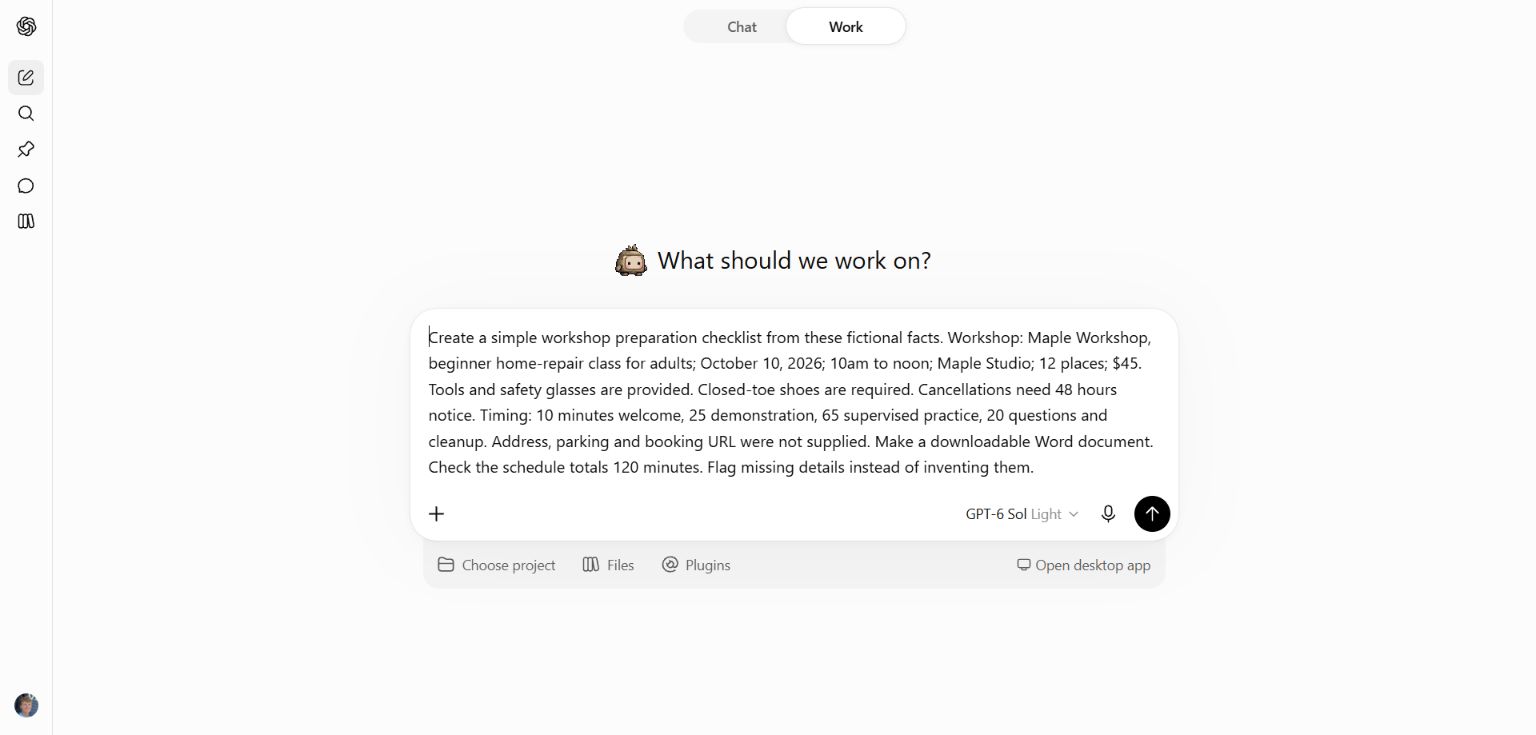
Work is selected at the top. The request supplies the facts, asks for a Word file, and tells it how to handle missing information.
2. Supply enough information to produce the result
You can paste short source material or attach files through the add-files control. For a longer project, label the files clearly: current facts, previous version, examples, and supporting research. Tell Work which source wins if two versions disagree.
The demonstration began with this request:
Create a simple workshop preparation checklist from these fictional facts. Workshop: Maple Workshop, beginner home-repair class for adults; October 10, 2026; 10am to noon; Maple Studio; 12 places; $45. Tools and safety glasses are provided. Closed-toe shoes are required. Cancellations need 48 hours notice. Timing: 10 minutes welcome, 25 demonstration, 65 supervised practice, 20 questions and cleanup. Address, parking and booking URL were not supplied. Make a downloadable Word document. Check the schedule totals 120 minutes. Flag missing details instead of inventing them.
Notice what this prompt does well: it names the output and provides exact facts. Notice what it leaves unclear: whether the checklist is for the organizer or the attendee. That omission affected the first result.
For your own first attempt, add “Write for the attendee” from the start. A detailed prompt is useful when its details remove important ambiguity, not simply because it is long.
3. Watch for questions and inspect the actual file
Work may take time to create and check a file. Look for a finished output card or preview. Open the document itself instead of relying only on the completion message.
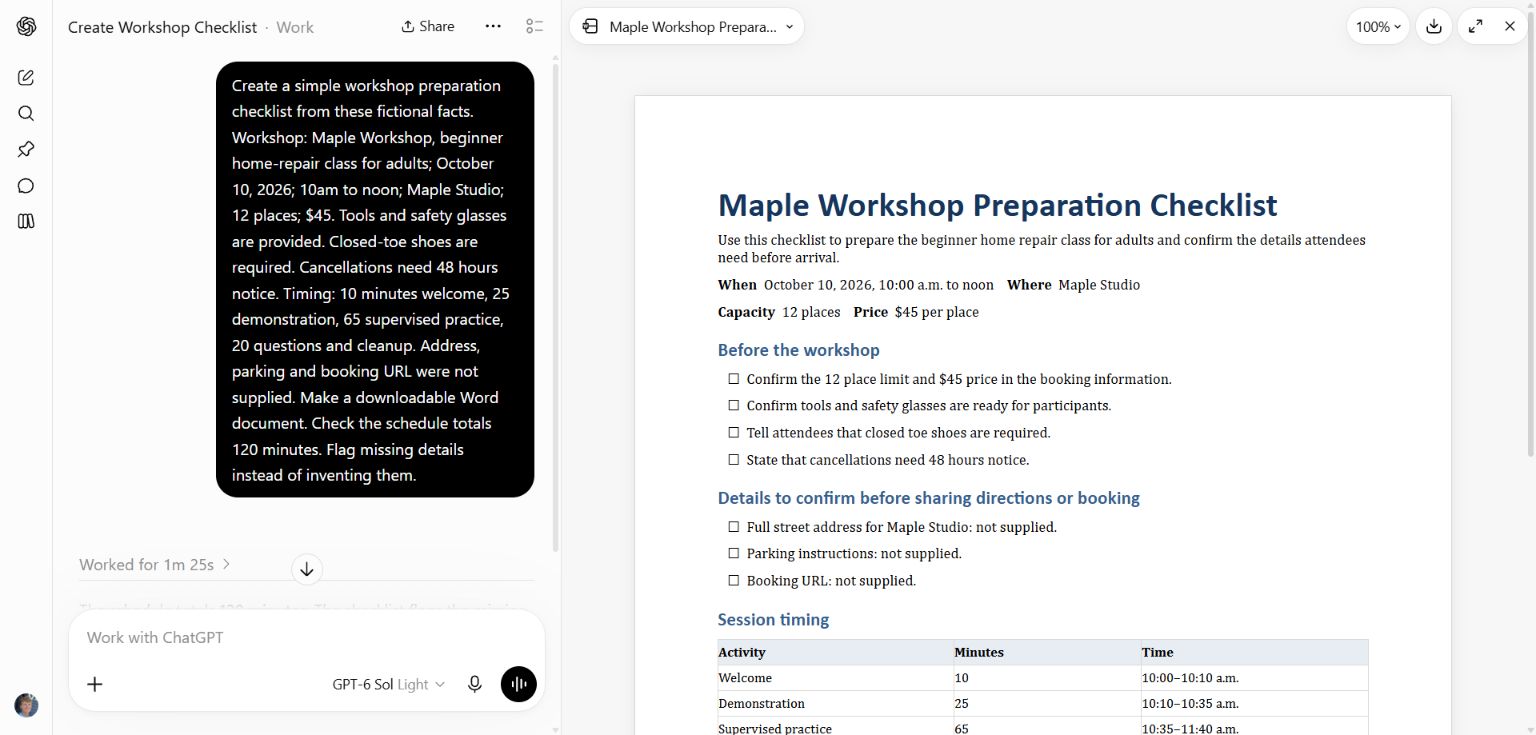
The first version told the reader to confirm the place limit and prepare equipment. Those are organizer tasks, so the document needed an audience correction.
The first draft had the correct schedule and flagged the missing details. Its main problem was who it was talking to. This is a good example of a result that is factually close but still unsuitable for its intended reader.
Check three things before giving feedback: are the facts correct, is the content useful to this reader, and is the file readable? Those are different questions. A polished layout can still contain the wrong instructions.
4. Give feedback that names the problem
Revise this for the attendee, not the organizer. Replace organizer tasks such as confirming the place limit with a short participant checklist: wear closed-toe shoes; tools and safety glasses are provided, so no need to bring them. Keep the date, time, venue, price, cancellation notice and exact schedule. Put missing address, parking and booking link in a clearly marked “Details not supplied” box. Use a friendlier opening. Return a new DOCX named Maple Workshop Attendee Checklist v2.docx, preserving the first version.
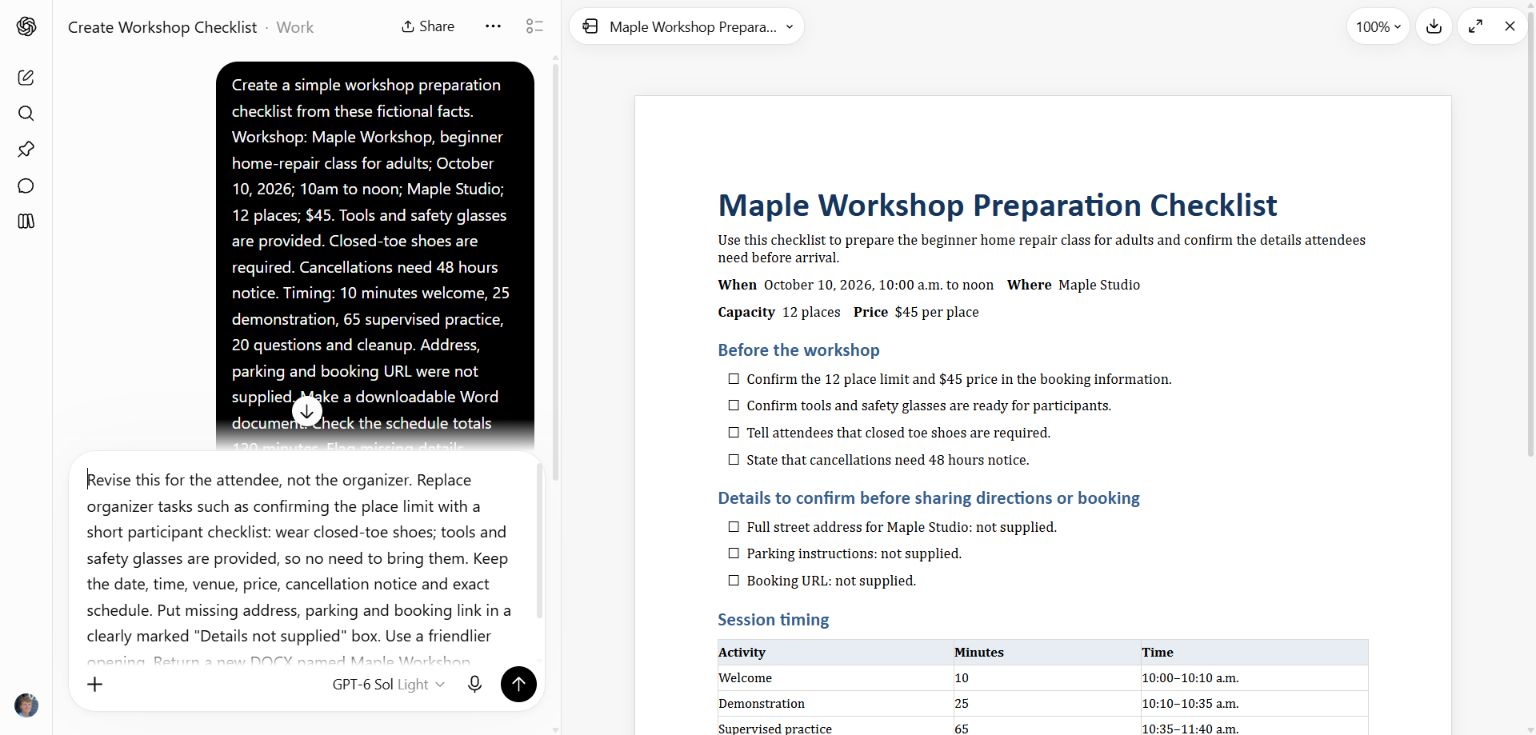
The revision identifies the wrong content, supplies its replacement, protects the correct facts, and requests a new version.
You can use the same pattern with a report or proposal: “This paragraph is too technical for a client,” “Show the recommendation before the background,” or “Keep the approved pricing table exactly as it is.” Give examples of the change you want when words such as professional or friendly could mean several different things.
5. Check the revised version
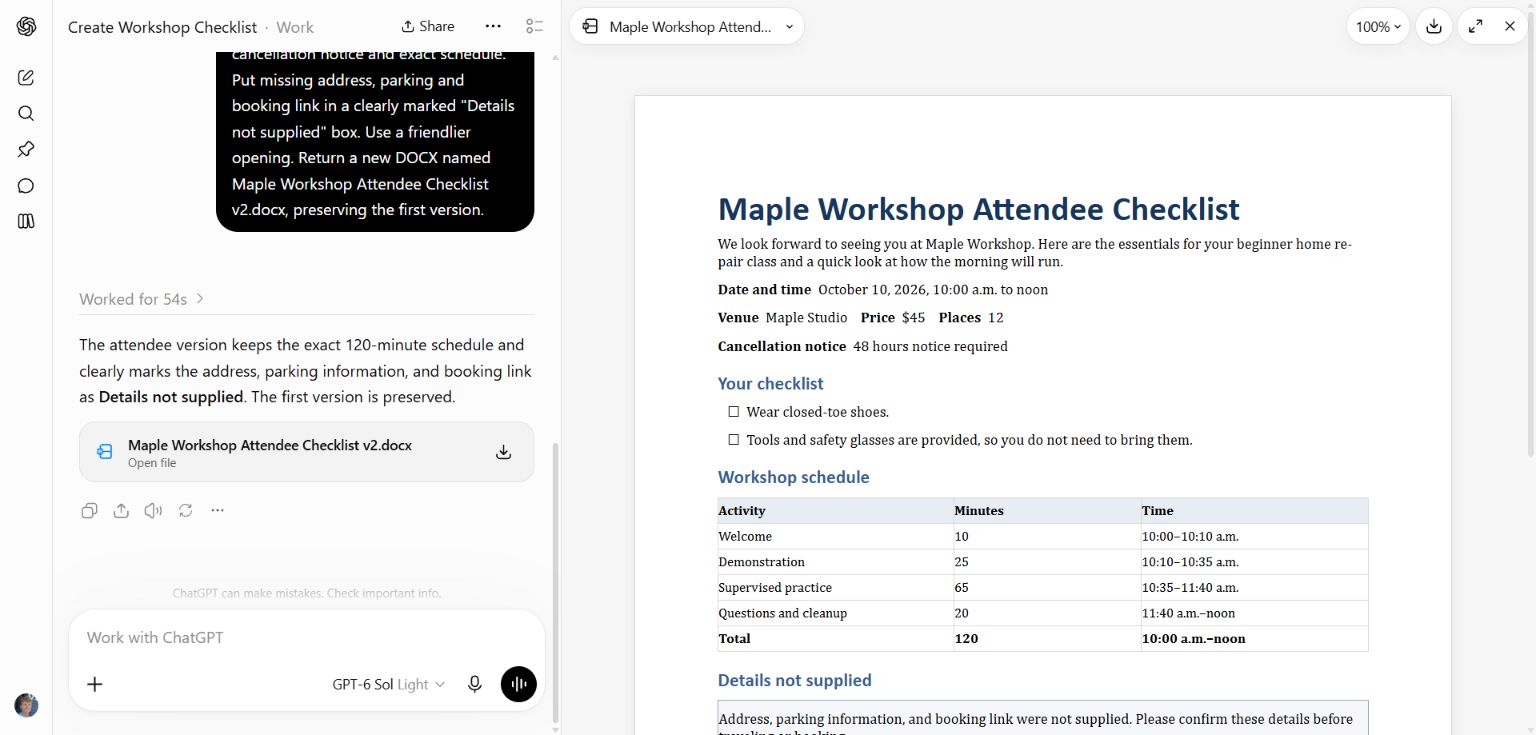
The new version addresses the attendee directly and retains the 120-minute schedule. The missing details are separated at the bottom.
Open the downloaded Word example. Confirm that the checklist now contains participant actions. Check the schedule: 10:00–10:10 welcome, 10:10–10:35 demonstration, 10:35–11:40 practice, and 11:40–noon questions and cleanup.
The arithmetic is 10 + 25 + 65 + 20 = 120. The resulting start and end times should agree with that total. The price should still be $45 and the capacity 12. Missing details should remain visibly missing.
Download the final file and open it in Word. Check page breaks and table layout there too. A successful browser preview and a successful download are separate checks. Save the version you approved with a clear filename so that you do not accidentally use the earlier draft.
6. Add files or connected sources when the task needs them
Use an upload for a one-off document. Use a supported app or connector when the information lives in a service you regularly use. Use the desktop route when the assignment needs local files and that access is available in your account.
Before relying on a connection, give Work a small access test:
Find the document named [exact title]. Tell me its title, source and date, and quote one short line that confirms you have the right file. Do not make changes yet.
If it cannot find the document, resolve that specific access problem. A connected account does not guarantee access to every file or every action. The available permissions and your organization's settings still matter.
For a folder task, name the input folder and the output folder. Say whether to edit originals or create copies. When several versions exist, identify the current version explicitly.
Useful next assignments
- Compare three proposals and show the evidence behind each difference.
- Turn meeting notes into an editable handover with open questions.
- Group customer feedback and keep comment IDs beside the themes.
- Build a training handout from your notes and approved examples.
- Create a presentation, then revise a small sample before expanding it.
A practical request includes the audience, source material, deliverable, constraints, and review criteria. You can speak those instructions naturally; they do not need to sound technical.
Common problems and fixes
It gives advice instead of a file: name the file type and ask for a downloadable deliverable. “Create a DOCX” is clearer than “help with a document.”
It adds facts you never supplied: ask it to list unsupported additions, remove them, and mark unresolved details. Check important claims against the original source yourself.
It produces the wrong tone: provide an example you like and explain what you want carried over, such as shorter paragraphs, direct instructions, or a friendlier opening.
You cannot find the output: look for the output card or preview and download control. Check that the download arrived before assuming the task is finished.
A task is too large: split it into a plan, a first deliverable, and revisions. Keep the main goal clear as you add feedback.
What was tested
The web Work example was executed on September 28, 2026. It created a Word file, displayed the preview, revised the audience and content, preserved the first version, and produced a downloaded v2 DOCX. The screenshots show that actual sequence. Desktop folder setup and additional app connections are alternate routes, not steps performed in this web demonstration.
Keep a copy of the guide
Download the PDF to keep the steps and prompts handy while you work.
Put this to work with your team
I’m Hank Barker, founder of PriorAIty. I help Michigan teams build useful AI habits through hands-on training and adoption consulting, with in-person and virtual options.
Keep going
- Use ChatGPT, Claude or Copilot inside Excel
Open a copy of a workbook, ask the AI to explain its structure, then give it one specific change. Once you can check that change, move on to a summary, PivotTable or chart. This guide covers the three setup routes and gives you a small workbook with answers you can verify yourself.
- Make your AI designs and writing match your brand
Give an AI your real logo, a few designs you like and examples of your writing. Have it identify the choices already present, ask about the choices that are missing, and turn your answers into a brand sheet plus instructions you can reuse. The example here is a fictional workshop business. The screenshots show the actual source review, interview and resulting files.
- Claude Code for complete beginners
Start with a folder of notes and finish with a useful document you can open. You will choose the folder, ask Claude to inspect it, review a plan, correct a mistake, and create two files. No terminal commands are required for this desktop walkthrough.
Weekly AI guide
The Weekly AI Guide
One genuinely useful AI use case a week, whatever news matters, and what I've got coming up: free sessions, new guides, upcoming trainings.