
Practical AI · 5 min read
Create professional documents with AI
By Hank BarkerPublished
Create a document people can use, then check both its wording and its layout. This walkthrough turns a small set of workshop facts into a Word welcome pack. It shows the original request, a schedule correction, and a second review that caught unsupported wording in an otherwise polished document.
Create a document people can use, then check both its wording and its layout. This walkthrough turns a small set of workshop facts into a Word welcome pack. It shows the original request, a schedule correction, and a second review that caught unsupported wording in an otherwise polished document.
1. Define who the document is for
Before opening the AI, decide who will read the file and what they need to do with it. An attendee checklist, an internal operating procedure and a proposal need different information. Tell the AI the audience explicitly.
For this example, the reader is an adult attending a first workshop. They need the confirmed event details, supplied equipment, required shoes, schedule and preparation information. They do not need organizer tasks such as confirming the venue capacity.
Gather the source facts in one place. If you supply multiple files, identify the current version and any examples that are for style only. Tell the AI to mark missing information rather than inventing it.
2. Ask for the actual format you need
The demonstrated request asked for a two-page DOCX with real Word heading styles, a clean table, forest green headings and warm cream accents. It also asked the AI to inspect the page count and layout before returning the file.
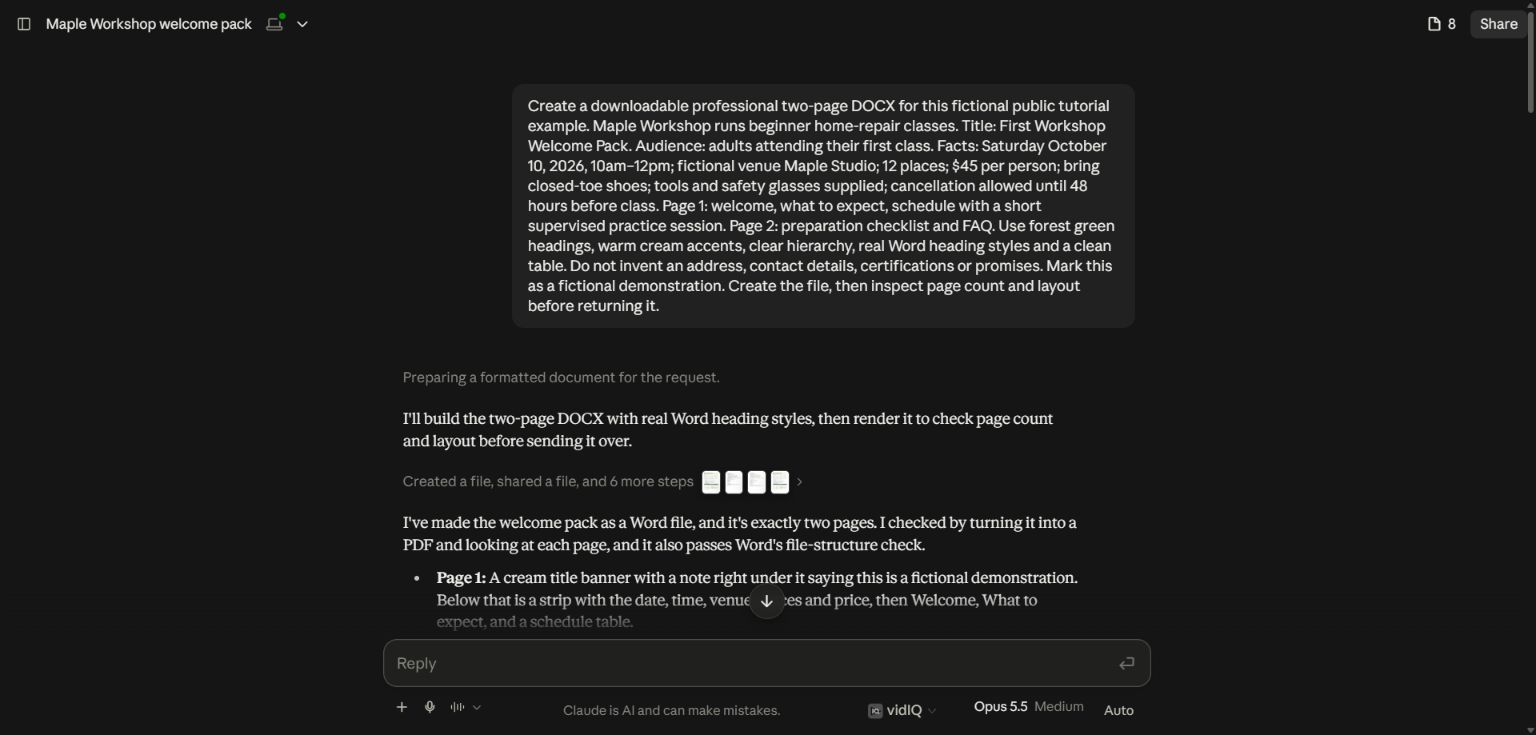
The request supplies the audience, confirmed facts, page purposes and editable format.
For your own document, adapt this structure:
Create an editable Word document for [reader] to help them [task]. Use the attached facts as the source of truth. Include [sections]. Use clear Word heading styles, readable body text and a table only where it helps comparison. Mark missing details. Return a DOCX and a PDF preview, and inspect every page for overflow or awkward breaks.
Specify a length only when it serves the reader. A one-page checklist and a ten-page operating guide should not be squeezed into the same template. If the information needs another page, ask the AI to explain the tradeoff rather than shrinking the text until it becomes difficult to read.
3. Review the content before admiring the formatting
The first welcome pack looked organized, but it estimated a schedule because the original prompt did not give exact durations. Later, the approved presentation used 10 minutes welcome, 25 demonstration, 65 practice and 20 questions and cleanup. The two files disagreed.
We gave a precise correction rather than regenerating everything:
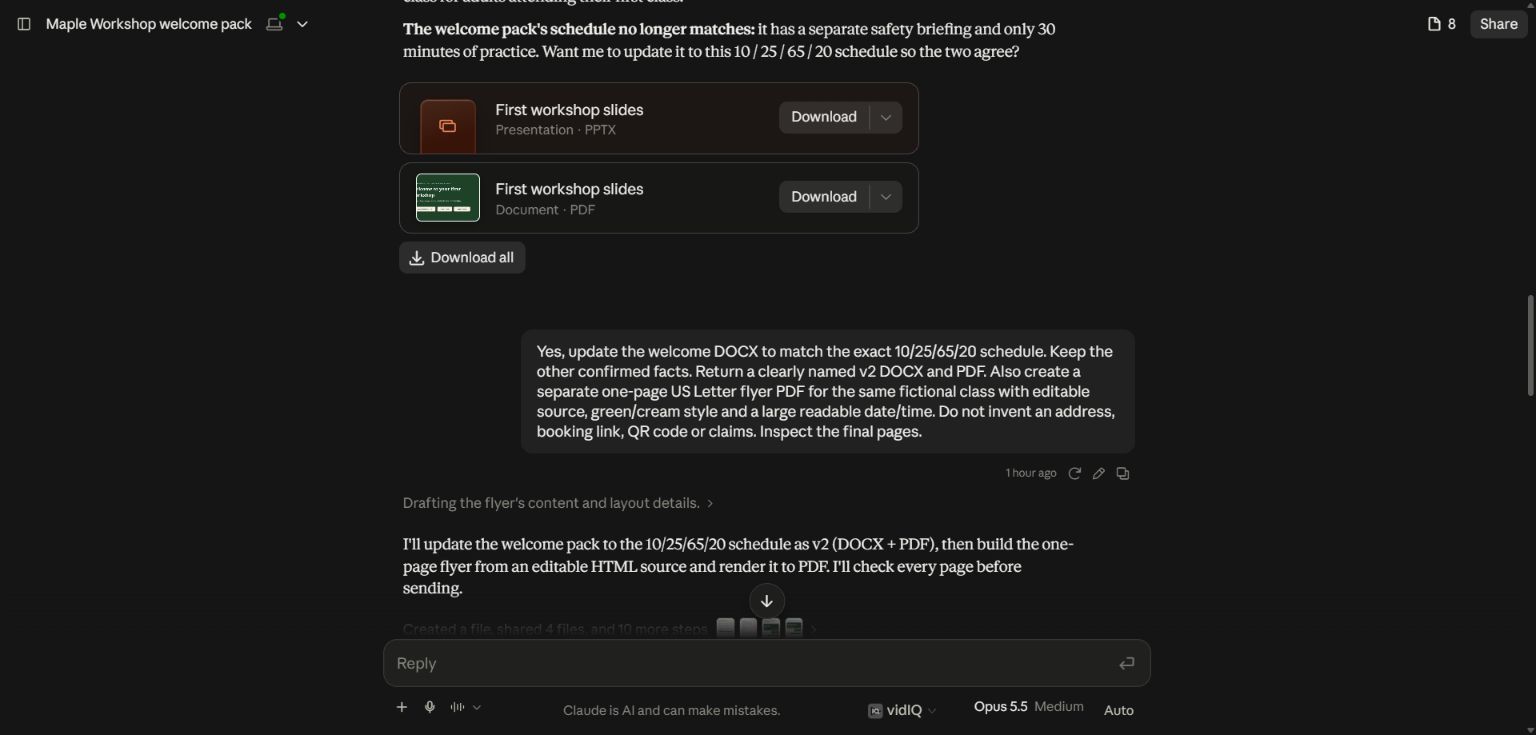
The correction names the exact durations and asks for a clearly versioned file.
Use the same approach for your documents: identify the section, supply the correct information, and state what should stay unchanged. Keep versions until you have inspected the revised output. A file named “final” is not proof that its contents are approved.
4. Open the preview and look for unsupported additions
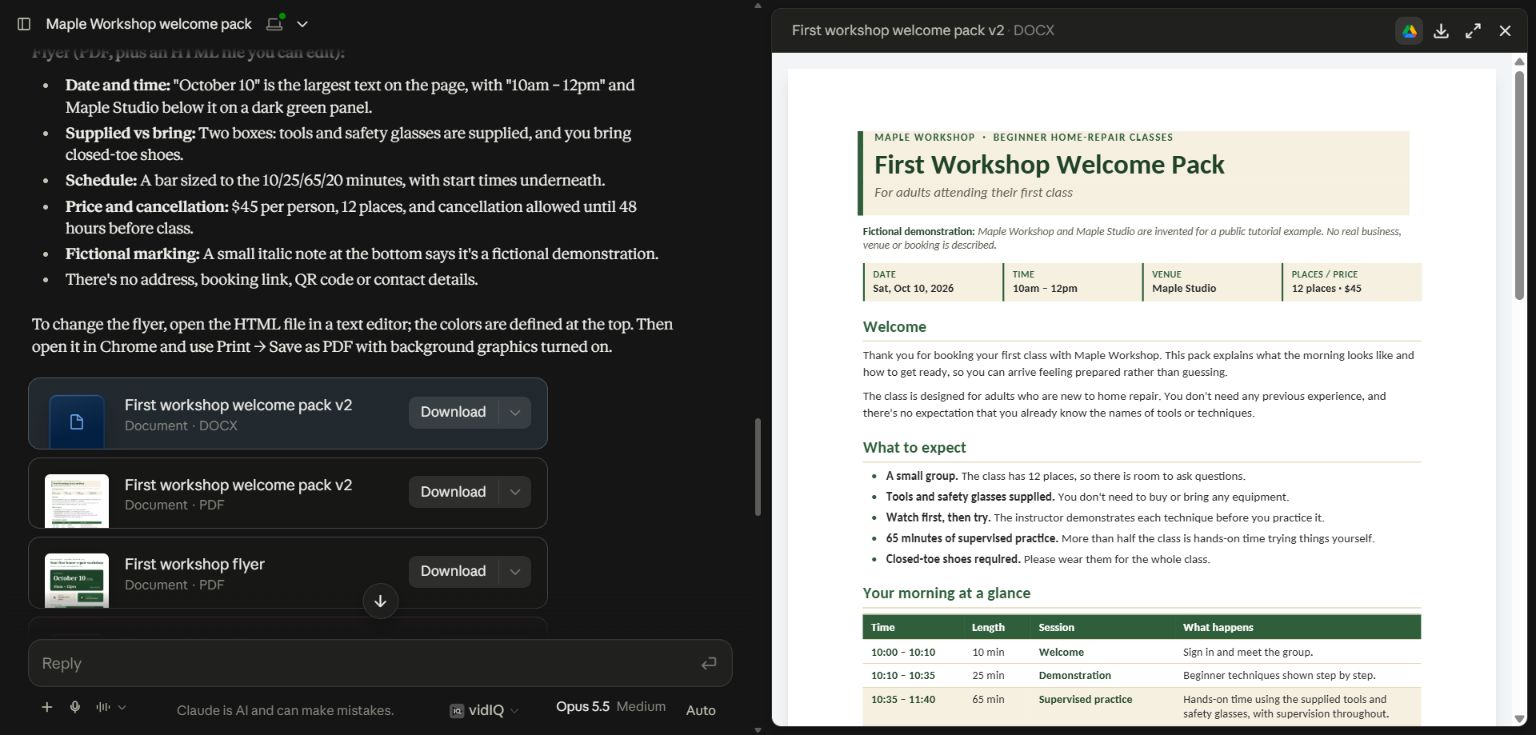
The v2 document has the corrected schedule, but the welcome text still contains assumptions that need review.
Reading the actual preview exposed phrases such as thanking the reader for booking and saying no prior experience was needed. Those sounded friendly, but they were not in the supplied facts. The document also retained optional preparation advice from the first draft.
This is why “check the facts” needs to include ordinary sentences, not just numbers. A professional-looking page can quietly add promises, eligibility statements or instructions you never approved.
5. Give a focused factual revision
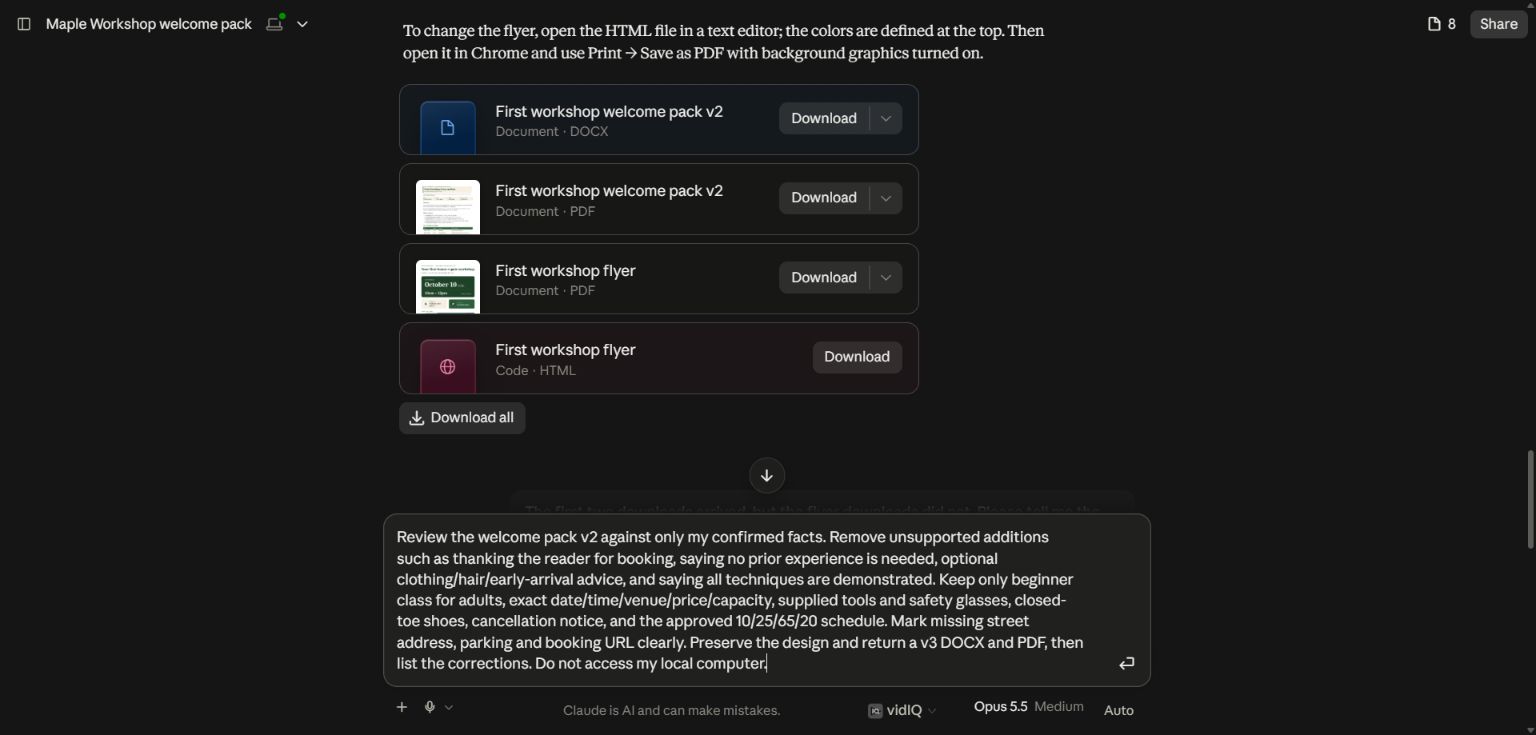
We asked Claude to remove the booking assumption, unsupported experience claim and optional preparation advice; preserve the confirmed facts and exact schedule; and explicitly mark missing street address, parking and booking information. The instruction also requested a new v3 file rather than overwriting the previous version.
For a different document, use:
Compare this draft with the source facts. List every statement that adds a promise, requirement, date, number or factual claim not supported by the sources. Remove or flag those additions. Keep the approved structure and return a new version with a short change list.
Review the change list against the file. Do not treat the AI's report as a substitute for opening the result.
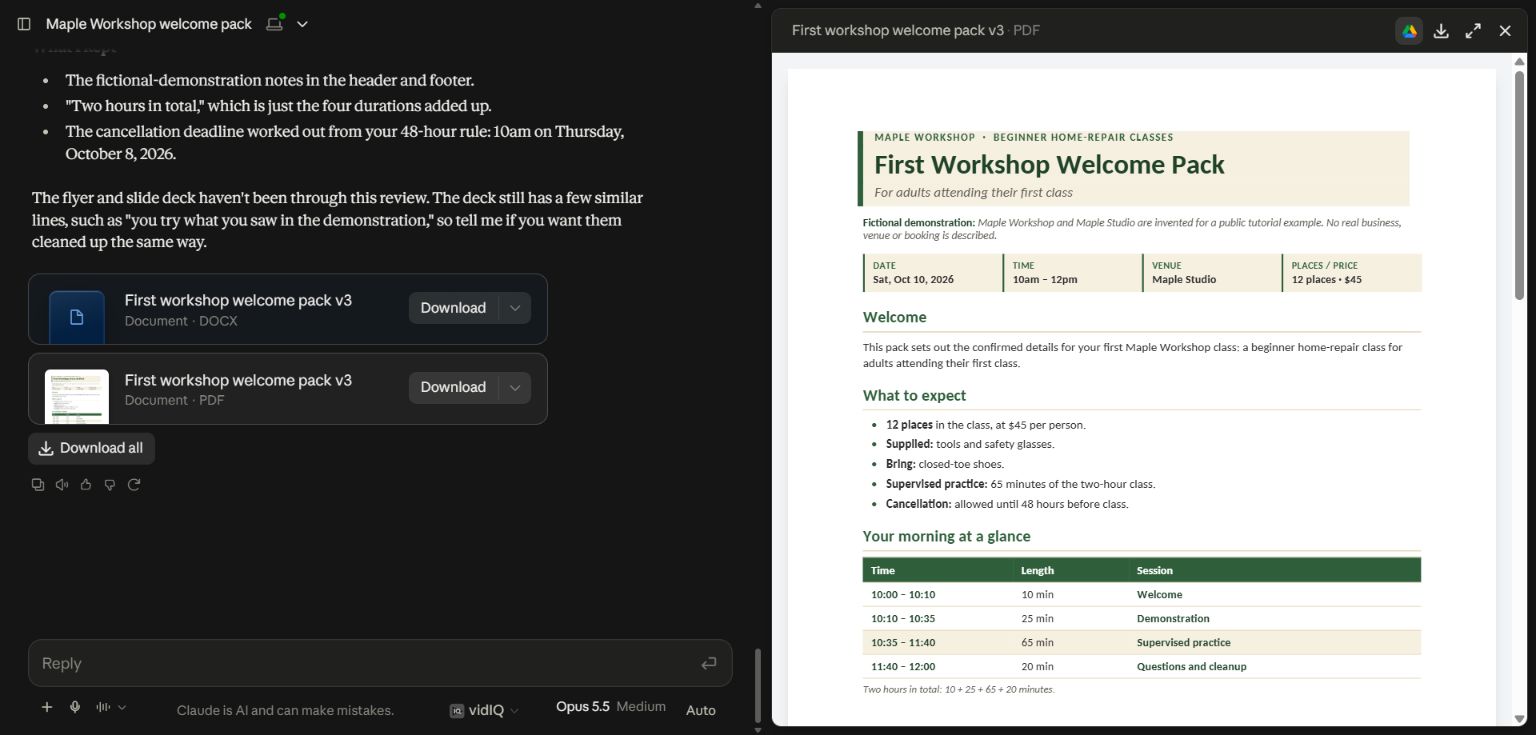
The v3 file removed the unsupported welcome language and extra schedule descriptions, retained the confirmed details, and added a missing-information table. Compare this with the v2 screenshot to see why a second review was worthwhile.
6. Check the file in Word
Download the DOCX and open it in Word. Check headings, page breaks, tables, links, footers and any images. Confirm that headings use actual styles if you need navigation or a table of contents. Make sure tables do not split in confusing places and important instructions are not stranded on a new page.
Export a PDF from the application you will use to distribute the document. Compare that PDF with the editable file. Fonts and pagination can differ between preview engines, so the final rendered file is the one that matters to the reader.
For a reusable template, keep the approved document beside a short instruction file describing its audience, structure, tone and formatting. Reuse those decisions while replacing the facts. Do not ask the AI to carry old dates, prices or client names into the next document.
Demonstrated scope
Download the actual v3 Word welcome pack. This guide shows a real Claude document workflow using fictional workshop information on September 28, 2026. The v2 screenshot is deliberately a review example. The companion Work guide shows a separate attendee-checklist workflow and an actual downloadable attendee checklist. Always inspect the version you plan to send.
Keep a copy of the guide
Download the PDF to keep the steps and prompts handy while you work.
Put this to work with your team
I’m Hank Barker, founder of PriorAIty. I help Michigan teams build useful AI habits through hands-on training and adoption consulting, with in-person and virtual options.
Keep going
- Use ChatGPT, Claude or Copilot inside Excel
Open a copy of a workbook, ask the AI to explain its structure, then give it one specific change. Once you can check that change, move on to a summary, PivotTable or chart. This guide covers the three setup routes and gives you a small workbook with answers you can verify yourself.
- Make your AI designs and writing match your brand
Give an AI your real logo, a few designs you like and examples of your writing. Have it identify the choices already present, ask about the choices that are missing, and turn your answers into a brand sheet plus instructions you can reuse. The example here is a fictional workshop business. The screenshots show the actual source review, interview and resulting files.
- Get started with ChatGPT Work
Give Work a concrete assignment, inspect the file it produces, and refine it in the same conversation. This walkthrough starts with a small set of fictional workshop facts and ends with an editable Word checklist. It also shows a real first-draft mistake and the correction that fixed it.
Weekly AI guide
The Weekly AI Guide
One genuinely useful AI use case a week, whatever news matters, and what I've got coming up: free sessions, new guides, upcoming trainings.