
Practical AI · 5 min read
Update multiple documents without editing them one by one
By Hank BarkerPublished
Give the AI a bounded folder, specify the change, review the proposed replacements, and check the new files. The example changes a fictional workshop price from $45 to $50 in two documents while preserving the originals. The same process can extend to a larger batch once a small sample works.
Give the AI a bounded folder, specify the change, review the proposed replacements, and check the new files. The example changes a fictional workshop price from $45 to $50 in two documents while preserving the originals. The same process can extend to a larger batch once a small sample works.
1. Decide exactly what should change
“Update the pricing everywhere” is too vague. Name the current price, the new price, the products it applies to, the files included, and anything excluded. Historical invoices, archived quotes and old campaign records may need to retain their original values.
Our practice folder contains welcome.md and welcome.html. Both have one current price, $45 per person. The HTML also contains a layout value of 45%. That is a useful test: the AI must change the price without treating every occurrence of the number 45 as the same thing.
For real work, update or confirm the authoritative pricing sheet first. In this demonstration, the source facts deliberately remain at $45 and the $50 copies are labeled a practice variation. Do not distribute a practice version as current policy.
2. Ask for a preview before applying changes
Open the dedicated folder in a tool with local file access, such as Claude Code or a supported local Work session. If you are using a web task, attach the files instead and request revised downloads. A web chat does not automatically edit the originals on your computer.
First list every occurrence of $45 in welcome.md and welcome.html only. Propose changing the current class price to $50 in copies named welcome-price-v2.md and welcome-price-v2.html. Leave workshop-facts.txt, older-schedule-note.txt, customer-feedback.csv and both originals unchanged. Do not make the copies yet; show affected files and exact old/new text for review.
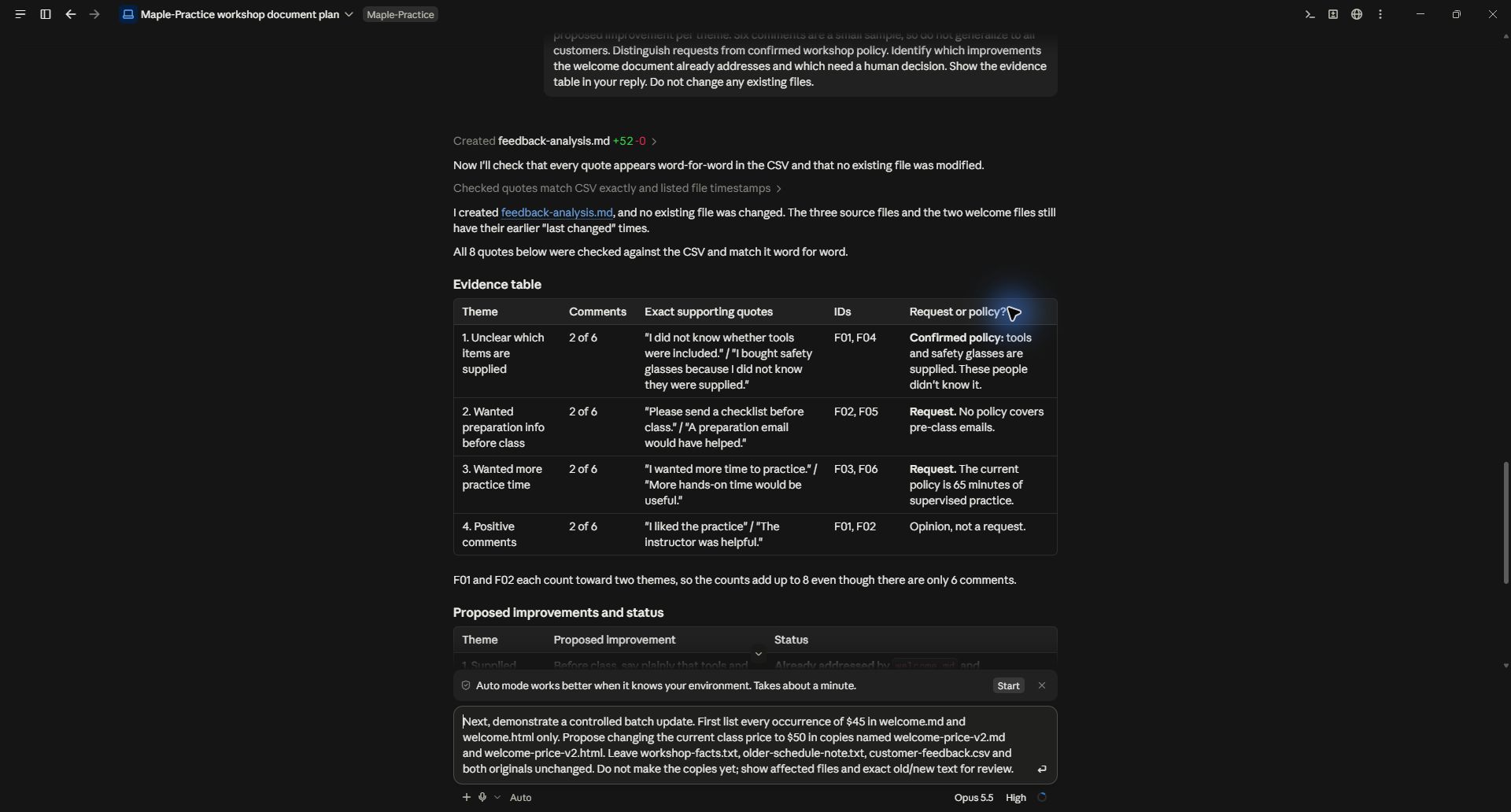
A narrow first pass makes it possible to inspect every proposed change before scaling to twenty documents.
3. Inspect the proposed replacements
Claude found exactly one price in each file and showed the old and new lines. It also found the 45% CSS setting and excluded it. Check those details yourself. The presence of a matching number is not enough to justify a replacement.
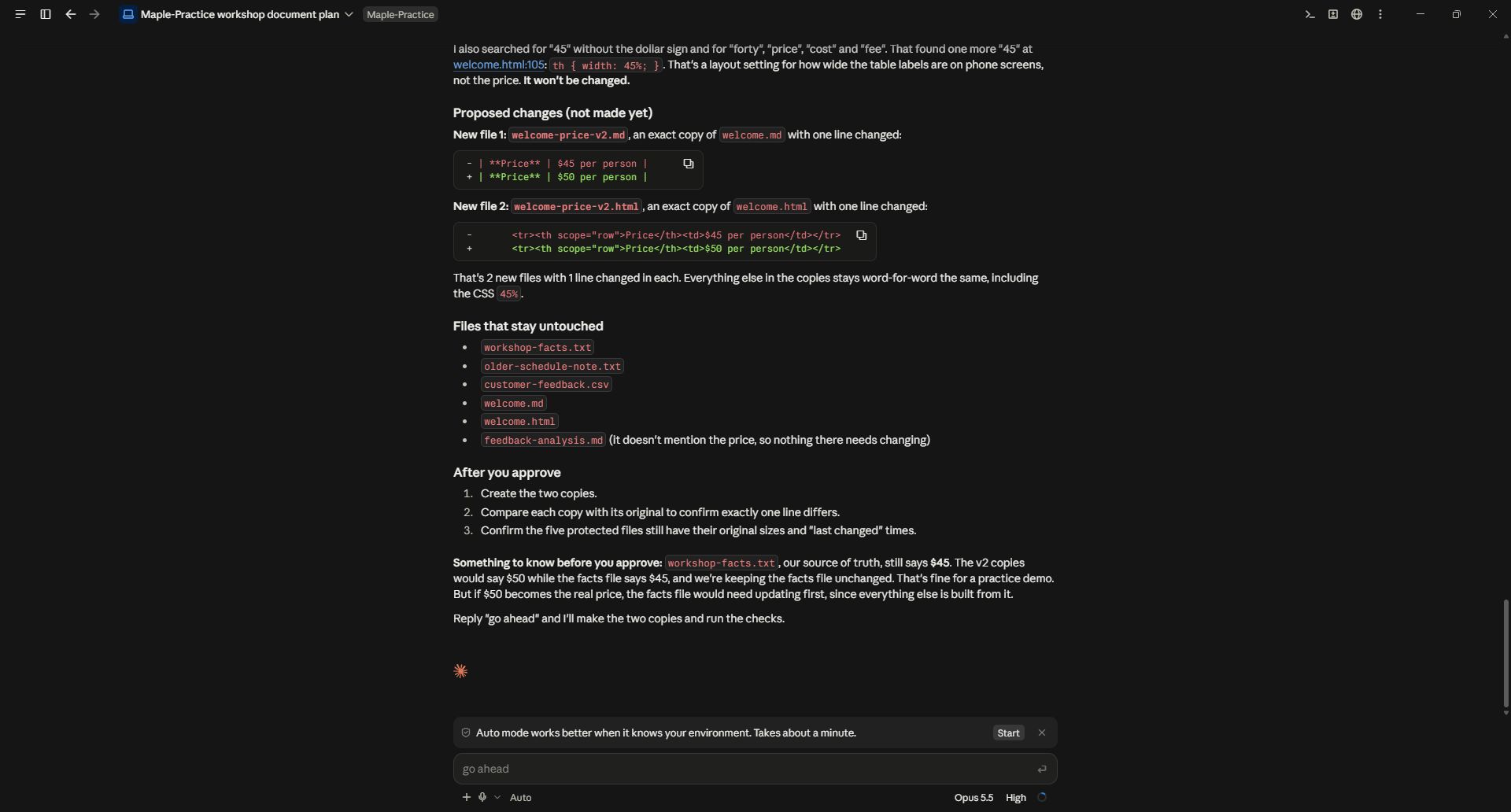
The preview distinguishes the $45 price from an unrelated 45% layout setting.
If a file has no match, do not assume it has been updated. It might spell out “forty-five dollars,” use a table cell, or embed the price in an image. Ask the AI to report matches, nonmatches and ambiguous cases separately. Image-only PDFs and heavily formatted documents may need a different editing route.
For a larger batch, ask for a manifest: file name, number of relevant matches, proposed change and any uncertainty. Review the exceptions before approving the full set. Start with two or three representative documents when formats vary.
4. Create the revised copies
Once the preview is correct, authorize the specific change:
Create only the two v2 copies and a change-report.md. Confirm exactly one price replacement in each, compare originals by file hashes before and after, and verify that the CSS 45% is unchanged. Note in the report that the source facts remain the original $45 version and these $50 files are a practice scenario.
A file hash is a fingerprint of its contents. Comparing the original before and after helps establish that the original was preserved. It does not prove that the revised copy is correct, so still review the actual differences and the rendered documents.
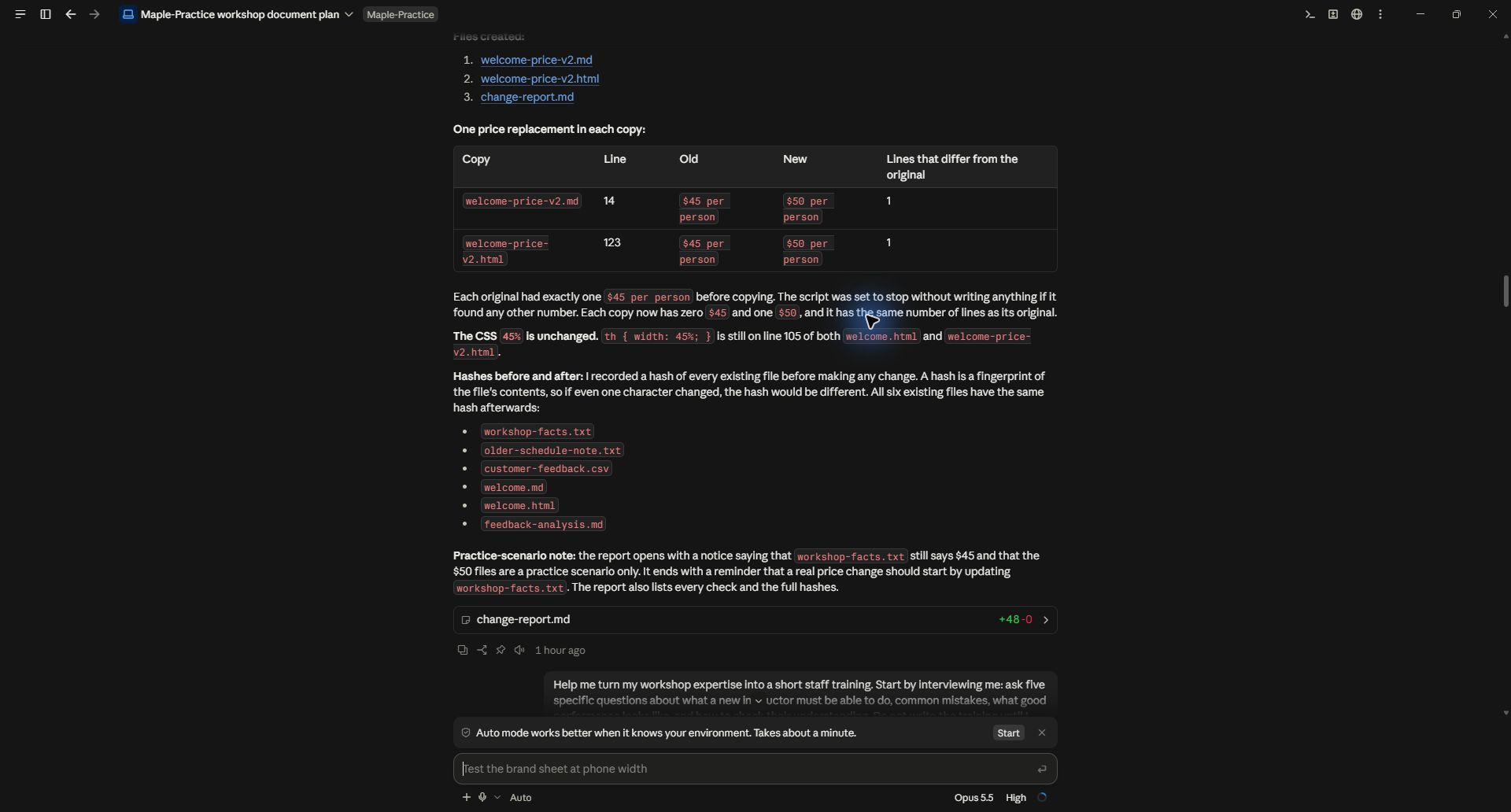
The real run created two copies, made one price replacement in each, and recorded the checks in a change report.
5. Verify the result at three levels
First, inspect the text differences. Each copy should contain the new price once, and the old price should be absent from the intended price field. Second, compare the protected originals with their earlier versions. Third, open the new documents in the application people will use to read them.
That last step matters for Word, PowerPoint and PDF files. A correct replacement can still cause wrapping, overflow or a broken layout. Ask for a visual check of every affected page when a change is longer than the text it replaces.
If a batch stops partway through, use the report to identify completed and unfinished files. Resume only the unfinished set. Do not rerun a broad replacement blindly, especially if the new text also matches the search phrase.
6. Scale the same process to a larger folder
Keep the four stages: inventory, preview, apply, verify. Give the AI an output folder rather than asking it to overwrite the only copy. For a real price update, synchronize the source sheet, website, current brochures and templates deliberately; exclude historical records by name or folder.
Inventory the current documents in this folder. Exclude Archive and signed agreements. Show the files that mention the affected product and its current price. Propose a change plan before editing. Save revised copies in Updated and include a report of changed, unchanged and unresolved files.
The goal is a batch you can audit, not simply a success message saying that everything was updated.
Practice files and demonstrated scope
Compare original Markdown with revised Markdown, and original HTML with revised HTML. Read the actual change report. This run tested two text-based files, not twenty Office documents. The screenshots show the real Claude Code workflow on September 28, 2026.
Keep a copy of the guide
Download the PDF to keep the steps and prompts handy while you work.
Put this to work with your team
I’m Hank Barker, founder of PriorAIty. I help Michigan teams build useful AI habits through hands-on training and adoption consulting, with in-person and virtual options.
Keep going
- Use ChatGPT, Claude or Copilot inside Excel
Open a copy of a workbook, ask the AI to explain its structure, then give it one specific change. Once you can check that change, move on to a summary, PivotTable or chart. This guide covers the three setup routes and gives you a small workbook with answers you can verify yourself.
- Make your AI designs and writing match your brand
Give an AI your real logo, a few designs you like and examples of your writing. Have it identify the choices already present, ask about the choices that are missing, and turn your answers into a brand sheet plus instructions you can reuse. The example here is a fictional workshop business. The screenshots show the actual source review, interview and resulting files.
- Get started with ChatGPT Work
Give Work a concrete assignment, inspect the file it produces, and refine it in the same conversation. This walkthrough starts with a small set of fictional workshop facts and ends with an editable Word checklist. It also shows a real first-draft mistake and the correction that fixed it.
Weekly AI guide
The Weekly AI Guide
One genuinely useful AI use case a week, whatever news matters, and what I've got coming up: free sessions, new guides, upcoming trainings.