
Practical AI · 5 min read
Create good-looking presentations with AI
By Hank BarkerPublished
Give the AI a clear audience, a small set of reliable facts and a slide-by-slide purpose. Then inspect the actual deck and revise it. This walkthrough uses Claude to create an editable five-slide PowerPoint for a fictional beginner workshop, with a PDF preview and speaker notes.
Give the AI a clear audience, a small set of reliable facts and a slide-by-slide purpose. Then inspect the actual deck and revise it. This walkthrough uses Claude to create an editable five-slide PowerPoint for a fictional beginner workshop, with a PDF preview and speaker notes.
1. Gather the content before asking for design
Start with the information the audience needs, not a request for “a stunning presentation.” For our workshop, attendees need to know when to arrive, what is supplied, what to bring and how the two hours are divided. The deck should help the presenter explain those points quickly.
Prepare the date, time, venue, price, requirements and exact schedule in a source file or message. Mark missing information clearly. If you have a brand sheet, logo or approved deck, provide it as a reference and explain what should carry over: colors, typography, spacing or tone.
Do not ask the AI to invent statistics or credentials to make the slides feel more persuasive. If research is needed, do that as a separate step and review the sources before building the deck.
2. Give each slide one job
Our five slides are welcome, supplied versus bring, schedule, supervised practice and final questions. This sequence follows what an attendee needs to understand. A sales deck or internal decision deck would need a different sequence.
For a larger presentation, ask for the outline first:
Propose the slide titles and one main point per slide for this audience. Explain what each slide helps them understand or decide. Identify missing information. Wait for my feedback before designing the deck.
Review the outline for repetition and gaps. A title such as “Overview” says little about the point. “Tools are supplied; wear closed-toe shoes” tells you exactly what the audience should remember.
3. Request the editable file and a visual review
The demonstrated creation request was:
Create a separate 5-slide editable PPTX for this fictional class, using the confirmed facts and green/cream style. Slides: welcome, what is supplied versus what to bring, schedule, supervised practice, final questions. Use these exact schedule durations: welcome 10 minutes, demonstration 25, supervised practice 65, questions and cleanup 20. Each slide should have one main point, large type, useful simple visuals, and speaker notes. Do not add any new claims. Render and inspect all five slides, then provide the PPTX and PDF preview.
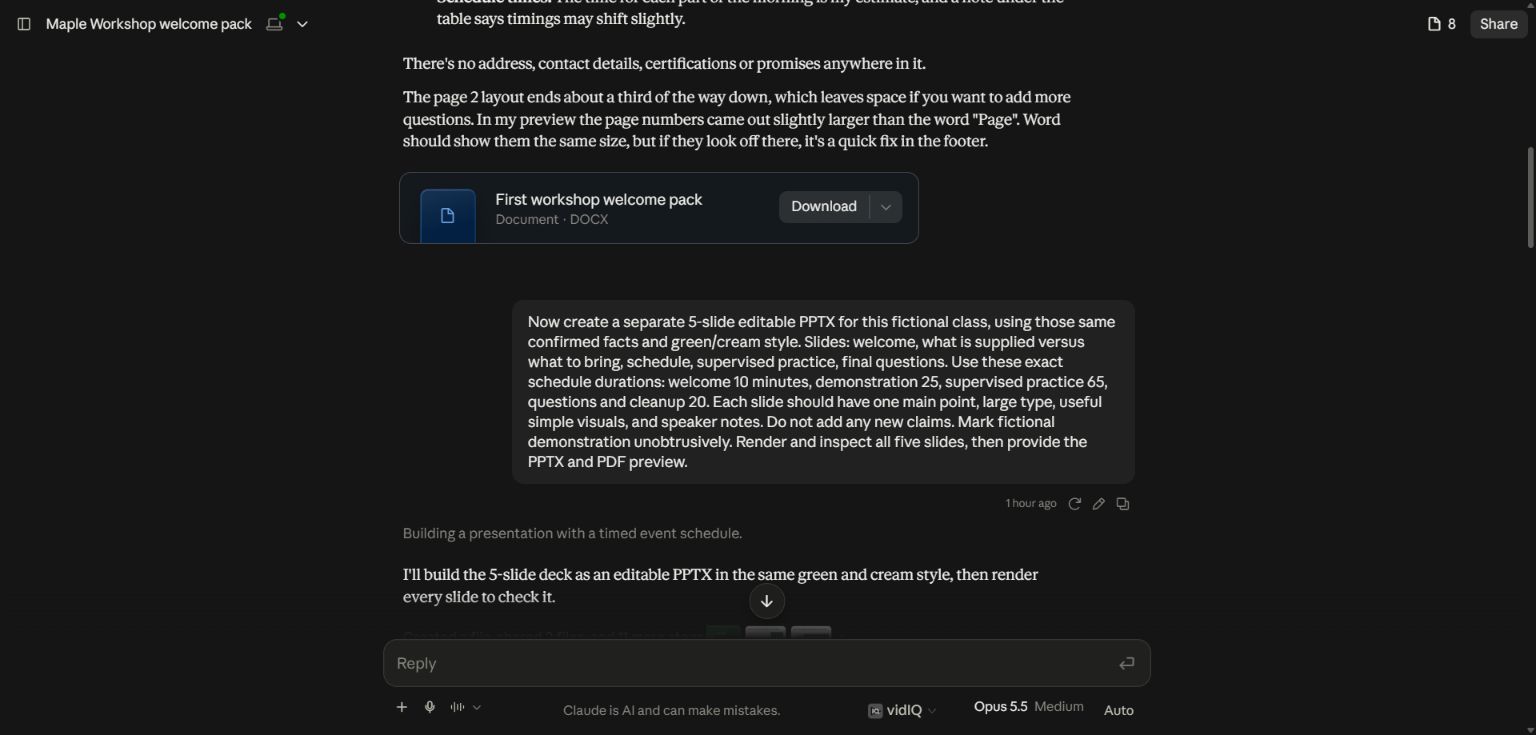
The prompt specifies an editable PowerPoint, the slide purposes, exact numbers and a review step.
Ask for an actual file, not just slide text in the chat. If you need PowerPoint, say PPTX. If you need an editable Canva or Google Slides design, use a route that creates that format and inspect the resulting file there. A PDF preview is useful for checking appearance, but it does not replace the editable source.
4. Open the deck and inspect the visual choices
Claude produced a five-slide deck. The welcome slide uses large type and date/time cards. The supplied-versus-bring slide uses two clearly separated groups. The schedule uses a proportional bar rather than four identical boxes, making the long practice session visually obvious.
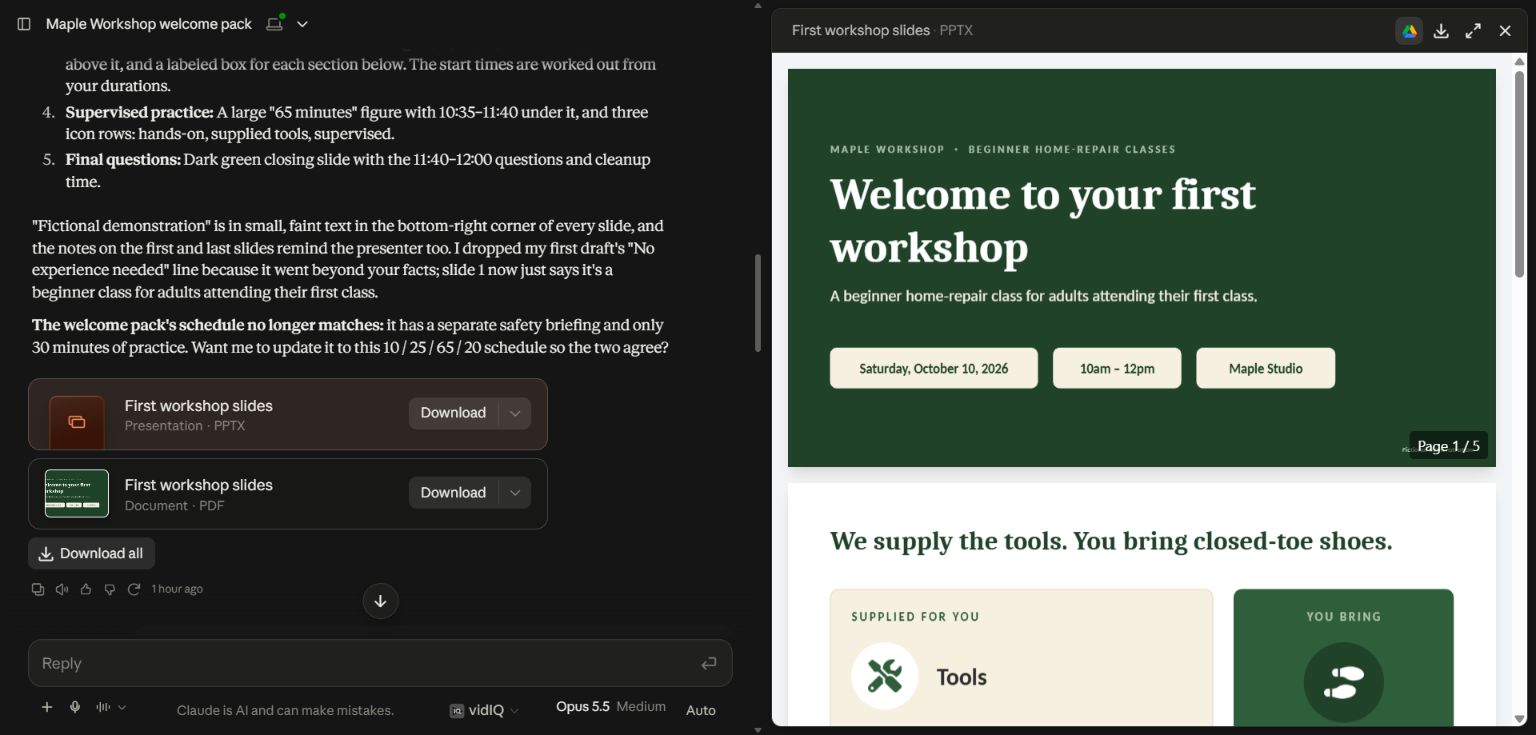
The preview shows the generated deck. The message also flags a schedule conflict with an earlier document.
Read every slide at the size people will see it. Check that the main point is obvious, labels remain readable, and the slide does not require the audience to read a paragraph while you speak. Put supporting detail in the notes when it helps the presenter rather than crowding the slide.
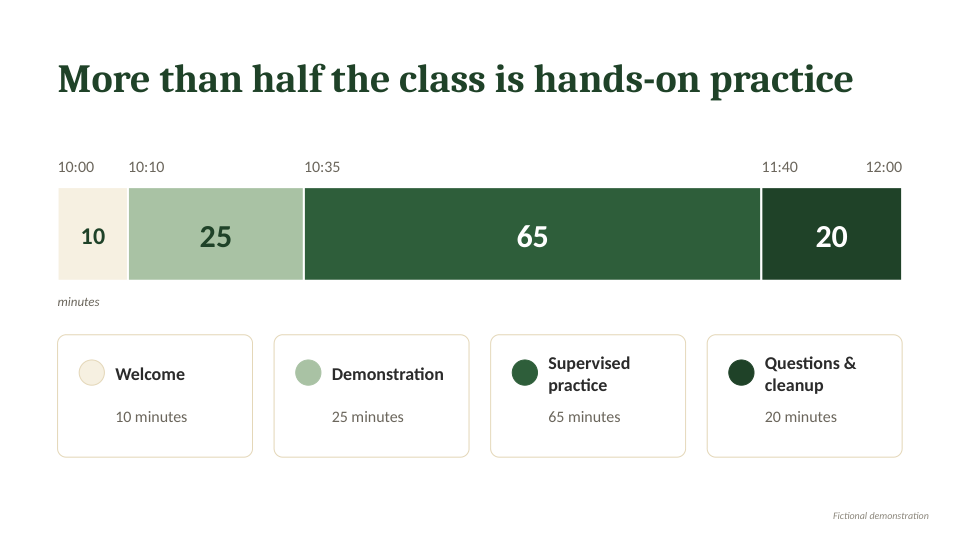
The schedule uses 10, 25, 65 and 20 minutes, totaling 120. This image is rendered from the real generated presentation.
5. Give precise revision instructions
“Make it better” leaves the AI guessing. Name the slide, the problem and the desired change. For example: “On slide 3, enlarge the time labels and shorten the descriptions to one line. Preserve the exact durations and the other four slides.”
If you dislike the design, give a visual reference and explain what you like about it. Is it the spacing, restrained colors, photo treatment or title size? Asking to imitate an entire deck without explaining the useful elements can reproduce its weaknesses too.
In our run, Claude removed an unsupported “No experience needed” claim and noticed that the older welcome document still had 30 minutes of practice. We then corrected that document to match the approved schedule. Check related materials together so the deck, handout and website agree.
6. Open the final file in your presentation app
Download the PPTX and inspect it in PowerPoint or your chosen presentation application. Check fonts, speaker notes, slide count, text overflow and any images or charts. Export your final PDF from the version you will actually present if rendering differs between tools.
Do a short spoken run-through. If a slide forces you to explain too many different ideas, split it. If the audience can understand the point immediately, resist adding decoration just to fill space.
Practice files and demonstrated scope
Download the five-slide PPTX and PDF preview. These are actual AI-created files for a fictional class. The screenshots show the creation prompt and file preview on September 28, 2026. File creation and review were demonstrated in Claude; this is not a claim that every AI product or plan exports the same formats.
Keep a copy of the guide
Download the PDF to keep the steps and prompts handy while you work.
Put this to work with your team
I’m Hank Barker, founder of PriorAIty. I help Michigan teams build useful AI habits through hands-on training and adoption consulting, with in-person and virtual options.
Keep going
- Use ChatGPT, Claude or Copilot inside Excel
Open a copy of a workbook, ask the AI to explain its structure, then give it one specific change. Once you can check that change, move on to a summary, PivotTable or chart. This guide covers the three setup routes and gives you a small workbook with answers you can verify yourself.
- Make your AI designs and writing match your brand
Give an AI your real logo, a few designs you like and examples of your writing. Have it identify the choices already present, ask about the choices that are missing, and turn your answers into a brand sheet plus instructions you can reuse. The example here is a fictional workshop business. The screenshots show the actual source review, interview and resulting files.
- Get started with ChatGPT Work
Give Work a concrete assignment, inspect the file it produces, and refine it in the same conversation. This walkthrough starts with a small set of fictional workshop facts and ends with an editable Word checklist. It also shows a real first-draft mistake and the correction that fixed it.
Weekly AI guide
The Weekly AI Guide
One genuinely useful AI use case a week, whatever news matters, and what I've got coming up: free sessions, new guides, upcoming trainings.