
Marketing · 9 min read
Analyze Your Instagram and Facebook With Muse
Connect the right accounts, check what Muse can access, and turn your social analytics into a weekly content review. Screenshots, copyable prompts, and a Facebook export fallback included.
Updated September 24, 2026. Screenshots are from the Muse web interface. Use the steps available to your account.
1. Connect the account you want reviewed
Open muse.ai and sign in. Muse is Meta's personal AI agent. Availability and account options can vary, so use the controls shown in your account.
On the web version, open the Settings menu in the lower-left corner, choose Settings, then Connectors. Look for Instagram and Facebook. If a service is available but not connected, select Connect and follow the account sign-in and permission screens. Confirm the handle or profile before approving access. If the service already appears under Connected, open it to review the linked account.
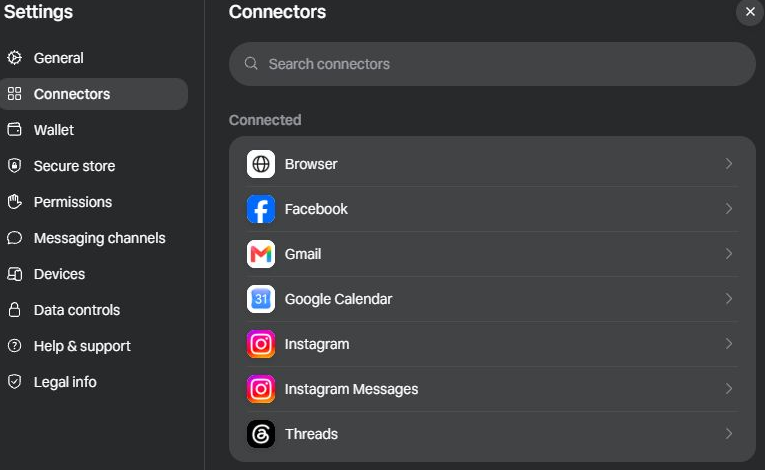
Real Muse web interface, captured September 24, 2026. Instagram and Instagram Messages are separate connectors. You do not need access to direct messages for a post-performance review.
Decide what you want the review to help with: reaching new people, earning saves, starting useful conversations, or getting people to your website. Tell Muse which outcome matters. A post with the most views is not automatically the post that did the best job for your business.
2. Check Instagram's read permissions
Open the Instagram connector. Check the linked handle, then review the Read permissions section. On the account shown here, Muse offers Access analytics, Access content, and Access followers, comments, likes, and insights. These are the relevant areas to inspect for this workflow.
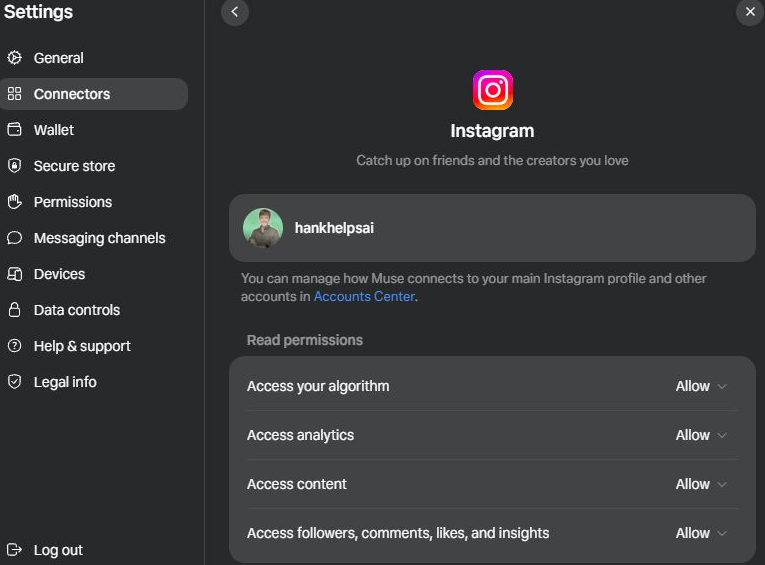
This is a screenshot of an already-connected account, not a recommendation to copy every permission setting. The image shows read permissions. Posting, profile edits, and other actions are separate.
Give Muse the read access needed for the review. Keep publishing and profile changes subject to your approval. If you manage an organization's account, use its normal approval process before connecting it. You do not need to authorize posting to understand your analytics.
Before asking for a full report, paste this:
Confirm the Instagram handle you can access. List the analytics and post-level metrics you can retrieve, their available date ranges, and any gaps. Distinguish account totals from individual-post metrics. Show me the source and reporting period for one example. Do not estimate missing metrics or change anything.
Look for a specific handle, specific dates, and actual metric names. If the response only discusses public likes and comments, it has not yet demonstrated access to your private insights. Ask it to explain the limitation before proceeding. The precise history and metrics available can depend on account type and content format; check your native Insights view.
3. Check Facebook separately
A Facebook login does not prove Muse can see the business Page you manage. On the account inspected for this guide, the Facebook connector showed a linked personal profile and a Search read permission. It did not show an analytics permission comparable to Instagram's.
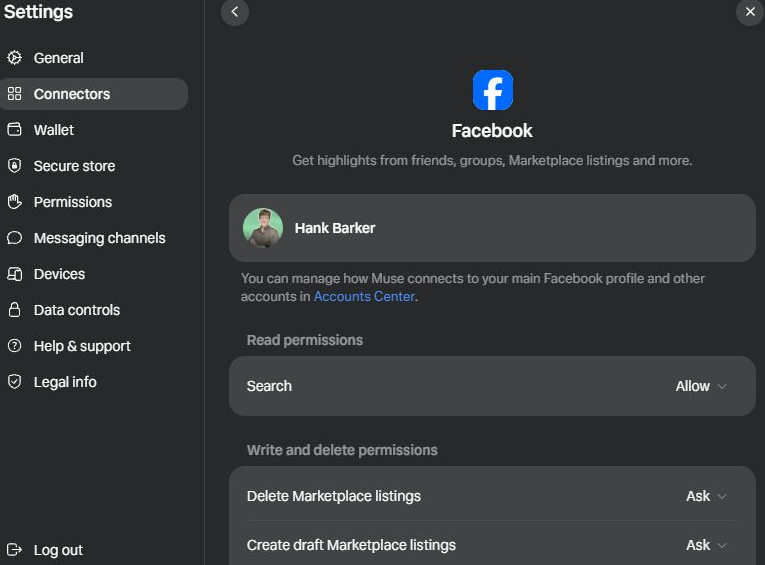
The Facebook screen above documents this account's available controls. It is not proof that every Facebook Page's insights are available through Muse.
Ask Muse to identify what it can see:
For Facebook, show the exact profile or Page name and its URL. Can you access private Page or professional-dashboard insights, or only public content? List the metrics and reporting dates you can retrieve. If you cannot access the Page I mean, stop and tell me what export or screenshots you need. Do not treat a personal profile as my business Page.
If direct analytics access is missing, open the correct Page in Meta Business Suite. Go to Insights, select the reporting dates, and use the export/download control where available. Export the post or content-level report if you want to compare individual posts. The labels and available exports vary by account. If export is unavailable, take screenshots that show the account, date range, column names, and relevant figures.
Back in Muse, use Attach file next to the message box to upload the report or screenshots. Include only the information this review needs. Tell Muse which account the file represents and which date range it covers. A Facebook report you upload is a valid input, but it should be labeled as an uploaded report rather than described as a live connection.
Analyze the attached Facebook report for [Page name], covering [start date] through [end date]. Use this file as the source. First identify its columns, metric definitions, reporting period, and missing fields. Tell me whether the rows show performance during the period or lifetime totals for posts published during it. Do not fill gaps with guesses.
4. Ask for a review that leads to decisions
Start with 30 days if you have enough posts. If you post less often, widen the period and keep the comparison windows equal. Replace the brackets in the prompt below. Use only the platforms and sources that passed the access check.
Review my Instagram [handle] and Facebook [Page name] from [start date] through [end date], in [time zone]. My audience is [who], and my goal is [outcome]. Use the connected Instagram insights and the verified Facebook source we identified. Keep the two platforms separate.
Build a table with the post link, publish date, format, topic, and each available performance metric. Separate paid or boosted posts from organic posts where the data allows it. Mark unavailable fields as unavailable, not zero.
Rank posts using the metric most relevant to my goal. Show raw counts and rates when the correct denominator is available. State every formula. Compare like formats and flag posts that have had less time to accumulate results.
Identify the strongest and weakest posts, with links and numbers beside each. What patterns in topic, opening, format, or length are worth testing? Label explanations as hypotheses unless the data establishes them. If you cannot inspect the video, say so rather than inventing an assessment of the hook or editing.
Finish with three content ideas for next week, one post worth revisiting, and one experiment. Explain which evidence supports each suggestion. Do not publish, edit, delete, message anyone, or create a schedule.
You can narrow the request if you have one question. For example: "Which of my Reels earned the highest save rate, and what topics do they share?" That can be more useful than asking for a huge report every time.
5. Read the numbers before accepting the advice
Check a few of the reported figures against Instagram Insights or Meta Business Suite. Confirm the account, dates, and whether the number is a total or a rate. Watch for a report that compares this week's performance with lifetime totals, or adds platform totals that use different definitions.
Reach generally describes accounts reached. Views can include repeat viewing. Saves and shares are different actions. Average watch time applies to video and needs the correct unit. A missing metric is not a result of zero. Keep each platform's displayed definitions with the report.
For a worked example, imagine Post A earned 20 saves from 1,000 accounts reached and Post B earned 30 saves from 10,000 reached. Post B has more saves. Post A has the higher save rate: 2% versus 0.3%, using saves divided by reach. These are invented numbers for teaching the calculation, not results from Hank's account.
A big thing here is that the numbers show what happened. They usually cannot prove why. A short video doing well does not prove that shortening every video will improve performance. Ask Muse to propose a test you can run across several comparable posts.
Check your own report. Show the source, reporting period, and calculation for each headline number. List which conclusions are observed facts, which are hypotheses, and which need more data. Remove any recommendation that relies on a metric you could not retrieve. Turn the strongest remaining hypothesis into a simple test for my next few posts.
Choose a realistic change: try a clearer opening, repeat a topic from a saved post, or compare two formats on the same subject. Keep enough of the rest consistent that you can learn something from the result.
6. Make the review repeatable
Once you have checked the first report, you can ask Muse to repeat the review. A repeatable review needs named accounts, fixed dates, the same metrics, and a place to keep the reports.
If Facebook relies on an uploaded file, Muse will need a new file each time. An old export cannot update itself. Have the report explicitly flag stale or missing data rather than quietly reuse it.
Set up a weekly review for Mondays at 9:00 a.m. in [time zone]. Review the previous complete Monday-through-Sunday period and compare it with the preceding complete week. Use [Instagram handle] and [Facebook Page/source]. Apply the metric definitions and report format we just checked. Include the number of posts and any data gaps. If an uploaded Facebook report is outdated, ask me for the new export and mark that section incomplete. Save each dated report to [an available connected destination, or this chat]. Keep recommendations as drafts. Confirm the schedule and next run time after it is created.
Then check Muse's Upcoming view for the scheduled task and its next run. If your account cannot create that schedule, save the prompt and run it manually each week. If the destination needs its own connector, connect it first and verify that the report was saved. Do not assume a promise in chat means a task or file exists.
Save the date range, source, headline metrics, what you decided to test, and the result of the previous test. After a few weeks, you will have a record you can compare instead of relying on your memory of which posts felt successful.
Sources and scope
- Meta: Introducing Muse explains connected services and user-controlled permissions.
- Muse's web interface was inspected September 24, 2026. The three screenshots show the actual connector list, Instagram read permissions, and Facebook permissions available to the inspected account. Surrounding conversations were cropped out.
- Instagram Help Center explains Instagram Insights. Check the native platform for the metrics and history available to your account.
- The prompts in this guide are proposed workflows. They do not promise that every metric, connector, or scheduled-task option is available to every account. The existing Muse response observed in this account was not independently audited as a complete analytics report.
More practical walkthroughs: prioraity.io/guides.
Get the full guide
The complete version, with every diagram and example, is in the PDF.