
Practical AI · 5 min read
Create a website with AI
Describe the page's purpose, supply the real information, and review the site as a visitor. This walkthrough uses ChatGPT Work to create a private one-page website for a fictional workshop, then corrects the page and checks what still needs attention.
Describe the page's purpose, supply the real information, and review the site as a visitor. This walkthrough uses ChatGPT Work to create a private one-page website for a fictional workshop, then corrects the page and checks what still needs attention.
The example is an informational page. It does not include payments, a working booking form or a customer database. Those are separate functions to specify and test if your website needs them.
1. Decide what the visitor should understand or do
Before asking for a website, name the audience and the purpose. For Maple Workshop, first-time attendees need to understand the class, see the practical details and decide whether it suits them. The source facts include date, time, venue name, price, equipment and schedule.
The address, parking and booking link are missing. The site should expose those gaps rather than inventing a complete-looking business. For a real website, gather the approved copy, logo, images, contact route and destination for each button before launch.
If you have a reference site, describe what you like: the clear hierarchy, spacious sections, restrained color palette or mobile navigation. A reference helps communicate design direction; it does not supply your business facts or rights to someone else's images.
2. Give Work a specific brief
Open ChatGPT, choose Work, and supply the facts by message or attachment. The demonstrated request was:
Use the same fictional Maple Workshop facts to build a one-page website for first-time attendees. Before building, propose the page sections and identify missing information. The goal is to help a visitor understand the class and decide whether to attend. Keep the supplied schedule and $45 price. No fake testimonials, fake booking buttons, or invented address. Show a mobile-friendly design with a clear Details to confirm section.
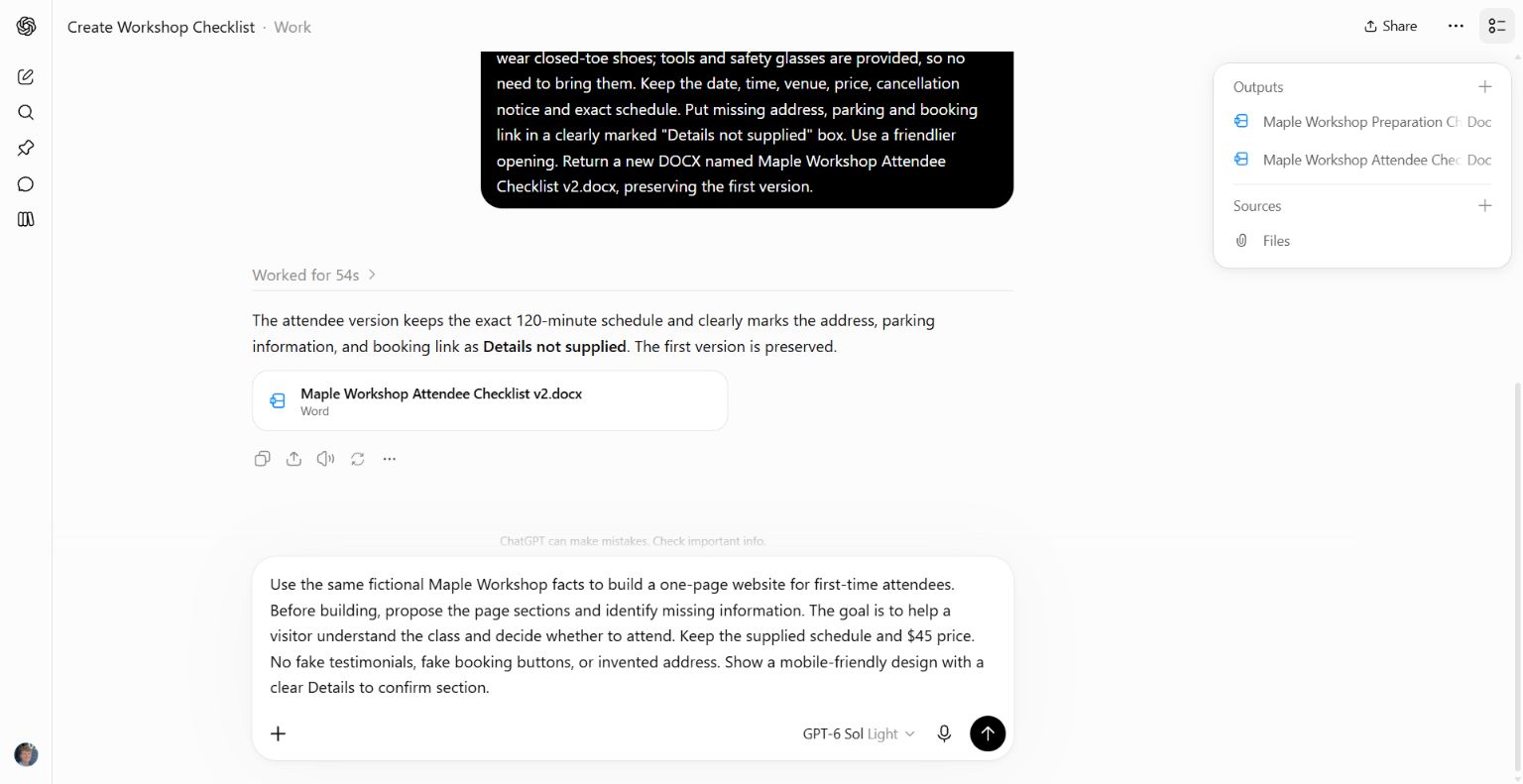
The brief names the audience, purpose, confirmed facts and missing information.
Work proposed an overview, practical details, what to bring, schedule, cancellation notice and missing-details section, then built the page. If you want to approve the outline before any build starts, say “Wait for my approval after proposing the sections.” The original wording requested a proposal but did not explicitly require a pause.
3. Inspect the actual page
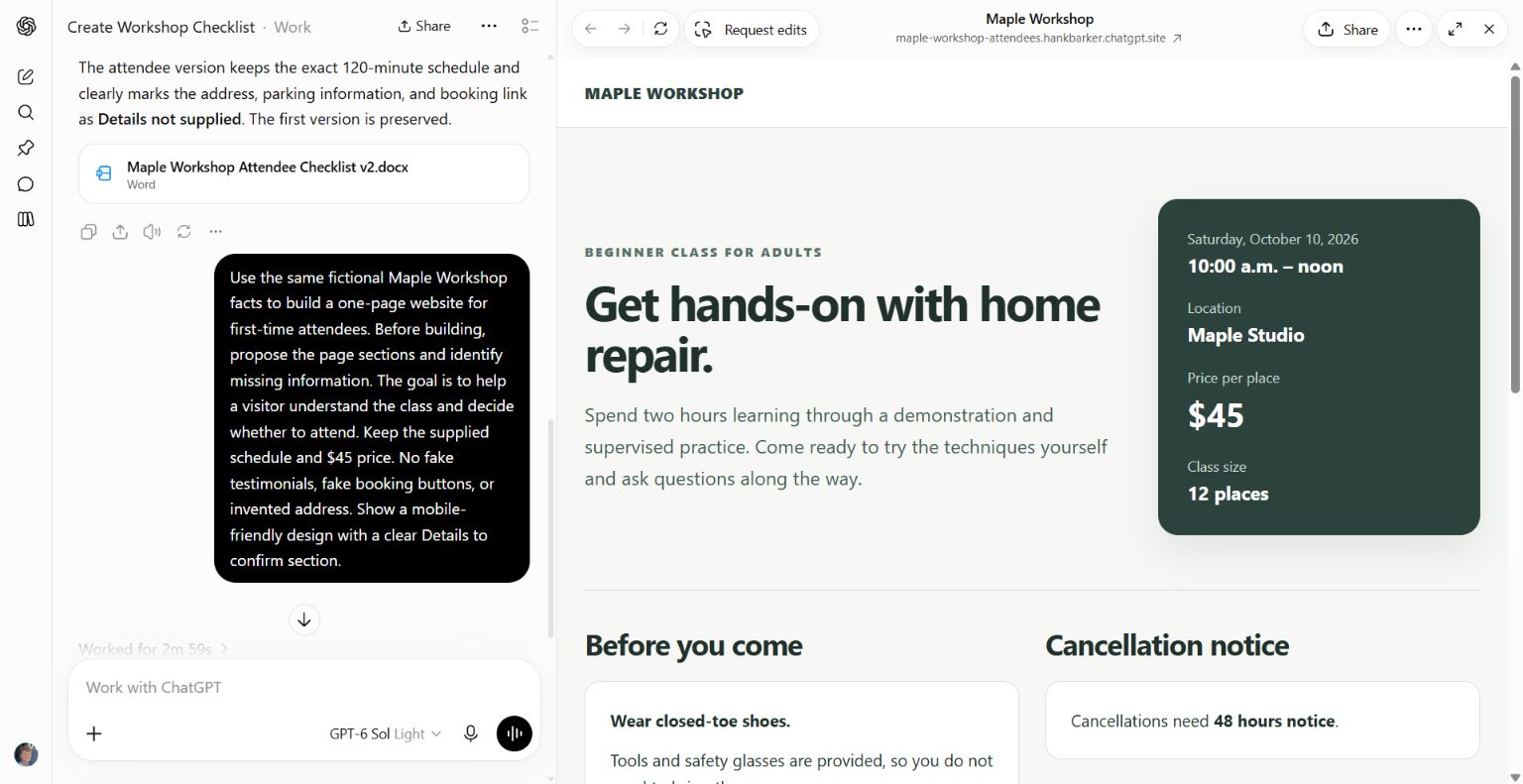
The result places the class explanation beside the key details, then separates preparation, cancellation, schedule and unresolved information. The page shows $45 and the exact 120-minute schedule. Its sharing state was “Only visible to you” in the Work interface.
Read the content as a visitor who has no other context. Can you understand what the class is, when it happens, what it costs and what to bring? Does the page make any claim that was not supplied? Are there buttons that imply a function that does not exist?
Try every link and control. A visual mockup of a form is not a working submission system. If you need a form, specify where submissions go and test a sample submission before relying on it.
4. Request a focused correction
The first page did not clearly display that the workshop was fictional. We asked Work to add that label near the top and in the footer while preserving the approved facts. We also asked for a narrow-screen review.
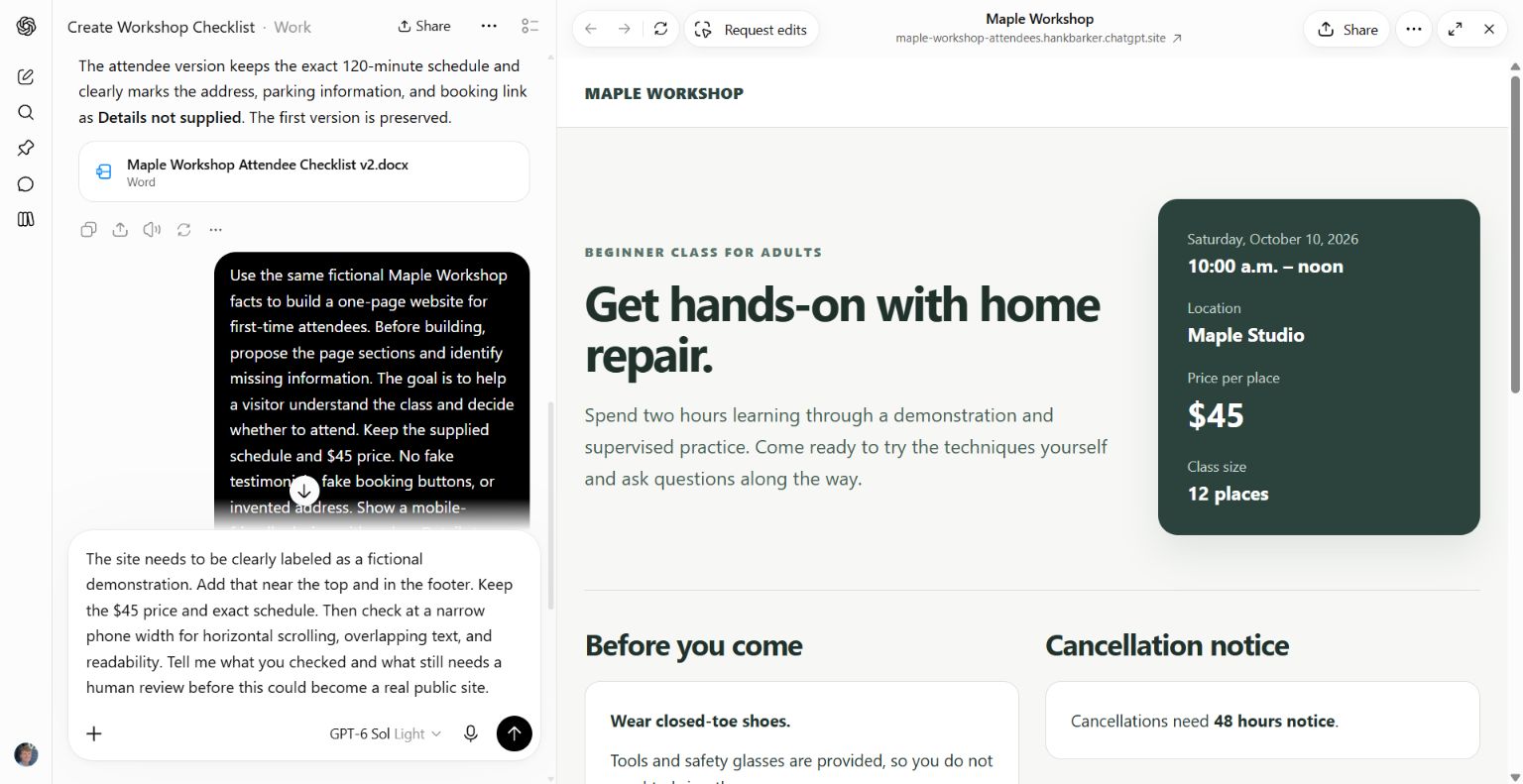
For your own site, describe the issue and the intended behavior. “The headline wraps awkwardly on my phone; reduce its size at narrow widths and preserve the desktop layout” is more useful than “Make it look modern.” Keep unrelated sections stable while fixing the problem.
5. Distinguish a completed change from an incomplete check
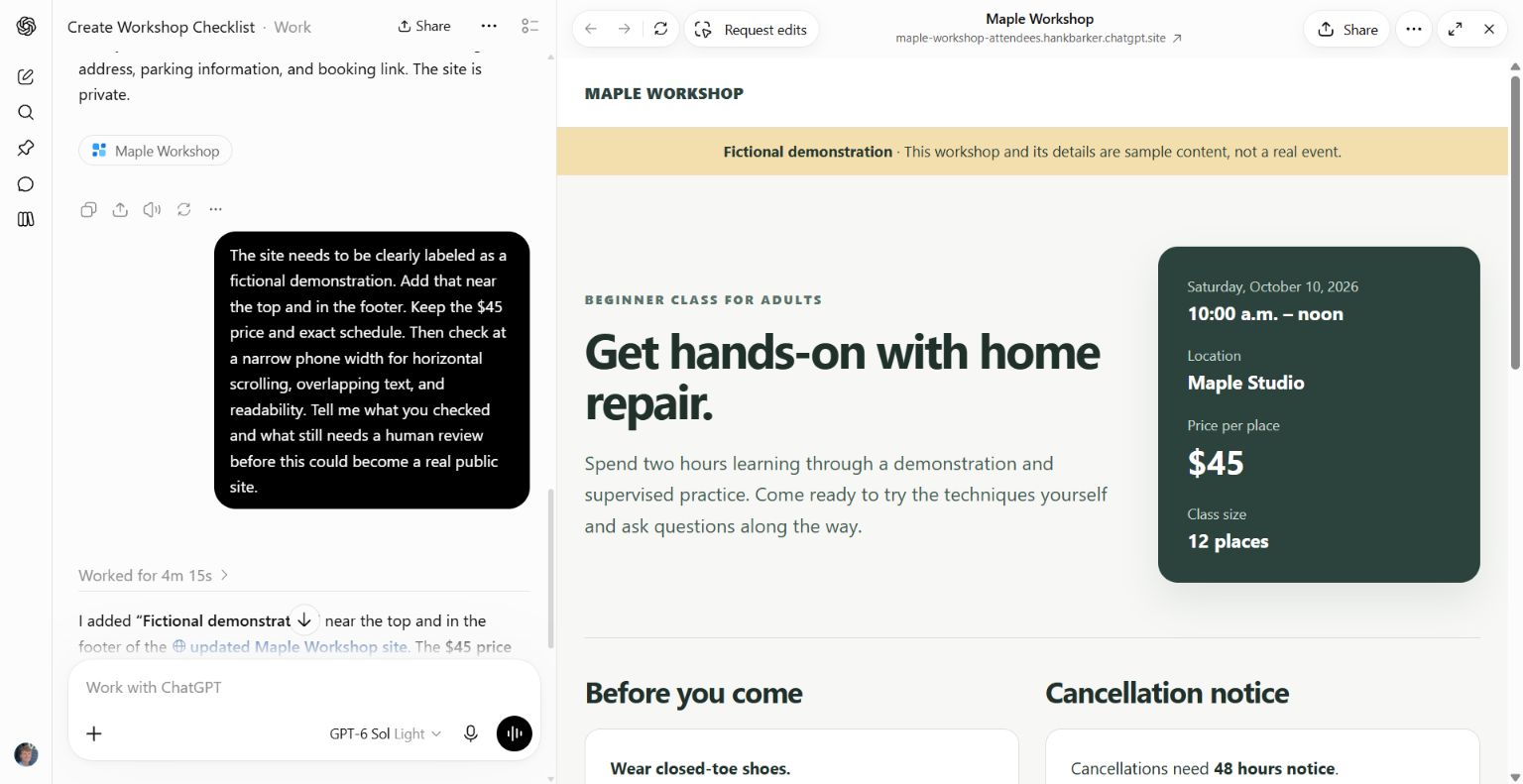
Work added the labels and preserved the price and schedule. Its report also said it could not complete a rendered phone-width check. Reviewing CSS is not the same as looking at the page at a phone width. That remaining check should stay visible rather than being converted into “mobile tested.”
Open the site on a real phone or a browser's responsive preview. Look for sideways scrolling, overlapping text, tiny labels, controls that are difficult to tap and sections that become confusing when stacked. Check both the top and bottom of the page, not just the first screen.
Ask the AI to correct any specific failure, then repeat the affected check. Keep a simple list of what passed and what remains untested.
6. Prepare for a real launch
Replace fictional or missing information with confirmed details. Add a real contact or booking route only when it exists and works. Verify the site's sharing settings and who can access it. A private preview is useful for review; it is not the same as a public website on your own domain.
If your site includes logins, payments, customer data or business-critical workflows, treat those as a larger build with explicit requirements and testing. A strong landing page does not establish that those systems are secure or functional.
Keep the editable project, approved copy and source assets. After publishing, open the public URL in the same way a visitor would and test the important actions again. Continue checking links and event details when the information changes.
Demonstrated scope and source
The screenshots show a real ChatGPT Work website creation and revision on September 28, 2026. The site remained private and used fictional data. Its actual result and acknowledged mobile-check limitation are shown; no booking, payment or full production launch was tested. See OpenAI's Work overview for current availability and supported task types.
Keep a copy of the guide
Download the PDF to keep the steps and prompts handy while you work.