
Practical AI · 5 min read
Create posters and flyers with AI
By Hank BarkerPublished
Start with the information someone needs at a glance, then build the design around it. This example turns the approved Maple Workshop facts into a one-page flyer with a large date, clear supplied-versus-bring instructions and an accurate schedule.
Start with the information someone needs at a glance, then build the design around it. This example turns the approved Maple Workshop facts into a one-page flyer with a large date, clear supplied-versus-bring instructions and an accurate schedule.
1. Choose the size and the job
A printed flyer, an Instagram post and a poster viewed from across a room need different layouts. Specify the intended format before creating the design. For this example, we requested a US Letter page and an editable source file.
Decide the first three things a reader should notice. Here they are the class, October 10, and 10am to noon. The venue, price, equipment and cancellation notice support that information. A flyer should not become a miniature version of the entire welcome document.
Prepare the exact wording for names, dates, prices and contact details. If an address or booking link is missing, leave it missing or mark it for confirmation. A fabricated QR code or plausible-looking website link is not a harmless design placeholder when people may try to use it.
2. Supply the facts and design direction
The flyer was requested in the same conversation as the welcome pack, after confirming the schedule. The brief specified the format, green and cream colors, a large readable date and time, and no invented address, booking link, QR code or claims.
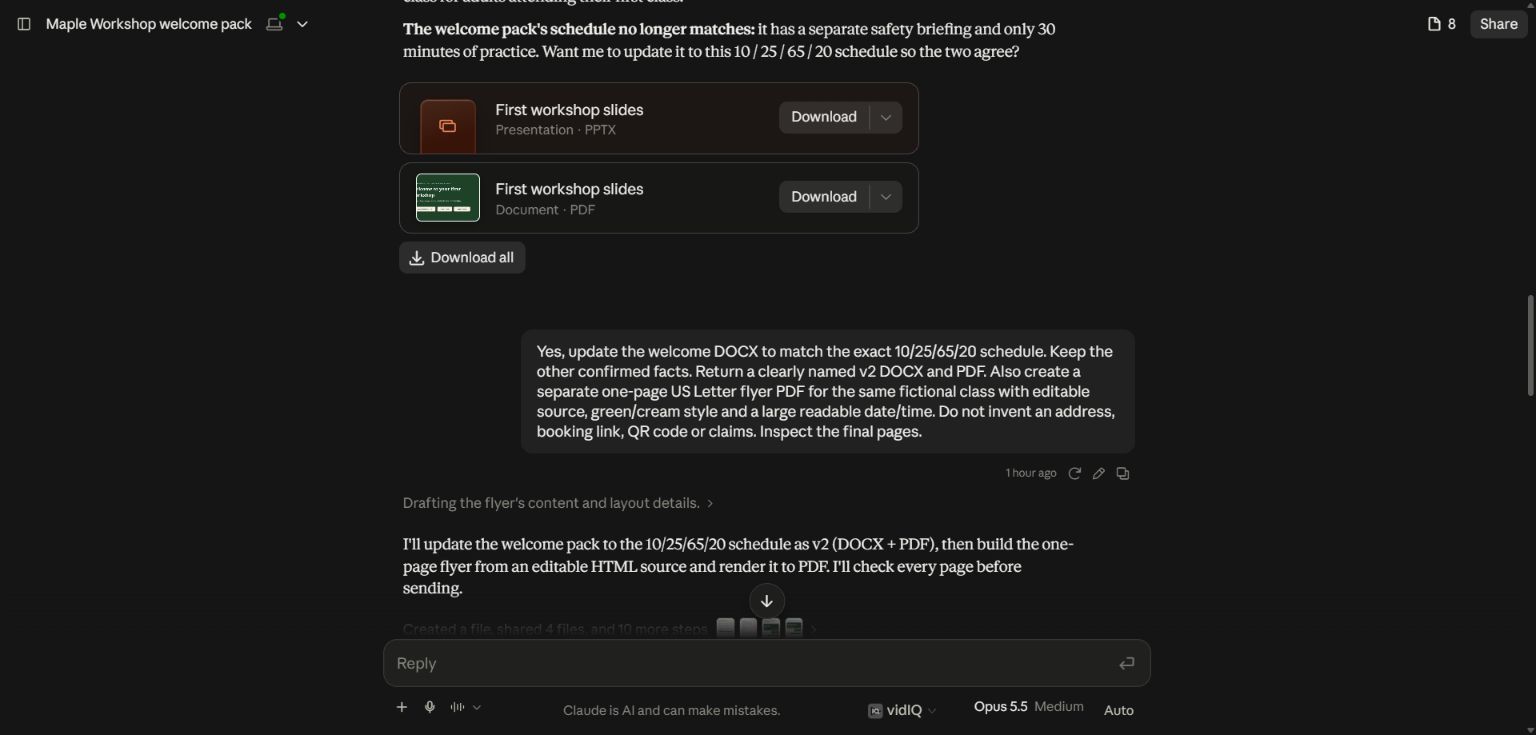
The flyer reuses approved facts, rather than asking the AI to invent promotional details.
A reusable request is:
Create a one-page [size] flyer for [audience and event]. Make [key information] most prominent. Use these exact facts and the attached brand sheet. Keep the copy short enough to read quickly. Do not invent contact details or claims. Return an editable source and a PDF, and inspect the final page before delivering it.
If you are using a design tool, ask for editable text and separate elements where possible. A single generated image can be useful as artwork, but it is harder to correct a date or resize a text-heavy layout cleanly.
3. Review hierarchy before decoration
The actual flyer uses the date as the largest element, with time and venue underneath. Two boxes separate tools and safety glasses that are supplied from closed-toe shoes attendees need to wear. The schedule bar reflects 10, 25, 65 and 20 minutes.
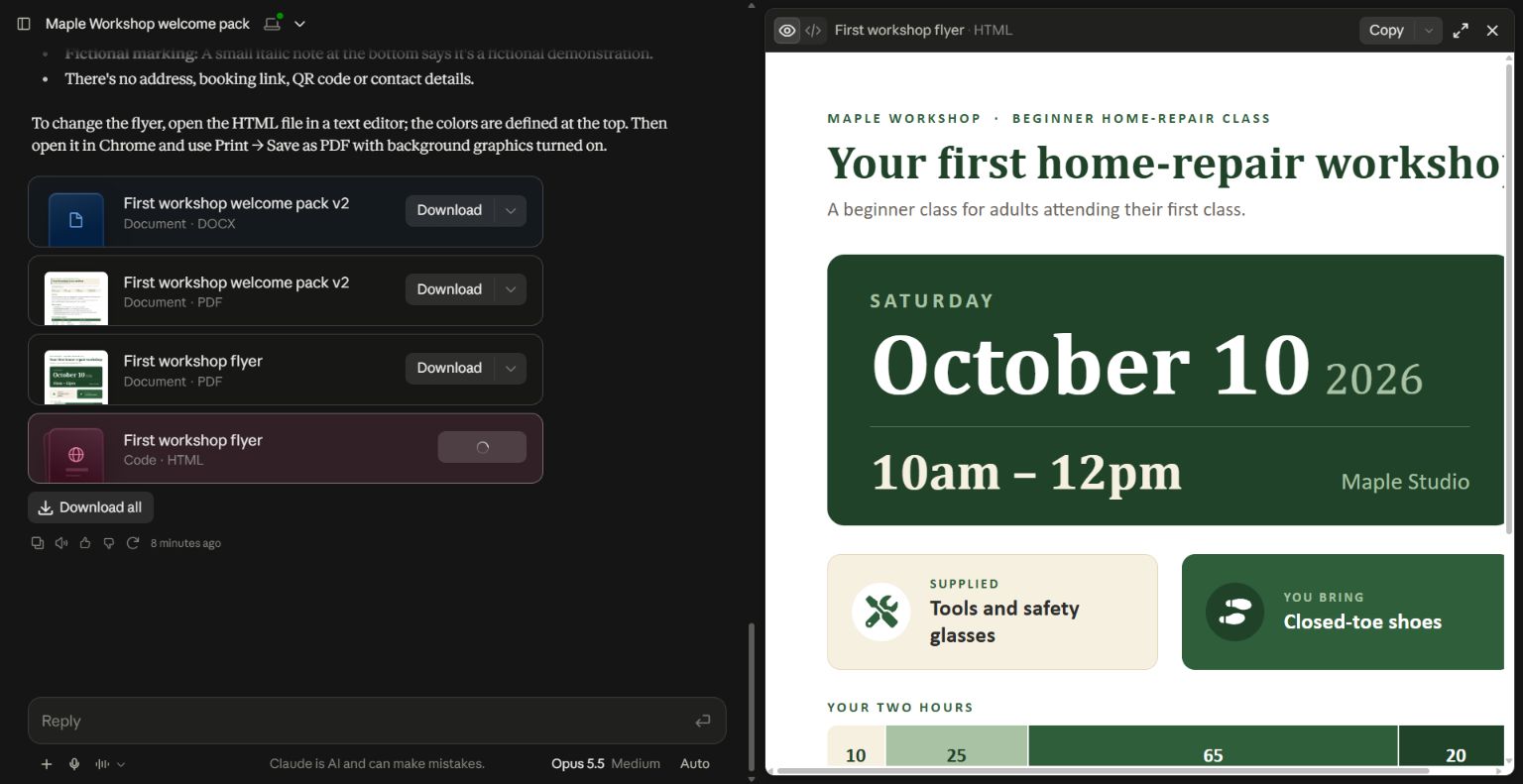
The flyer is a real generated artifact for a fictional class. It is not a screenshot of a generic guide collection.
At thumbnail size, can you still identify the event and date? At full size, are the supporting details readable? If everything is bold or boxed, the reader has no clear starting point. Ask for fewer competing elements instead of adding more effects.
For a revision, name the problem: “Make the date and time easier to read from a distance. Reduce the schedule detail, preserve the price and equipment instructions, and leave more space around the main information.”
4. Check every piece of text
Compare the flyer with the source facts. Check the date, time, price, venue, capacity and cancellation wording. Read small text as carefully as the headline. AI-created designs can look finished while containing a typo or an unsupported claim.
If you add a QR code, create it from a real verified destination and scan the final exported version with a phone. Do not rely on an image model to draw a functioning code. Test the destination as a reader would encounter it.
In the practice flyer, address and booking information are intentionally absent because they were not supplied. That makes the file a design demonstration, not a ready-to-distribute advertisement for a real event.
5. Export and inspect the actual output
Keep both the editable source and the PDF. In this run, Claude produced an HTML source and a PDF. The HTML can be opened in a browser and printed to PDF with background graphics enabled; inspect the resulting page for clipping and unwanted browser headers or footers.
For professional printing, confirm the printer's size, bleed and file requirements before export. Do not assume a browser-generated PDF includes print-production settings. For social use, create a separate layout at the intended dimensions and inspect it on a phone rather than stretching the print design.
If the download does not arrive, check the actual Downloads folder before declaring success. A file card in the chat and a local file are different things. The editable HTML was retained for this demonstration so the layout remains available even when a download route is unreliable.
Practice file and demonstrated scope
Open the actual editable flyer source. All event information is fictional. The guide demonstrates brief, generation and review; it does not claim that this example has been professionally printed or that its absent booking information is ready for a real campaign.
Keep a copy of the guide
Download the PDF to keep the steps and prompts handy while you work.
Put this to work with your team
I’m Hank Barker, founder of PriorAIty. I help Michigan teams build useful AI habits through hands-on training and adoption consulting, with in-person and virtual options.
Keep going
- Use ChatGPT, Claude or Copilot inside Excel
Open a copy of a workbook, ask the AI to explain its structure, then give it one specific change. Once you can check that change, move on to a summary, PivotTable or chart. This guide covers the three setup routes and gives you a small workbook with answers you can verify yourself.
- Make your AI designs and writing match your brand
Give an AI your real logo, a few designs you like and examples of your writing. Have it identify the choices already present, ask about the choices that are missing, and turn your answers into a brand sheet plus instructions you can reuse. The example here is a fictional workshop business. The screenshots show the actual source review, interview and resulting files.
- Get started with ChatGPT Work
Give Work a concrete assignment, inspect the file it produces, and refine it in the same conversation. This walkthrough starts with a small set of fictional workshop facts and ends with an editable Word checklist. It also shows a real first-draft mistake and the correction that fixed it.
Weekly AI guide
The Weekly AI Guide
One genuinely useful AI use case a week, whatever news matters, and what I've got coming up: free sessions, new guides, upcoming trainings.