
Practical AI · 7 min read
Get AI working with the files you already use
By Hank BarkerPublished
Start by deciding where the information lives and what you want the AI to do with it. Uploading a document, connecting a cloud service and allowing a desktop agent to work in a folder are different routes. This guide shows the actual upload menu and a real local-folder task, then explains when the other routes make sense.
Start by deciding where the information lives and what you want the AI to do with it. Uploading a document, connecting a cloud service and allowing a desktop agent to work in a folder are different routes. This guide shows the actual upload menu and a real local-folder task, then explains when the other routes make sense.
1. Define the job before choosing the connection
“Use my files” is broad. “Read these three workshop files, identify conflicting dates and create a new welcome page” gives the AI a specific job. Name the source, the output and whether you want it to edit anything.
For a first attempt, choose a small set of documents whose contents you know. You will be able to tell whether the answer is grounded in the files. Our practice folder contains current workshop facts, an older schedule note and customer feedback. The older note deliberately conflicts with the current schedule.
First list the files you can read. Tell me which document appears current and identify any conflicts. Do not change the source files. Wait for my decision before creating the final output.
The inventory is a useful first check. If the tool lists the wrong files or cannot see one you expected, fix the access problem before requesting a large task.
2. Upload a few files for a contained task
In the demonstrated ChatGPT Work conversation, the attachment menu offered file upload and library options. Use this route when the task involves a few documents and you do not need a continuing connection to the original location.
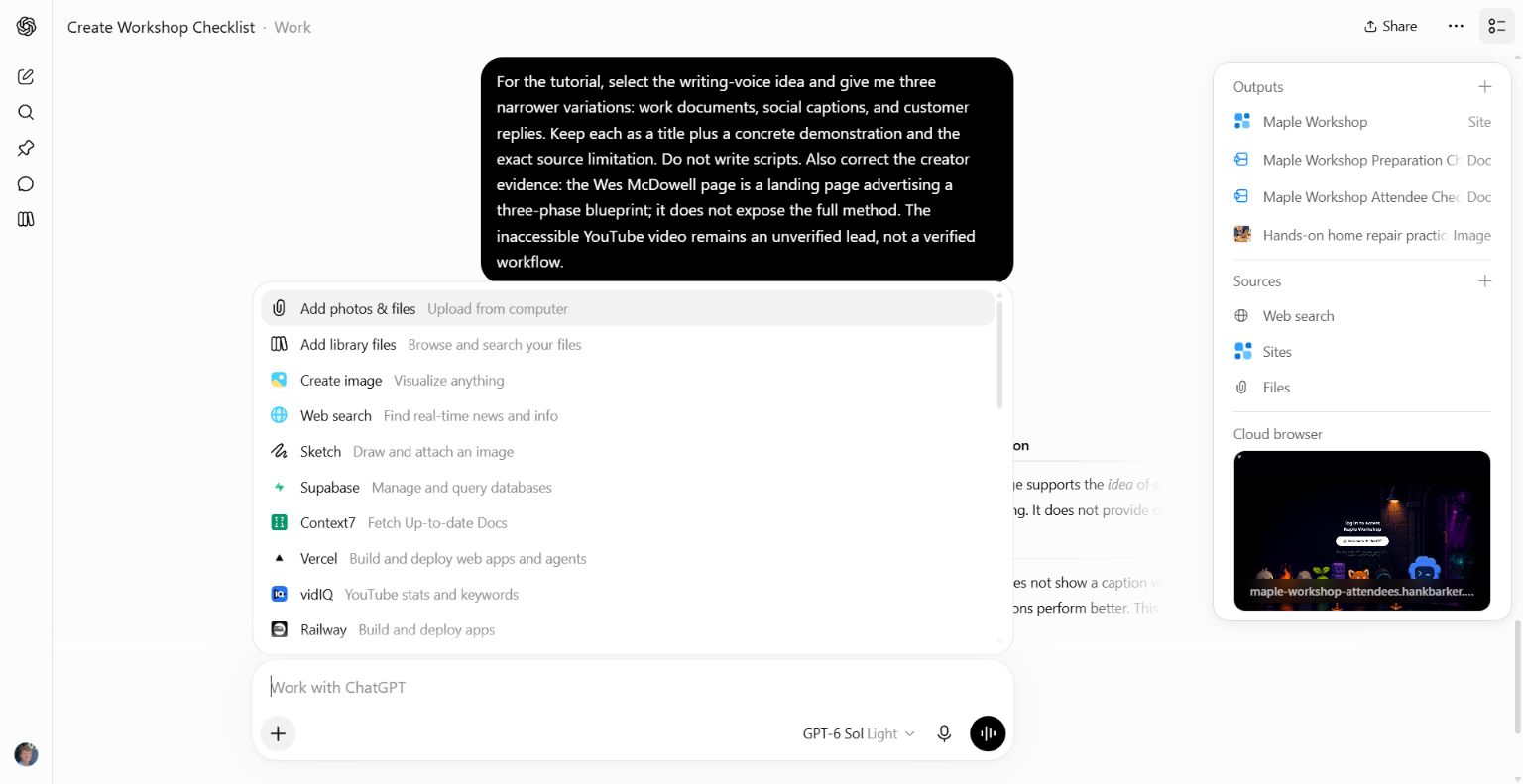
This screenshot shows the available attachment routes in the demonstration account. Available options and labels can differ by product and account.
Choose the file, allow it to finish attaching, and name it in your request. Ask for a short description of what the AI found before depending on it. For a spreadsheet, ask for sheet names and column headers. For a document, ask for its title and the relevant section.
Uploading a copy does not mean the AI will update the original on your computer. If it creates a revised document, download that output and open it. If the original changes later, provide the new version rather than assuming the old attachment has updated itself.
A scanned PDF, protected workbook or unusual file type may require an export or text recognition. Ask the tool to identify unreadable portions. A fluent answer is not evidence that every page or cell was successfully read.
3. Use a supported app connection for cloud information
If the documents live in Google Drive or another supported service, check the tool's apps or connector settings. A connection can be useful when you repeatedly need information from that service and your account supports the required action.
Read the permissions during setup. Then test with one known document and ask for a link back to it. Check separately whether the connection can search, read, create or modify content. Being able to find a file does not prove the tool can edit it.
Find the document named [exact title] in [service]. Give me its link, the date shown in the document and the section about [topic]. Do not modify anything.
If the result is wrong, narrow the folder, owner, title or date. If it cannot find the file, confirm that the connected account has access and that the file is within the connection's supported scope. This guide's screenshot shows the menu, not a completed Google Drive search; the local-folder example below is the route tested end to end.
4. Give a desktop agent a focused working folder
A desktop agent such as Claude Code can work with accessible local files. In the real demonstration, we selected a dedicated practice folder and asked it to inspect the inputs before building anything. It found the conflicting practice lengths: 30 minutes in an older note and 65 minutes in the current facts.
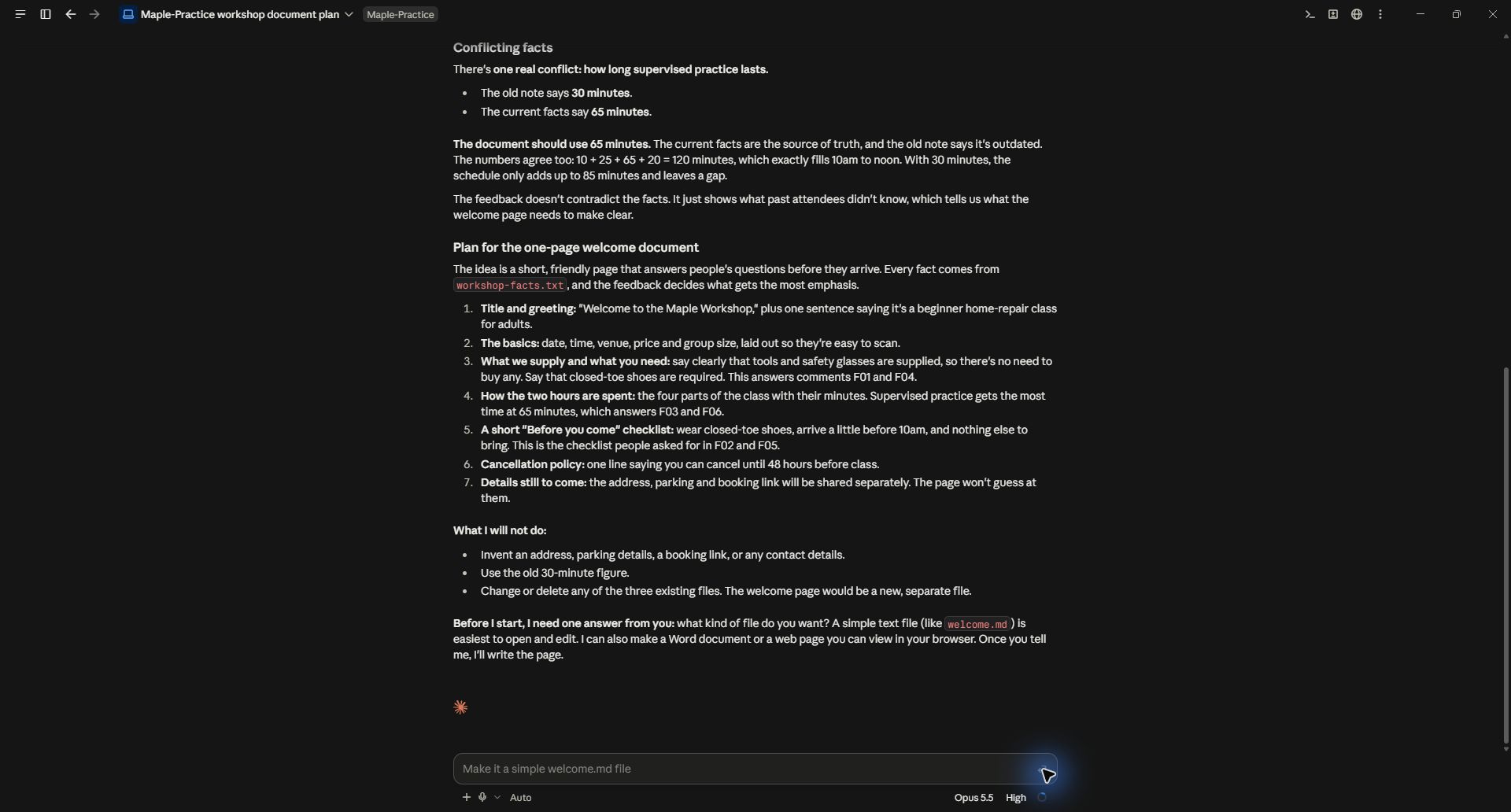
The plan is based on files in the selected practice folder. The conflict is surfaced before the final welcome page is created.
We confirmed which source governed. Claude then created a new Markdown welcome document and an HTML version that could be opened in a browser. The original source files remained available for comparison.
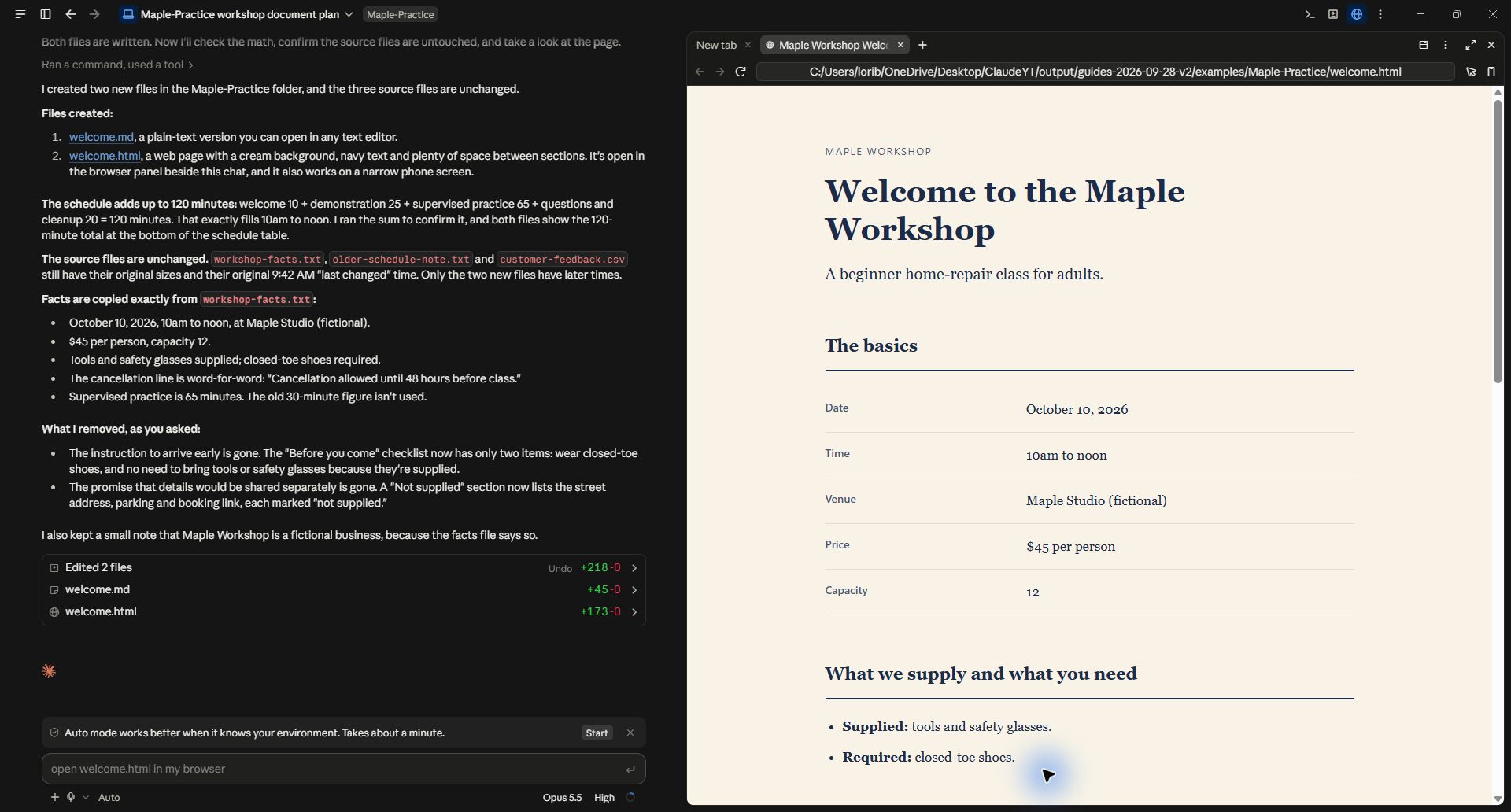
The output is a local file preview. It is not automatically a public website.
This route is useful for a collection of documents, batch changes, file organization or outputs that need to be saved together. Start in a practice folder or copies of your working documents. Ask it to report exactly which files it created or changed.
5. Use computer interaction when the visible app matters
Some supported tools can operate an application through its visible interface. That can help when the task requires a screen-specific action that an upload or connector cannot perform. Availability depends on the product, operating system and account.
Describe the app, the visible task and the finish line. For example: open the generated document, inspect the second page and tell me whether the table fits. A screenshot of a file provides visual context; it does not necessarily provide the editable original or every row of a long table.
Treat this as a separate capability to check in your tool. The fact that an AI can read files or generate images does not establish that it can control every desktop app. This guide does not claim a computer-use workflow was demonstrated for every named product.
6. Consider a custom connection only when needed
MCP is a way for an AI application to use tools exposed by a server. A custom MCP connection may be useful for a system that lacks an appropriate built-in integration. It requires a compatible client, a server or service endpoint, authentication and tools that perform the intended actions.
You can ask a coding agent to help build one, but first describe the exact read or write operation and use the service's official API documentation. Begin with a harmless read on sample data. Test the response and error handling before adding writes. Do not assume that generating the connection's code makes it installed or working.
For many ordinary document tasks, uploading files or selecting a folder is enough. The custom connection section is an advanced route, not a prerequisite for the demonstrated workflow.
Check the result in its destination
Open the actual output. Compare a few facts against the source and check the file format, name and location. For a batch edit, require a change list and confirm a sample of changed and unchanged content. For a connected service, open the linked record in that service.
The most useful final instruction is concrete:
Tell me what you read, what you could not read, which source governed conflicts, and exactly where you saved the result. Separate completed actions from recommended next steps.
Further setup help
ChatGPT Work and Codex and Claude Code desktop setup describe the current product routes. The screenshots here were captured from actual tasks on September 28, 2026.
Keep a copy of the guide
Download the PDF to keep the steps and prompts handy while you work.
Put this to work with your team
I’m Hank Barker, founder of PriorAIty. I help Michigan teams build useful AI habits through hands-on training and adoption consulting, with in-person and virtual options.
Keep going
- Use ChatGPT, Claude or Copilot inside Excel
Open a copy of a workbook, ask the AI to explain its structure, then give it one specific change. Once you can check that change, move on to a summary, PivotTable or chart. This guide covers the three setup routes and gives you a small workbook with answers you can verify yourself.
- Make your AI designs and writing match your brand
Give an AI your real logo, a few designs you like and examples of your writing. Have it identify the choices already present, ask about the choices that are missing, and turn your answers into a brand sheet plus instructions you can reuse. The example here is a fictional workshop business. The screenshots show the actual source review, interview and resulting files.
- Get started with ChatGPT Work
Give Work a concrete assignment, inspect the file it produces, and refine it in the same conversation. This walkthrough starts with a small set of fictional workshop facts and ends with an editable Word checklist. It also shows a real first-draft mistake and the correction that fixed it.
Weekly AI guide
The Weekly AI Guide
One genuinely useful AI use case a week, whatever news matters, and what I've got coming up: free sessions, new guides, upcoming trainings.