
Practical AI · 10 min read
Use Codex when you have never coded
By Hank BarkerPublished
Start with a result you can describe and check. You do not need to begin by learning a programming language. You do need to explain the inputs, what you want back and how you will know it works. The first task is the handover document from the video: turn scattered notes into confirmed facts, customer requests and unresolved questions. An optional calculator example then shows how to test a small interactive tool.
Start with a result you can describe and check. You do not need to begin by learning a programming language. You do need to explain the inputs, what you want back and how you will know it works. The first task is the handover document from the video: turn scattered notes into confirmed facts, customer requests and unresolved questions. An optional calculator example then shows how to test a small interactive tool.
The screenshots show the working output and its tests. They are not screenshots of Codex's setup screens. Setup is covered through the official documentation, while the example itself was created and exercised locally.
1. Set up a focused project
Use the official desktop app, sign in and select Codex. Choose a local project folder where the tool can work. Product navigation and account access can change, so check OpenAI's Work and Codex guide for the current route. Codex's desktop project workflow and ChatGPT Work are distinct surfaces.
Create a practice folder first. Put copies of relevant material in it: a short description, sample data and any design references. A project folder is simply the collection of files for this piece of work. It gives the agent a place to read inputs and save outputs.
For our first task, use the three starter files: current workshop facts, an older schedule note and six customer comments. Put them together in a practice folder. For a website, the folder could instead contain your text, logo and existing site files.
Avoid starting with “build my entire business system.” A small task is easier to finish, inspect and improve. Once you understand the first output, add another useful feature.
2. Tell it how to work with you
I have never coded. Explain decisions in plain language. Start by describing what you will create and the files you need. Keep the solution simple. Ask me about choices that affect the result, and recommend a reasonable default for routine technical details.
You can also ask it to identify what it can access. A desktop agent may have local files and tools available, but it does not automatically know every document on your computer or every connected service. Ask it to list the relevant files before relying on them.
If it asks you to install something, ask what that software is needed for and whether a simpler option is available. A basic offline HTML calculator can run in a browser without a server account or database. Larger tools may need more setup.
3. Turn the notes into a handover document
Start by asking Codex to read the three files and explain what each contains. Give it the current facts file as the governing source, but ask it to show conflicts rather than hide them. The older note says 30 minutes of practice; the confirmed schedule says 65. The six customer comments contain requests, not approved policy changes.
Turn these project notes into a handover document. Put unresolved questions first, then confirmed facts and customer requests. Include source filenames beside important details and comment IDs beside feedback themes. Flag conflicting information. Do not invent owners, deadlines or missing details. Save a new HTML file and keep the source notes unchanged.
The demonstrated handover puts the missing street address and parking instructions at the top. It also asks whether to send a preparation checklist, supported by comments F02 and F05. No person or due date is invented to make the document look more complete.
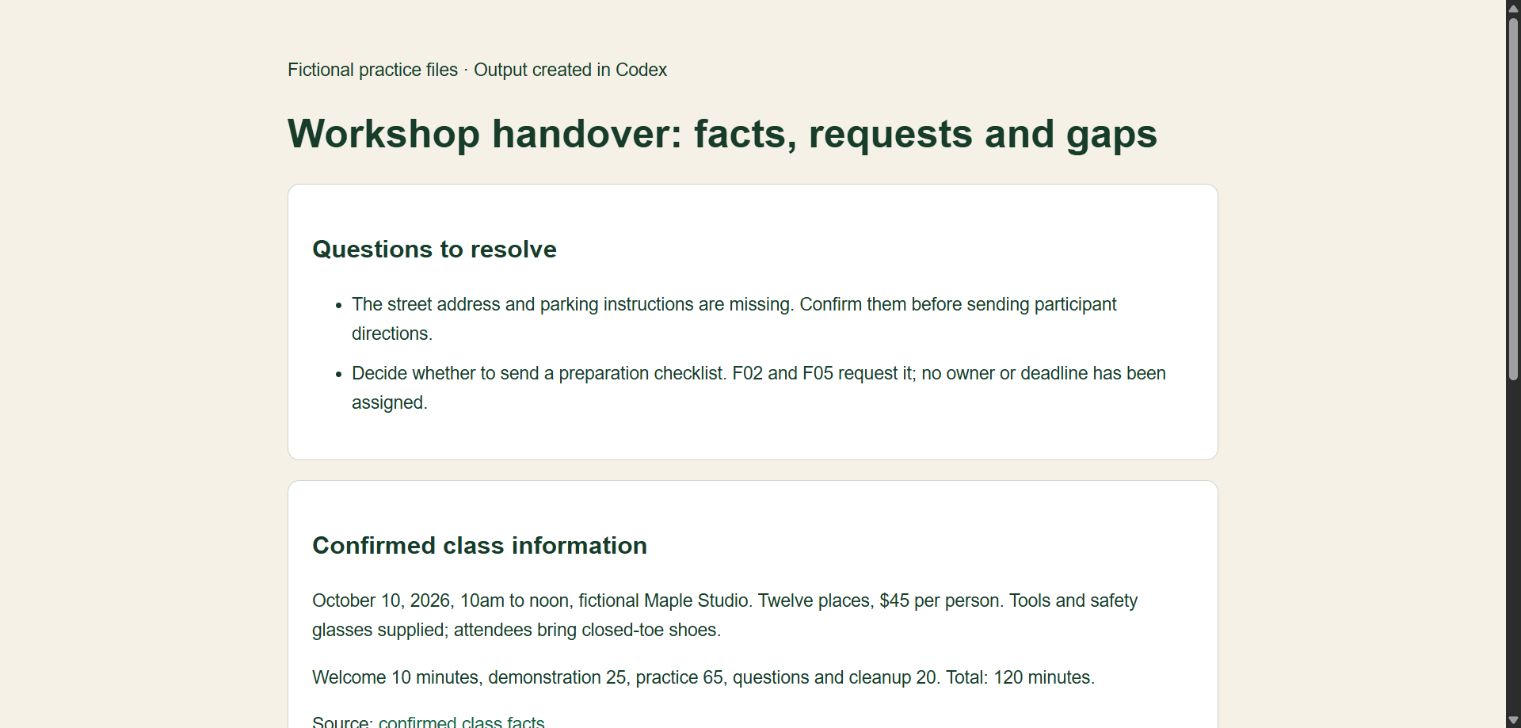
This is the generated output opened in a browser. It is a document assembled from the source files, not a picture of Codex's interface.
Open the handover example and follow its source links. Compare the date, price and schedule with the facts file. The schedule should total 120 minutes: 10 for welcome, 25 for demonstration, 65 for practice and 20 for questions and cleanup.
Check the feedback section separately. F01 and F04 support clarifying supplied equipment. F02 and F05 request preparation instructions. F03 and F06 suggest more practice time. That last suggestion is not permission to replace the confirmed schedule. The handover keeps the request separate from approved facts.
Put decisions the next person needs to make at the top. Keep confirmed facts separate from suggested improvements. Do not turn customer feedback into a promise. Preserve the source links and tell me what changed.
That is the kind of feedback you can give without knowing how the HTML was written. Review the actual page after the change, not just the agent's description of it. If a source link fails or a detail is wrong, report the visible problem and the correct reference.
4. Optional next task: build something interactive
Here is a reusable request matching the example built for this guide:
Create a simple workshop revenue calculator as one HTML file. It needs two inputs: number of attendees and ticket price in dollars. Start with 12 attendees at $45. Show gross revenue and the calculation. Explain that revenue is before expenses. Reject negative numbers and fractional attendee counts. Include a reset button. Keep the data in the page without uploading it anywhere. Make it usable on a phone and save it in the examples folder.
This is specific enough to evaluate. The default answer should be $540. Raising the price to $50 should produce $600. Zero attendees should produce $0. A negative attendee count should not produce a misleading result.
The first task does not have to be an app. Codex can also help organize information, transform files, create reports and make repeated changes. The important part is choosing an output you understand well enough to review.
5. Open the actual calculator output
Ask for a link or path to the created file and open it. In our demonstration, the file is workshop-calculator.html. It was opened in Chrome and showed the two input fields, the default calculation and a reset control.
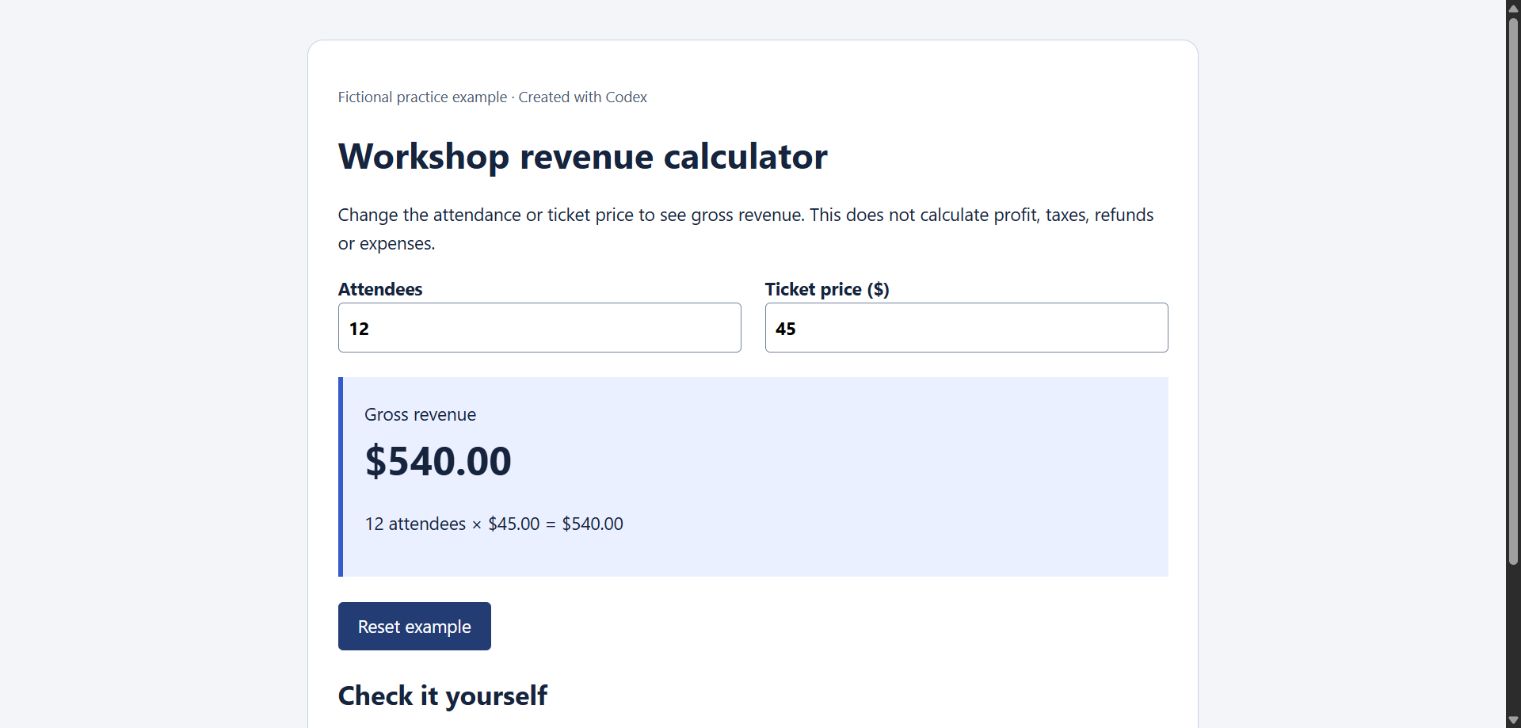
The starting result is $540. The page identifies the example as fictional and distinguishes revenue from profit.
Do not judge success only by “I created the file.” Use it. If you requested a document, read the document. If you requested a calculator, change the inputs. If you requested a website, try its navigation and forms.
6. Test a normal change
We changed the ticket price from $45 to $50 in the browser. The result updated to $600 without changing the attendee count. The visible calculation also updated, making it easier to see what the number means.
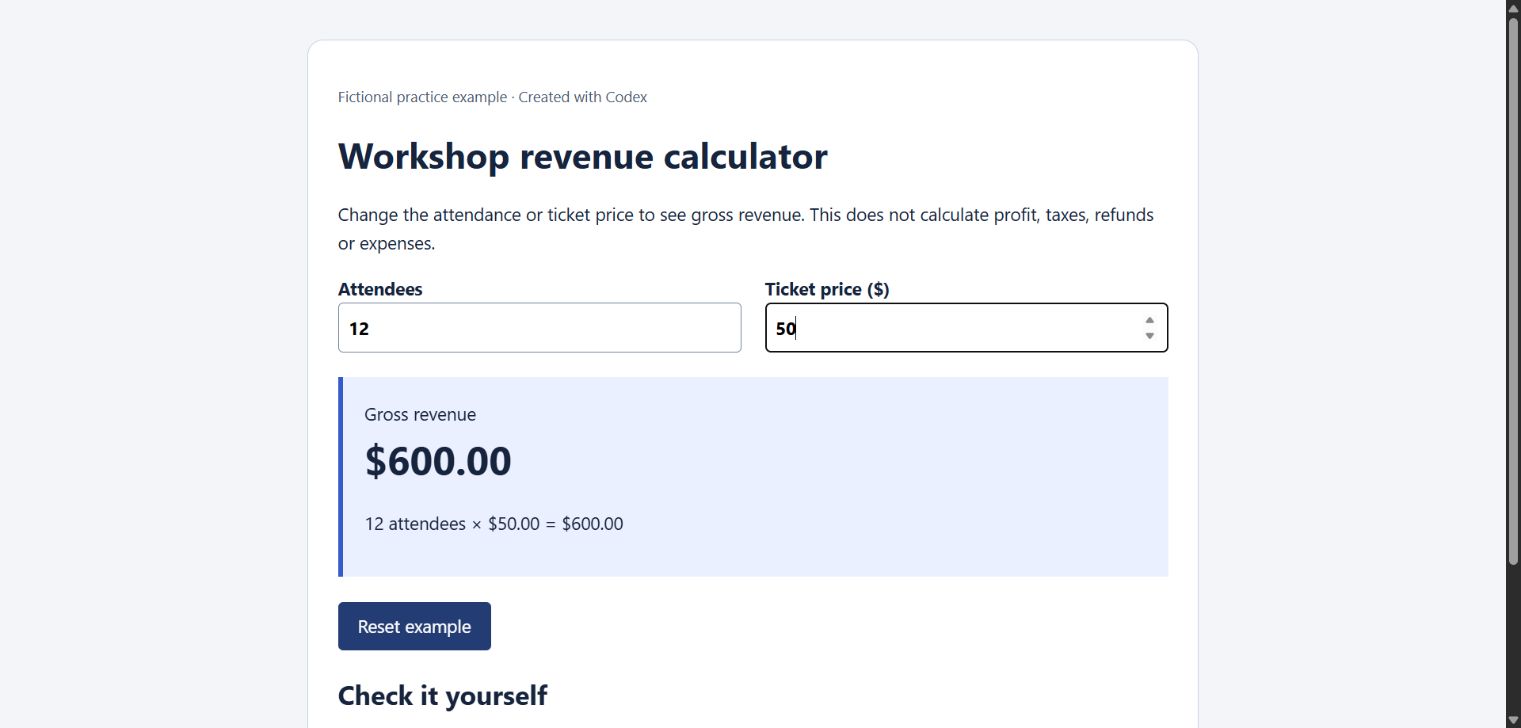
The test checks behavior, not just appearance: 12 multiplied by 50 equals 600.
For your task, choose a few examples whose answers you know. If the AI creates a chart from a CSV, compare its values with the rows. If it makes a document index, follow a few links. If it changes prices across files, check both a changed price and a number that should remain unchanged.
7. Test a mistake someone could make
We entered -1 attendees. The calculator displayed an error and replaced the revenue with “Check inputs.” We also tested zero attendees, which returned $0. These checks prevent an attractive interface from hiding a basic problem.
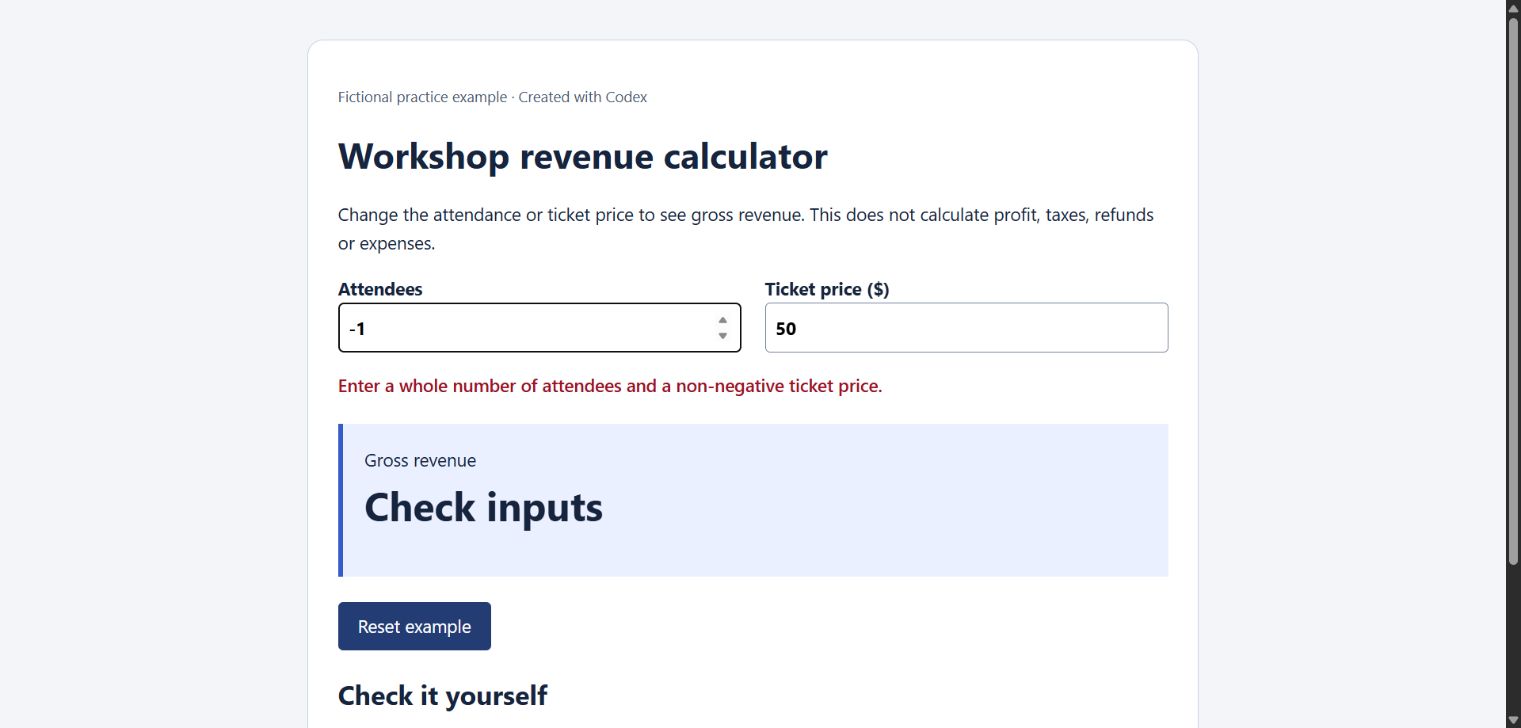
This is a real browser test of the generated output. It is not a mockup of an error screen.
Try empty values and decimal attendee counts when you run the example yourself. For more complex work, ask Codex to propose tests for realistic mistakes and explain what passed. Keep the testing tied to the job: a tool handling dates needs date checks; a document conversion needs a layout review.
8. Give feedback about what you see
You can say “make the result easier to read,” “keep the fields together on a phone,” or “the reset button should restore the starting values.” You do not need to diagnose the underlying code.
Keep the calculation and default values unchanged. Make the error message explain exactly which input needs attention. Show the revised page, then repeat the $540, $600, zero-attendee and negative-attendee checks.
That is a suggested next revision prompt, not a claim that a second design was produced here. One meaningful change at a time makes it easier to notice whether something else broke.
When a task grows, ask it to state the tradeoff. Saving data across reloads, adding user accounts or accepting payments changes the project considerably. You can keep a useful first version small and decide separately whether those features are worth adding.
9. Understand saving, previewing and publishing
The HTML file is the saved output. The browser preview lets you use it. A local preview address works on the computer running it; it is not automatically a public website. Publishing is a separate step with a hosting destination and a final check of what will be public.
This example keeps values only while the page is open. Reloading returns to the defaults. That limitation is stated on the page so the user does not assume it stores attendance records.
Keep the editable source with the output. Ask Codex to write a short handover explaining what the tool does, how to open it and what it does not do. That makes the project easier to continue later.
Other useful starting points
Try a searchable index of your own notes, a chart from a small spreadsheet, a document assembled from approved source material, or a batch update to copies of files. For each, name the input, output location and checks. A small calculator is one example of the process, not the only reason to use Codex.
If the result is wrong, provide the actual symptom and expected behavior. “When I enter 12 and 50, I expect 600” is more useful than “fix it.” If a file is missing, give the filename. If a layout is wrong, point to the affected section or provide a screenshot.
Practice file and tested scope
Open the handover document or try the optional calculator. Both are actual outputs created in this Codex session. The handover was checked against its three source files; the calculator was tested in Chrome with the default values, a price change, zero attendees and a negative attendee count. Installation and sign-in were not repeated, and the screenshots do not document the desktop setup flow. The calculator is an educational example, not a booking or accounting system.
Keep a copy of the guide
Download the PDF to keep the steps and prompts handy while you work.
Put this to work with your team
I’m Hank Barker, founder of PriorAIty. I help Michigan teams build useful AI habits through hands-on training and adoption consulting, with in-person and virtual options.
Keep going
- Use ChatGPT, Claude or Copilot inside Excel
Open a copy of a workbook, ask the AI to explain its structure, then give it one specific change. Once you can check that change, move on to a summary, PivotTable or chart. This guide covers the three setup routes and gives you a small workbook with answers you can verify yourself.
- Make your AI designs and writing match your brand
Give an AI your real logo, a few designs you like and examples of your writing. Have it identify the choices already present, ask about the choices that are missing, and turn your answers into a brand sheet plus instructions you can reuse. The example here is a fictional workshop business. The screenshots show the actual source review, interview and resulting files.
- Get started with ChatGPT Work
Give Work a concrete assignment, inspect the file it produces, and refine it in the same conversation. This walkthrough starts with a small set of fictional workshop facts and ends with an editable Word checklist. It also shows a real first-draft mistake and the correction that fixed it.
Weekly AI guide
The Weekly AI Guide
One genuinely useful AI use case a week, whatever news matters, and what I've got coming up: free sessions, new guides, upcoming trainings.