
Practical AI · 8 min read
Get started with Claude Cowork
By Hank BarkerPublished
Start with one finished piece of work you can inspect: a document, a comparison of files, a presentation or a small set of updates. Give Claude the source material, explain the result you want, and stay involved when it makes decisions that depend on your judgment.
Start with one finished piece of work you can inspect: a document, a comparison of files, a presentation or a small set of updates. Give Claude the source material, explain the result you want, and stay involved when it makes decisions that depend on your judgment.
This beginner walkthrough uses a welcome document for a fictional workshop. It shows the request, the generated file, a mismatch between two deliverables, and the corrections needed before treating the result as approved.
What you are learning to do
The useful shift is from asking a question to assigning a task with inputs and an output. Instead of “What should a welcome pack include?”, you can ask Claude to use confirmed notes, create the file, inspect it and revise it.
You still decide the audience, the facts, the acceptable result and which changes to approve. Claude can carry out many of the intermediate steps. You do not need to know how a Word file is assembled to explain that its schedule is wrong or that a paragraph promises something you never offered.
For a first attempt, choose material you know well. Familiar facts make it easier to spot errors. A two-page document from a short source is a better learning exercise than a huge folder of unfamiliar business records.
1. Find the task experience in your account
Start with the official Cowork setup guide. Claude is rolling Cowork into its main experience, so accounts can show different labels. In this demonstration, the web conversation accepted a document task directly; a separate Cowork toggle was not needed.
Availability depends on your plan, workspace and rollout. Use the controls shown in your account and check the current setup page if a tutorial's button is missing. Do not spend time searching for an older interface when your account already has the combined task experience.
Cloud work and local computer access are distinct. A task running in a cloud workspace does not automatically see the files on your laptop. You can paste information, upload files, use an available connector, or use the supported desktop route for local access. Begin with pasted fictional facts so the first task does not depend on a connection setup.
2. Prepare a small source of truth
Our example includes the workshop date, time, venue, price, capacity, equipment and schedule. The street address, parking and booking link are intentionally missing. That gives us both facts to check and gaps the AI should acknowledge.
For your own task, label inputs by purpose. “Current policy” should govern facts. “Previous proposal” may be historical context. “Design example” should influence appearance without supplying new claims. Explain that distinction in the request.
If you supply several files, begin with a read-only inventory:
Tell me which files you can access and what each contains. Identify conflicting versions or missing information. Do not edit anything yet. Explain the proposed output in plain language.
Read that inventory. If the wrong file is selected, fix the input before asking for the final deliverable. More context only helps when the AI knows which context matters.
3. Assign the first concrete task
The demonstrated prompt asked for a professional two-page DOCX for adults attending a first workshop. It specified the page purposes, real Word heading styles, a table, colors and a layout inspection.
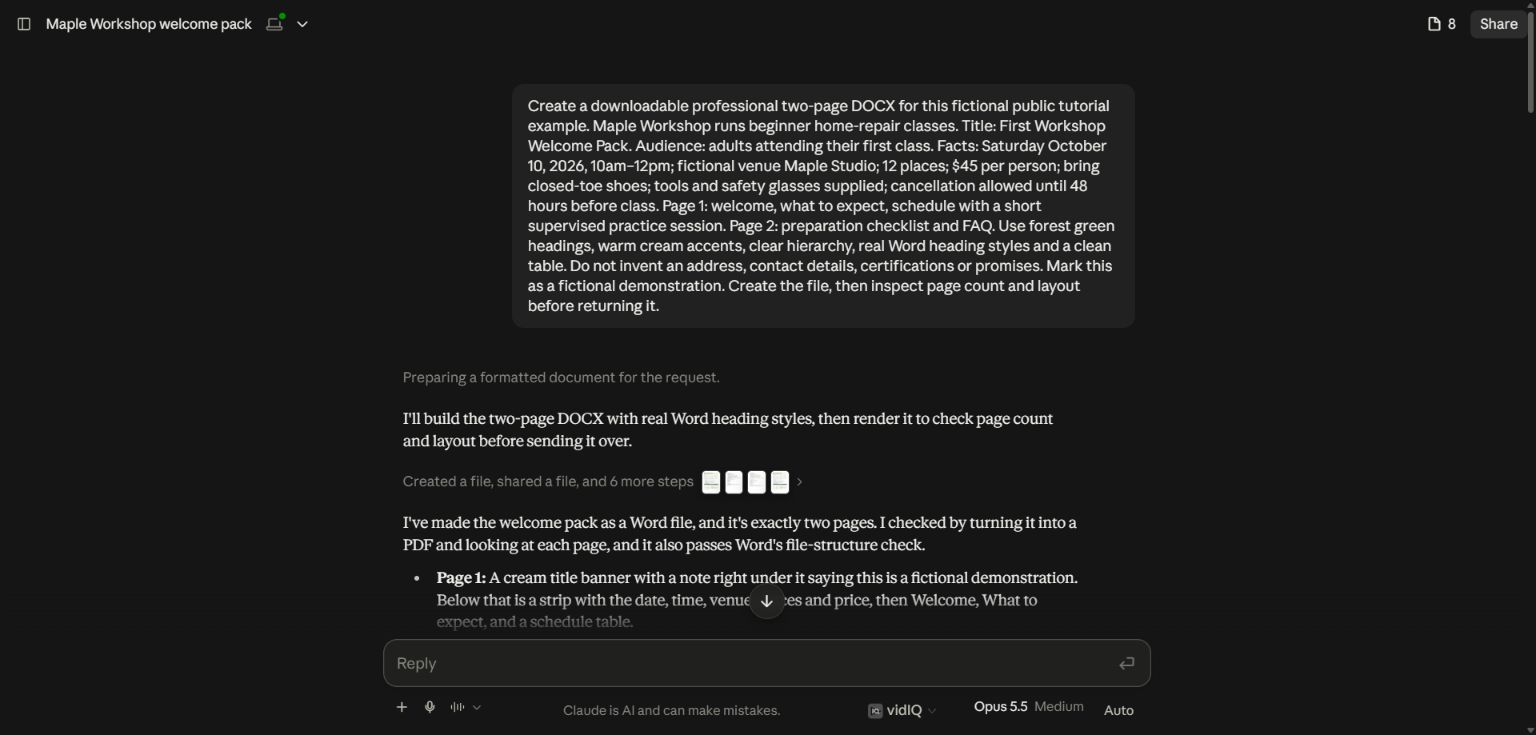
The request names the reader, supplies facts, specifies an editable output and asks for inspection.
Use this pattern for your first task:
Create [specific deliverable] for [reader] so they can [purpose]. Use [named sources] as the source of truth. Include [necessary sections]. Keep [constraints]. Mark missing information instead of guessing. Save a new file, show me the result, and list anything you added beyond the sources.
For a larger task, add “Propose the plan and wait for my feedback before creating files.” For a small, clearly specified task, you can ask it to create the file directly. The important part is that the output and review criteria are clear.
4. Follow the work and correct the direction
Claude may inspect files, create intermediate material, run tools and ask questions. Read questions that affect the result. If it asks for a technical choice you do not understand, ask it to recommend the simplest option and explain what that choice changes for you.
You can also steer the task when you notice an omission. Be specific about whether you are replacing the original request or adding a constraint. “Keep the document's structure, but use the exact schedule below” is clearer than “Do it differently.”
In this demonstration, the first document used an estimated 30-minute practice session because the original request left the timing open. A later slide deck used the approved 65-minute practice session. Claude noticed the disagreement, and we requested a targeted update.
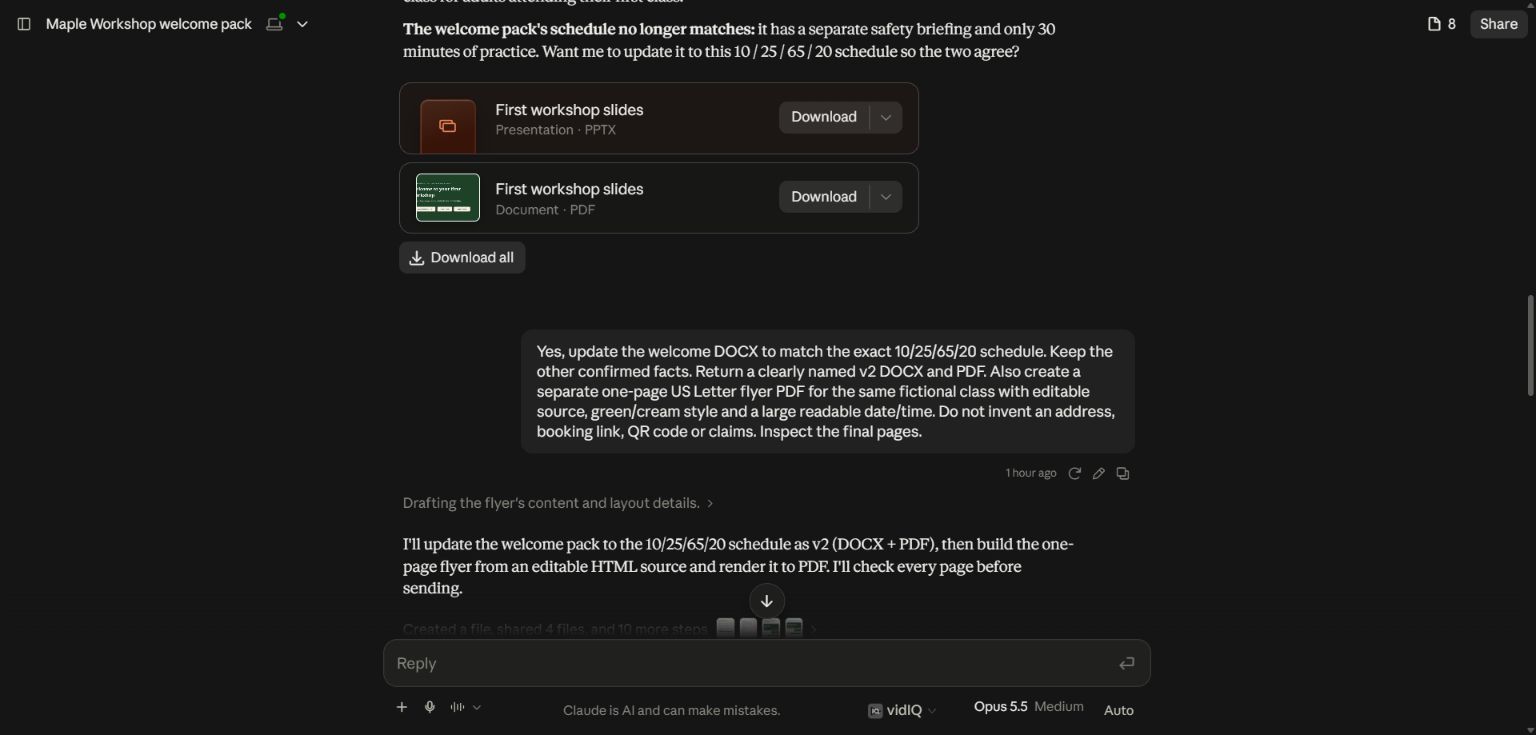
The correction supplies exact durations and requests a new version.
This is a useful beginner lesson: a reasonable assumption is still an assumption. When exact information exists, supply it. When it does not, ask Claude to label its proposal clearly so you can decide.
5. Inspect the file, not just the completion message
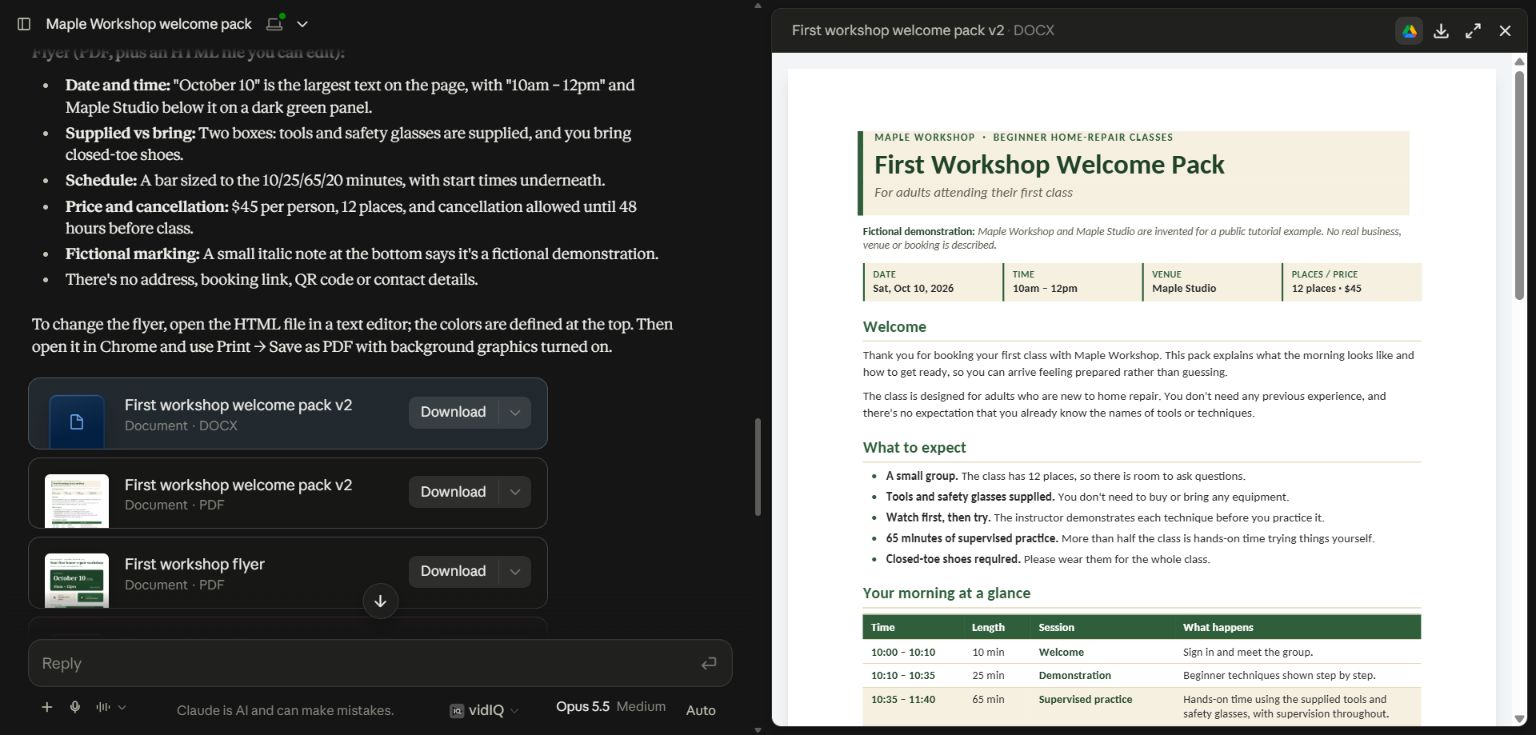
The preview showed a clean hierarchy and the updated schedule. It also revealed unsupported language, including a booking assumption and a statement about prior experience. Those details were easy to miss in a summary saying the document was finished.
Open every important output. For documents, read claims and check pagination. For spreadsheets, inspect formulas and totals. For presentations, view every slide and speaker notes. For a website, use the actual navigation and forms. A tool's success message is evidence that something ran, not that the result meets your needs.
Give feedback through what you can see: “This paragraph assumes they have booked,” “The table needs the exact durations,” or “The address is missing, so mark it rather than guessing.” You do not need to diagnose the implementation.
6. Make a focused revision and keep the useful instructions
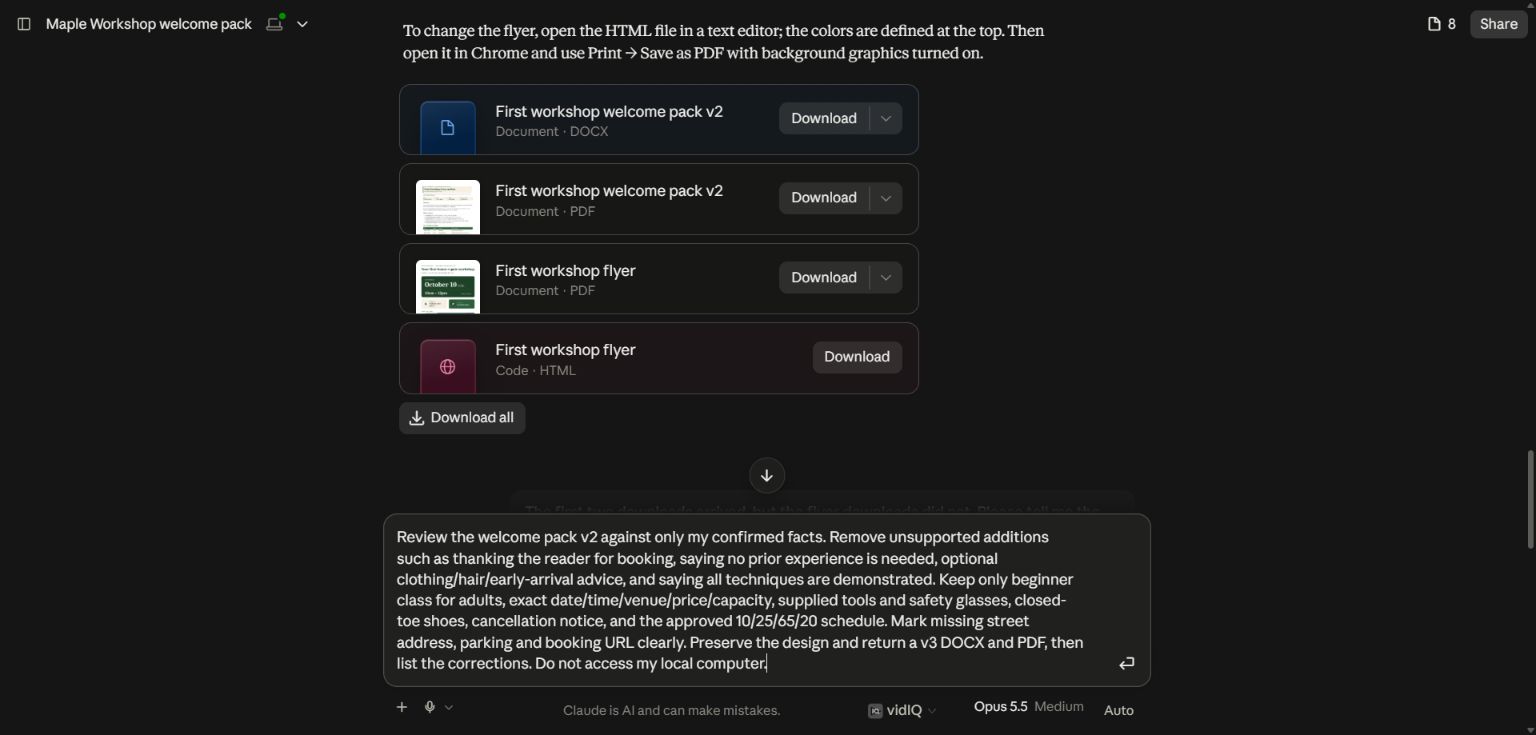
The second correction listed the unsupported additions and asked for a v3 file. It preserved the design, confirmed facts and approved schedule. Narrow corrections help avoid losing parts that already work.
When you approve a result, keep the source facts, final file and short reusable instructions together. Those instructions can describe the audience, preferred tone, formatting and review rules. Avoid saving one giant prompt full of obsolete event details as a universal template.
For ongoing work, a project can keep related material together. State which files are authoritative and where new outputs should go. Start the next assignment by asking Claude to confirm the relevant context rather than assuming every past preference will be applied correctly.
7. Try a second task that uses the same material
Once the first document is good, use the same confirmed facts to create a slide deck, a flyer, a feedback analysis or a short staff-training module. Each task should have its own audience and finish line. A flyer needs visual hierarchy; a training module needs practice and an answer key.
Other useful beginner assignments include comparing two versions of a proposal, grouping customer comments with supporting quotes, extracting action items from a project folder, and updating repeated information in copies of documents. Keep the first batch small enough to inspect.
Do not assume that attaching a style-reference video means Claude watched every frame, or that connecting a service means it can see every document. Ask what it accessed and what it could not inspect. Give a file or a narrower source when needed.
Common problems and useful corrections
If the answer stays in chat, request the exact downloadable format. If the result is generic, supply a reader, a real example and a concrete purpose. If it invents details, separate confirmed facts from suggestions and ask for an unsupported-claims review. If it uses an old version, name the governing source and rerun the affected section.
If a download fails, check whether the file exists locally before retrying. A cloud file card is not a local path. Ask for a fresh attachment or a supported export rather than letting the task wander through unrelated folders.
If the task grows too large, stop at a coherent milestone: approved outline, first finished example, or verified small batch. Continue from that result with explicit feedback. This gives the AI a concrete standard to follow.
What this walkthrough tested
The screenshots show a real Claude web task on September 28, 2026, using fictional workshop facts. Document creation, preview and revisions were exercised. The setup link explains account availability; this guide does not represent a fresh installation, every connector, or every desktop permission flow as tested. For local file work with a visible project folder, use the separate Claude Code walkthrough.
Keep a copy of the guide
Download the PDF to keep the steps and prompts handy while you work.
Put this to work with your team
I’m Hank Barker, founder of PriorAIty. I help Michigan teams build useful AI habits through hands-on training and adoption consulting, with in-person and virtual options.
Keep going
- Use ChatGPT, Claude or Copilot inside Excel
Open a copy of a workbook, ask the AI to explain its structure, then give it one specific change. Once you can check that change, move on to a summary, PivotTable or chart. This guide covers the three setup routes and gives you a small workbook with answers you can verify yourself.
- Make your AI designs and writing match your brand
Give an AI your real logo, a few designs you like and examples of your writing. Have it identify the choices already present, ask about the choices that are missing, and turn your answers into a brand sheet plus instructions you can reuse. The example here is a fictional workshop business. The screenshots show the actual source review, interview and resulting files.
- Get started with ChatGPT Work
Give Work a concrete assignment, inspect the file it produces, and refine it in the same conversation. This walkthrough starts with a small set of fictional workshop facts and ends with an editable Word checklist. It also shows a real first-draft mistake and the correction that fixed it.
Weekly AI guide
The Weekly AI Guide
One genuinely useful AI use case a week, whatever news matters, and what I've got coming up: free sessions, new guides, upcoming trainings.