
Practical AI · 8 min read
Claude Code for complete beginners
By Hank BarkerPublished
Start with a folder of notes and finish with a useful document you can open. You will choose the folder, ask Claude to inspect it, review a plan, correct a mistake, and create two files. No terminal commands are required for this desktop walkthrough.
Start with a folder of notes and finish with a useful document you can open. You will choose the folder, ask Claude to inspect it, review a plan, correct a mistake, and create two files. No terminal commands are required for this desktop walkthrough.
What you are making
The practice task is a welcome page for Maple Workshop, a fictional beginner home-repair class. Three small source files contain the current class details, six customer comments, and an outdated schedule. You will create an editable Markdown document and a web page. Markdown is plain text with simple formatting; HTML is the file format a browser displays as a page.
This is a useful first task because you can check every important detail yourself. The current price is $45, the class has 12 places, and the four schedule sections must total 120 minutes. One old note says 30 minutes of practice; the current facts say 65. Finding that conflict is part of the exercise.
Download the practice files, older note, and customer comments. Put copies in a folder named Maple-Practice. Keep your first attempt separate from important work.
1. Open the desktop route
Use the official Claude download and sign in with an account that includes Claude Code. Open Code in the desktop app. Choose Local, then select your Maple-Practice folder. If a different project appears, change it before sending the task. The folder label is your quick check that Claude is working in the right place.
The desktop Code interface includes Claude Code. You do not need to install the separate command-line version for this route. Account availability, usage limits, and the exact interface can change; the desktop quickstart is the current setup reference.
Do not give it your entire drive just to work on three files. A focused project folder makes the assignment easier to understand and the result easier to review. You can add another folder later when the task needs it.
2. Have it read before it writes
Paste this into the message box:
I am a complete beginner. Read only the three files in Maple-Practice. Tell me what each file contains, identify any conflicting facts, and propose a plan for a one-page workshop welcome document. Use workshop-facts.txt as the current source of truth. Do not change any files yet. Explain the plan in plain English.
Read its file summary. It should identify all three source files. If it names the wrong files or says it cannot read something, fix that before asking it to produce the document. “I cannot find the file” is an access problem; adding more instructions about the document will not solve it.
3. Review the plan against the facts
In the demonstration, Claude correctly identified the schedule conflict. It chose 65 minutes because the current facts were explicitly named as the source of truth. It also checked 10 + 25 + 65 + 20 = 120.
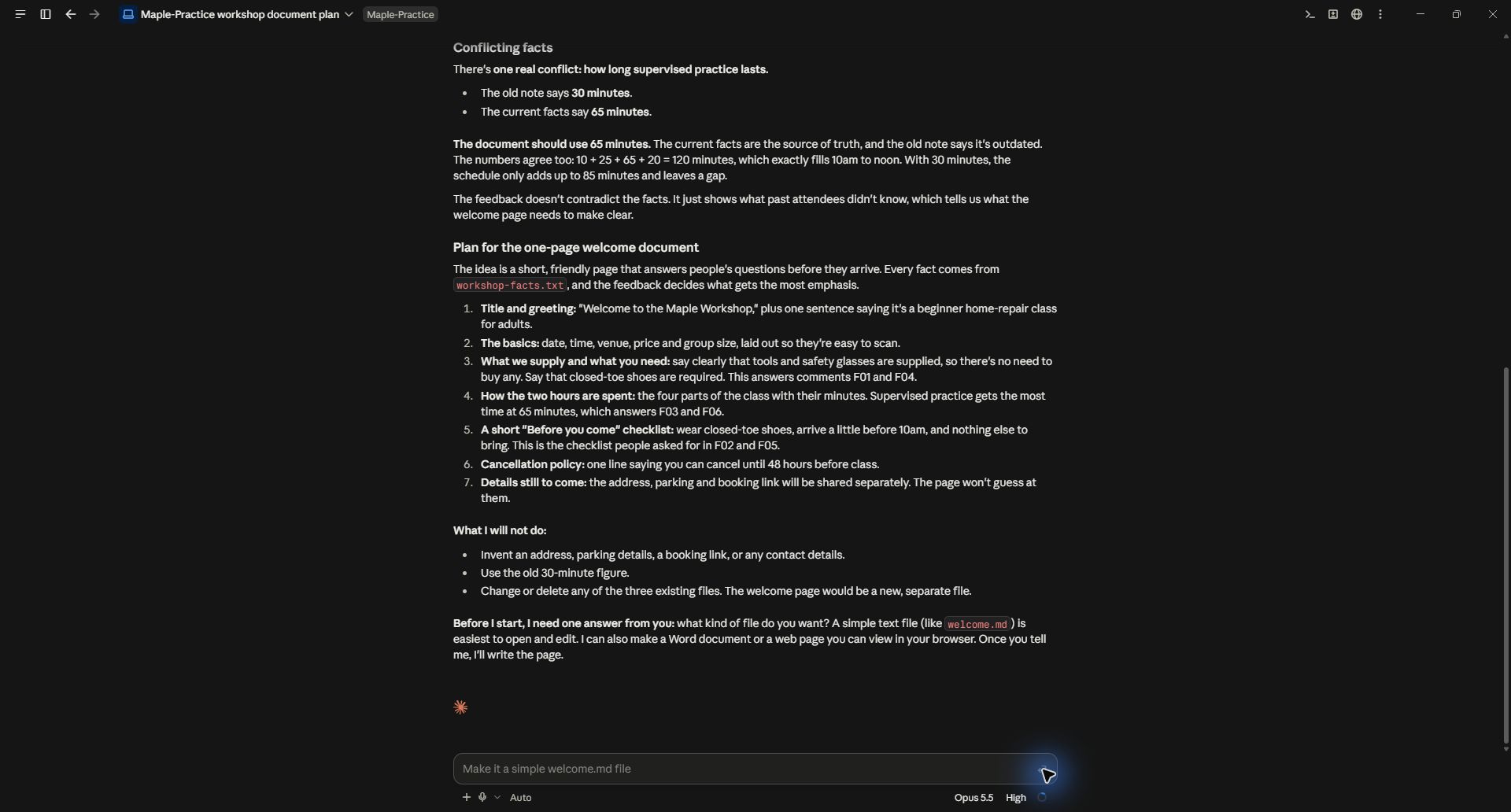
Look at the source decision and the arithmetic before approving the plan. The output is useful because you can trace its reasoning to the files.
The plan still included two unsupported additions: arriving early and a promise that missing details would be shared separately. Both sounded reasonable, but neither came from the source. This is why you review the plan even when most of it is correct.
You do not need to say “the code is wrong.” Describe the problem in the result: “We never promised to send parking information” or “That arrival time was not in my notes.”
4. Give a precise correction and create the files
Create welcome.md and welcome.html in this practice folder using that plan. Keep the source files unchanged. Use a clean cream and navy design with generous spacing. Keep the supplied facts exact. Remove the unsupported instruction to arrive early and the unsupported promise that details will be shared separately; instead mark address, parking and booking link as not supplied. Verify the four schedule sections total 120 minutes, and tell me exactly which files you created.
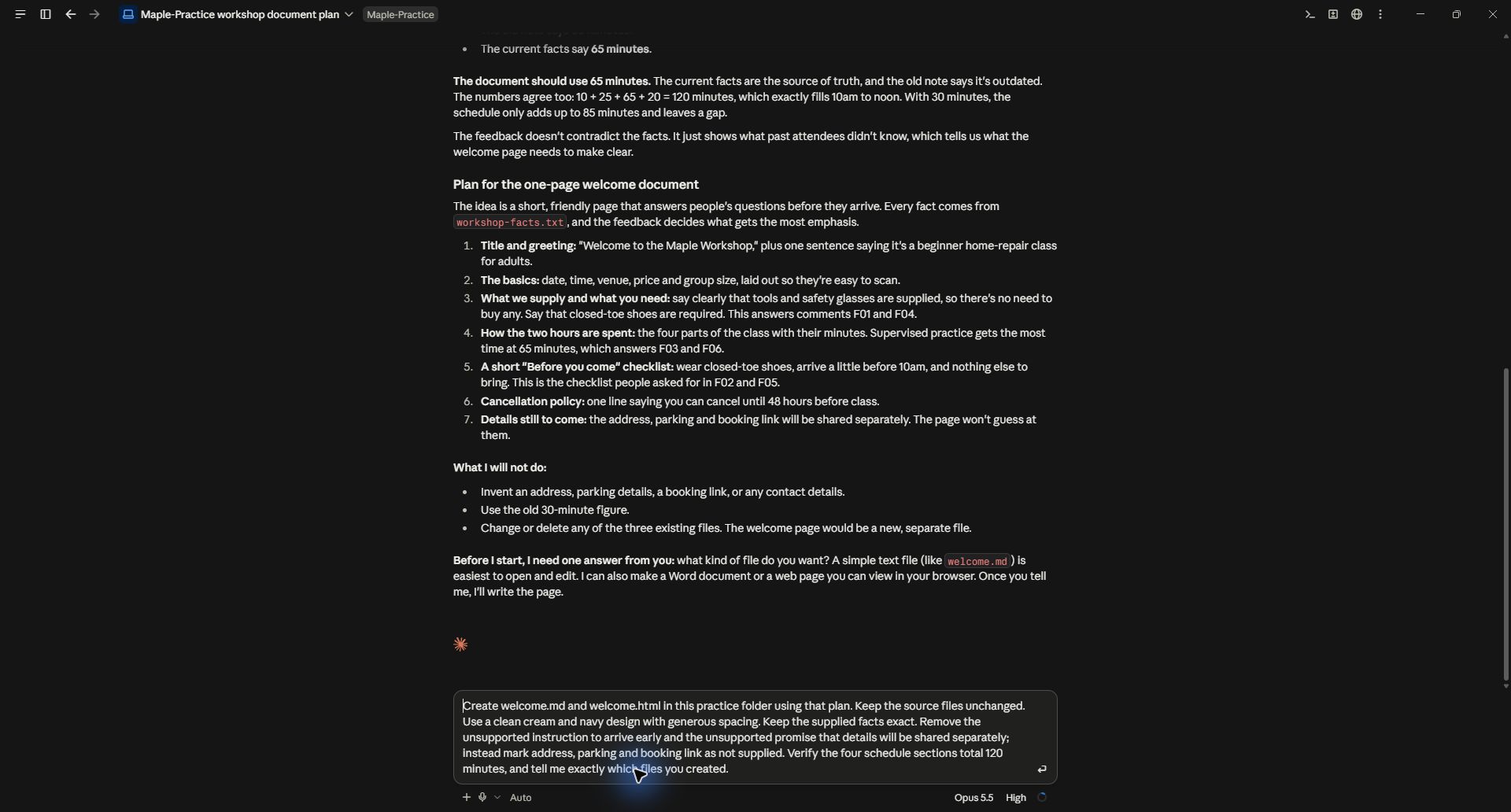
A good revision says what to change, what to preserve, and what the finished output should be called.
Claude may use tools or run commands behind the scenes. You can ask what a proposed action does and why it is needed. A dependency is an extra software component; a preview is a way to inspect the output; a diff shows changes between versions. Learn those terms when they matter to your task rather than trying to learn a programming course before your first request.
If a request needs an approval, read the proposed action. Check its folder and purpose. Do not broaden access simply because a step failed. Ask whether it can finish with the files and tools already available.
5. Open the result and test it
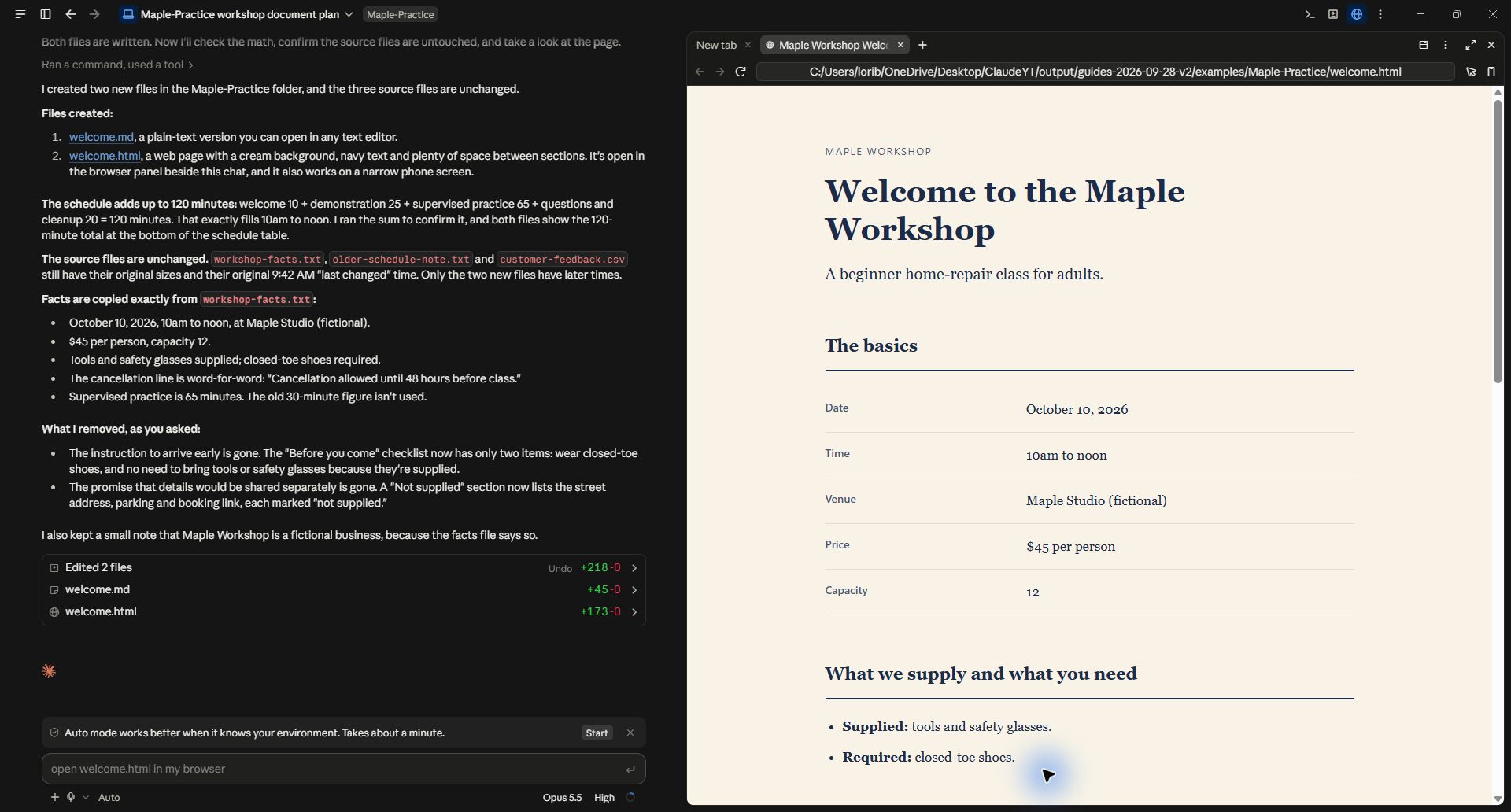
This is the actual generated page in Claude's browser panel, alongside the list of created files and checks.
Open welcome.html. Check the title, date, price, supplied equipment, shoe requirement, and schedule. Resize the browser to a narrow window and check that you can still read the table. Open welcome.md in a text editor to see the editable version.
Compare the source files with your original copies. A statement that files are unchanged is useful, but checking them yourself is better. For a larger task, ask Claude to compare file hashes before and after; a hash is a fingerprint that changes when a file's contents change.
The generated page is a local file. Opening it in a browser does not publish it to the internet. If you later want a public website, that is a separate hosting step.
6. Make a second improvement
Try a change you can judge visually:
Keep the wording and facts unchanged. Make the date and time easier to spot, move the participant checklist above the schedule, and preserve the original files as version 1. Show me the revised page and list what changed.
When a result is almost right, change one meaningful thing at a time. “Make it better” leaves Claude to choose its own priorities. “Make the checklist the first section after the class details” gives it a testable instruction.
Other useful first projects
- Turn a folder of notes into a handover document with unresolved questions at the top.
- Group customer comments into themes with comment IDs beside each finding.
- Make charts from a small CSV and check the totals against the source.
- Update a repeated price in copies of several documents and produce a change report.
- Create a small calculator with inputs and an answer you can verify manually.
For each one, define the inputs, the output format, the location to save it, and the checks that would convince you it worked. Start a separate project when the files and purpose change substantially.
If something goes wrong
Wrong folder: stop the task and select the intended folder. Ask it to list the files before continuing.
A file is unreadable: ask which file failed and why. A scanned PDF may need text recognition; a password-protected file may need to be opened or exported by you.
The preview is blank: give the exact visible problem and ask it to diagnose the cause. Do not assume that “file created” means “page works.”
It keeps changing approved content: specify the exact section to change, name the sections to preserve, and request a before/after comparison.
A task becomes too broad: finish one deliverable first. Add the next task after you have opened and checked the first output.
What was tested
This guide uses a real Claude Code Local session on Windows, captured September 28, 2026. Claude read the three practice files, identified the schedule conflict, created the Markdown and HTML outputs, and displayed the HTML preview. The screenshots show the actual requests and results. Installation is linked to the official instructions; it was not repeated on an already-installed computer.
Keep a copy of the guide
Download the PDF to keep the steps and prompts handy while you work.
Put this to work with your team
I’m Hank Barker, founder of PriorAIty. I help Michigan teams build useful AI habits through hands-on training and adoption consulting, with in-person and virtual options.
Keep going
- Use ChatGPT, Claude or Copilot inside Excel
Open a copy of a workbook, ask the AI to explain its structure, then give it one specific change. Once you can check that change, move on to a summary, PivotTable or chart. This guide covers the three setup routes and gives you a small workbook with answers you can verify yourself.
- Make your AI designs and writing match your brand
Give an AI your real logo, a few designs you like and examples of your writing. Have it identify the choices already present, ask about the choices that are missing, and turn your answers into a brand sheet plus instructions you can reuse. The example here is a fictional workshop business. The screenshots show the actual source review, interview and resulting files.
- Get started with ChatGPT Work
Give Work a concrete assignment, inspect the file it produces, and refine it in the same conversation. This walkthrough starts with a small set of fictional workshop facts and ends with an editable Word checklist. It also shows a real first-draft mistake and the correction that fixed it.
Weekly AI guide
The Weekly AI Guide
One genuinely useful AI use case a week, whatever news matters, and what I've got coming up: free sessions, new guides, upcoming trainings.